Note
Access to this page requires authorization. You can try signing in or changing directories.
Access to this page requires authorization. You can try changing directories.
Inventory capabilities in Dynamics 365 Field Service include:
- Warehousing
- Inventory adjustments and transfers
- Consuming and billing products during work orders
- Purchasing
- Returns
- Inventory journals
Before you use inventory, purchasing, and returns, it's critical that you're familiar with product catalog capabilities in Field Service. You track products in inventory only if their Field Service Product Type field is set to Inventory. Otherwise, inventory changes don't show when you add products to work orders, purchase orders, and return merchandise authorizations (RMAs).
To give a resource access to create and edit inventory-related tables, add the Inventory Purchase security role to their existing security role.
Prerequisites
Before you set up inventory in Field Service, make sure the following requirements are met:
- Users who create or edit inventory records need either the Field Service - Administrator security role, which includes permissions for all tables, or the Inventory Purchase security role added to their base Field Service security role. Learn more in Security roles and column-level security profiles.
- At least one warehouse must exist in your system. Without a warehouse, you can't record inventory quantities or process purchase orders and returns.
Get started with inventory tracking
Follow these steps to start tracking inventory in Field Service:
- Create a warehouse to represent each physical location where you store products, including technician trucks.
- Create products and set the Field Service Product Type to Inventory for any product you want to track.
- Add initial inventory by creating an inventory adjustment to record the starting quantities at each warehouse. Adding a product to a warehouse record alone doesn't set quantities; use an inventory adjustment or manual inventory journals to record starting amounts or make bulk updates.
- Associate a warehouse with each bookable resource so that work order product usage automatically deducts from the correct location.
Choose an inventory approach
Use the following table to determine the right approach for your organization:
| Scenario | Recommended approach |
|---|---|
| Track parts on technician trucks and deduct on use | Use Field Service warehouses and work order products. No external integration needed. |
| Basic purchasing with vendor orders and receipts | Use Field Service purchase orders with approval workflows. |
| Complex pricing, multiple currencies, or advanced procurement | Integrate with an ERP system such as Dynamics 365 Supply Chain Management. |
| Sync inventory with finance and operations apps or an external ERP | Use the Field Service integration with Project Operations for Microsoft finance apps, or a custom Dataverse integration for non-Microsoft ERPs. |
For basic inventory requirements, many organizations use the out-of-box capabilities. For more complex inventory and pricing requirements, Field Service is designed to integrate with enterprise resource planning (ERP) systems. In one common example, Field Service integrates with Dynamics 365 Supply Chain Management by using a prebuilt Dataverse "Prospect to cash" template.
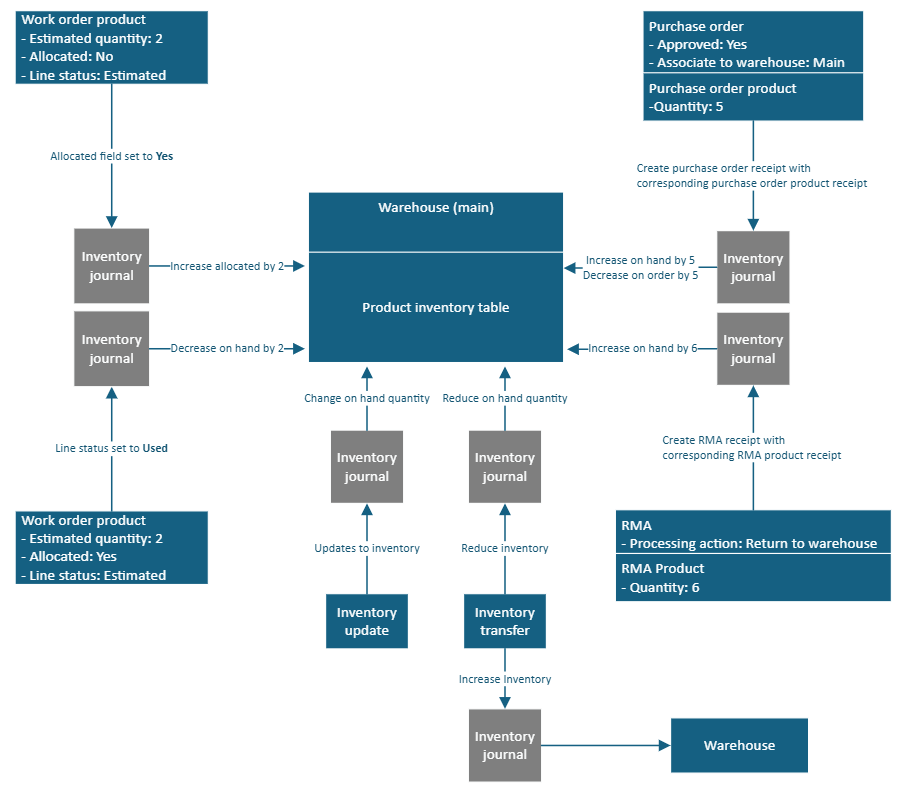
The following diagram illustrates the flow of inventory, purchasing, and returns in Field Service.
Warehouses and product inventory
In Field Service, a warehouse is any company location that holds inventory. Warehouses include both static and mobile locations, such as:
- Warehouses
- Technician trucks
- Distribution centers
- Loading docks
Inventory at each warehouse is updated based on used work order products, purchase order returns, adjustments, and transfers. The system records the updates in the related Product Inventory table.

For each product in the warehouse, the system tracks the following information:
- Quantity Available: The number of units that remain to be sold.
- Quantity Allocated: The number of units that are currently listed on work orders as allocated work order products.
- Quantity on Hand: The sum of Quantity Available and Quantity Allocated values. This field represents units still physically present in your warehouse, even if they're already committed to work.
- Quantity on Order: The number of units that are currently listed on purchase orders, but aren't received and added to inventory. This field represents units that are on the way.
Note
By adding a warehouse to each bookable resource, you can define the default warehouse that is used when that bookable resource uses a work order product.
Inventory adjustments and transfers
Use inventory adjustments to manually add inventory to warehouses or subtract inventory from warehouses. For example, use them during routine checkups to reflect shrinkage and defects, and to compare expected inventory to actual inventory. You can then adjust for the difference.

Use inventory transfers to transfer inventory from a source warehouse to a destination warehouse. For example, you can transfer inventory from a warehouse to a technician's truck.

You can also enable adjustments and transfers on the Field Service mobile app. For example, you can create an inventory transfer if technicians meet in the field and transfer inventory from one truck to another.
Work order inventory
Inventory changes when you add products to work orders and use them.
For example, you add a product as estimated and allocated (that is, the Line Status field is set to Estimated, and the Allocated field is set to Yes). In this case, you reserve a portion of inventory from the specified warehouse, but the system doesn't deduct it.
If you use a work order product during a work order (that is, the Line Status field is set to Used), the system deducts the inventory at the related warehouse by the quantity of the work order product. Typically, the warehouse that you list on a work order product is a technician's truck.
Purchase orders
Use purchase orders (POs) to order products for a warehouse. You can also use them to order products directly for a work order so that on-site work can be completed.
The purchase order process includes the following steps:
- Request products from a vendor by creating a purchase order and adding purchase order products.
- Gain approval.
- Document the receipt of products. Create a purchase order receipt and a purchase order receipt product to add the received products to warehouse inventory, or to add them as work order products.
Returns
Sometimes, the same organization that installs parts and equipment at a customer's location must process a return of the product or customer asset. You can issue credits to customers who initiate returns. You can also track returns as part of a customer asset's service history.
Common reasons for initiating returns include:
- The part or equipment is defective.
- The customer is dissatisfied.
- A repair is needed, but it isn't occurring on-site. Instead, it's occurring at the service provider's or manufacturer's location.
- The equipment is at the customer's location as part of a lease that is ending and isn't being renewed.
Field Service supports three out-of-box return types:
- Return to warehouse
- Return to vendor
- Change of equipment ownership
To issue a return, follow these steps:
- Create an RMA. The RMA indicates the products that can be returned and other important information, such as pricing. It also specifies a processing action, which is the type of return.
- Create an RMA receipt. The return isn't finalized until an RMA receipt is created. The RMA receipt confirms that the correct product and quantity were received. It also indicates the date of the receipt and the person who handled it.
The system automatically adjusts inventory and customer assets.
Inventory journals
All inventory transactions are recorded in inventory journals. For example, when you allocate one product to a work order, an inventory journal is created that increases the allocated quantity by one. When you use that same product to complete the work order, another inventory journal is created that decreases the on-hand quantity. Journals are recorded for all increases and decreases of product inventory. Basically, inventory journals serve as an inventory ledger in Field Service.
Most importantly, depending on the architecture of the integration, you can use inventory journals to integrate Field Service inventory transactions with external ERP systems. To make integrations easier and more flexible, inventory journals can be manually created.
Common issues
The following table lists common inventory issues and their causes.
| Issue | Cause | Resolution |
|---|---|---|
| Inventory doesn't decrease when a product is used on a work order | The product's Field Service Product Type isn't set to Inventory. Non-inventory and service products don't trigger inventory transactions. | Open the product record and change Field Service Product Type to Inventory. Existing work order products aren't retroactively adjusted. |
| Inventory quantities show negative values | Field Service doesn't enforce non-negative inventory by default. Quantities go negative when products are used or transferred beyond available stock. | Monitor product inventory quantities regularly. Use inventory adjustments to correct discrepancies, and ensure purchase orders are received before products are consumed. |
| Inventory journals aren't created for a transaction | Journals are generated when inventory changes occur through work order product usage (line status set to Used), purchase order receipts, inventory adjustments, inventory transfers, and RMA receipts. Simply adding a product to a work order without changing line status doesn't create a journal. | Verify the work order product Line Status is set to Used and that a warehouse is specified. For integration scenarios, consider using manual inventory journals. |
| Products from an external ERP don't appear in Field Service | Products must be synced to Dataverse and must have a Field Service Product Type value assigned. Products without this field value can't be used on work orders or tracked in inventory. | Verify that the integration maps the product type field correctly. Check that synced products have Field Service Product Type set to Inventory and belong to a valid unit group. |