Note
Access to this page requires authorization. You can try signing in or changing directories.
Access to this page requires authorization. You can try changing directories.
In Dynamics 365 Field Service, create a purchase order (PO) to add inventory to a warehouse or to purchase products to sell to a customer in a work order.
Prerequisites
- Understand how products and services are used in Field Service.
Step 1: Create a purchase order
In Field Service, go to the Inventory area.
Under Purchase, select Purchase Orders, and then select New.
Use the tooltips to help you fill in your information.
When you're done, select Save.
On the Details tab, specify a lookup to a work order. You can also add the lookup on the work order from Related > Purchase Orders.

Ship via
When you create a purchase order, you can track how the order is shipped. The Ship Via field on the Details tab lets you specify different shipping methods used by your company. To create new options, go to Field Service > Settings > Inventory > Ship Via. Common examples include freight shipping, private delivery, or postal services.
Step 2: Add products to the purchase order
On the Products tab, select +New Purchase Order Product to create a product related to the purchase order.
Use the tooltips to help you fill in your information.
When you're done, select Save & Close.
Go back to the General tab on the purchase order and change the System Status to Submitted.
Step 3: Get the purchase order approved
If you have permissions to approve the PO, go to the PO and change the System Status to Approved.
Note
For products that are tracked in inventory and for purchase orders being received to warehouses, the system automatically creates an inventory journal that increases the On Order warehouse quantity by the PO product quantity. This automatic update helps inventory managers understand if more units were already ordered.
Step 4: Create a receipt for the purchase order
When the order arrives, you can create a receipt.
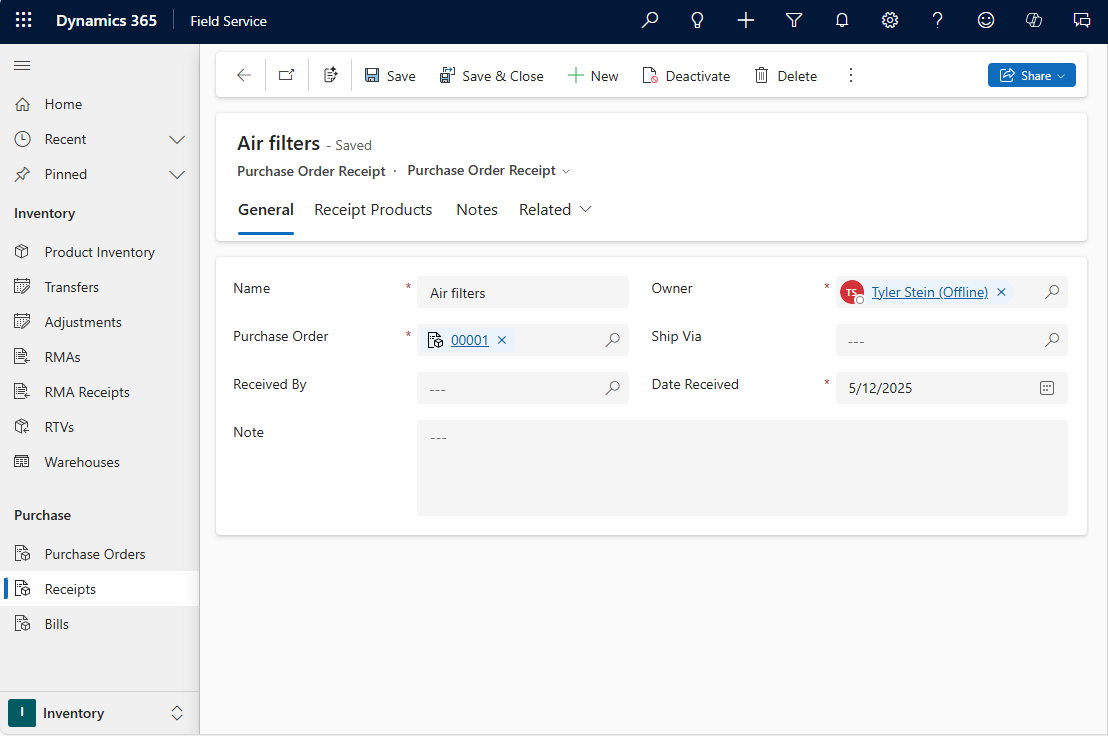
In the Inventory area, select Receipts, and then New.
Give the receipt a name and assign it to the purchase order, and then mark the person creating the receipt.
Select Save.
Step 5: Add purchase order receipt products
From the purchase order receipt, add related purchase order receipt products.
A purchase order receipt doesn't need to contain all products requested or all quantities requested. You often receive products as they arrive. Some products might arrive sooner, and larger quantity shipments might arrive in multiple shipments. In these situations, you can create multiple purchase order receipts for a single purchase order.
Step 6: Create purchase order bill
When you receive an invoice from the vendor, create a purchase order bill.
From the original purchase order, go to Inventory > Purchase > Bills and select +New.
Use the tooltips to help fill in your information:
Enter a Bill Date to specify the date that's on the purchase order bill.
Enter a Vendor Invoice Number to have a cross reference to the invoice number that the vendor provided.
Select Save.
To add items to the purchase order bill, go to Related > Receipt Products and select +New.