team meeting is missing from my outlook

Zandra F. Burton 0 Reputation points
2026-08-07T15:06:57.4533333+00:00

how to add team meeting to my outlook. now when I open an appointment Teams is no longer an option to add the meeting URL

Microsoft Teams | Microsoft Teams for business | Meetings and calls | Schedule meetings
0 comments No comments

3 answers

Sort by: Most helpful
  1. Ivory 240 Reputation points Independent Advisor
    2026-08-07T15:47:18.4566667+00:00

    Hi Zandra,

    Please check the following steps to verify if the Teams Meeting option is available when scheduling in classic Outlook.
    1. First, please try creating the event from Calendar > New Meeting/Appointment
    2. Check the add-in is enabled: File > Options > Add-ins. Set 'Manage' to COM Add-ins, click Go, and confirm 'Teams Meeting Add-in for Microsoft Office' is checked.
    3. Check Disabled Items: still in File > Options > Add-ins, set 'Manage' to Disabled Items, click Go. If Teams is listed, select it and choose Enable, then restart Outlook.
    4. If the add-in isn't listed at all in step 2, go to Windows Settings > Apps > Installed apps, find Microsoft Teams, and follow the steps below.
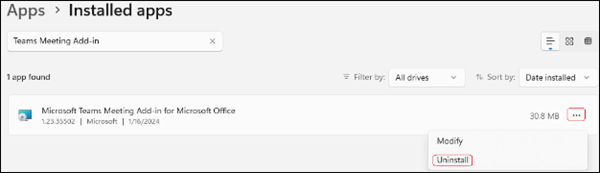
    5. Uninstall the Teams Meeting Add-in by right clicking the Windows Start button and select Settings > Apps > Installed Apps, then search for the Teams Meeting Add-in.
    6. Click the three dots and select Uninstall. Uninstall Teams add-in
    7. Close Outlook.
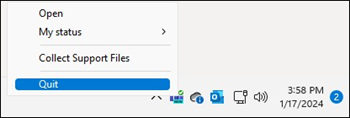
    8. Close Teams from the System Tray by right clicking on the Teams icon in the System Tray and select Quit. Quit Teams from taskbar
    9. Restart Teams. This will force Teams to reinstall the Teams Meeting Add-in which should fix the issue. When you see Teams Meeting Add-in in the list of installed apps again, restart Outlook/

    For reference: Teams Meeting add-in is missing in Outlook Desktop after updating to New Teams | Microsoft Support

    I hope this provides enough clarity and helps you stay inform with your current situation.

    Thank you for your patience and your understanding. If you have any questions or need further assistance, please feel free to share them in the comments on this post so I can continue to support you.  


    If the answer is helpful, please click 'Yes' and kindly upvote it.

    Note: Please follow the steps in the forum documentation to enable e-mail notifications if you want to receive the related email notification for this thread. 

    Was this answer helpful?

    0 comments No comments

  2. Zandra F. Burton 0 Reputation points
    2026-08-07T15:12:09.2933333+00:00

    I need to know in old outlook not the new outlook

    Was this answer helpful?

    0 comments No comments

  3. AI answer

    2026-08-07T15:07:15.4+00:00

    If Outlook is new Outlook, there is no separate Teams add-in to install. The meeting form has a built-in Teams meeting toggle.

    Try this first:

    1. In new Outlook, open Calendar > New Event.
    2. Add the meeting details.
    3. Turn on the Teams meeting toggle.
    4. Select Send.

    If the Teams meeting toggle is missing in new Outlook:

    1. Make sure Outlook and Teams are both signed in with the same work or school account.
    2. Make sure the new Teams client is installed.
    3. Close Outlook.
    4. Right-click the Teams icon and select Quit Teams.
    5. Start Teams and sign in.
    6. Start Outlook again.

    If Outlook is classic Outlook for Windows, the Teams option depends on the Teams Meeting add-in.

    Check and restore it this way:

    1. In Outlook, go to File > Options > Add-ins.
    2. Under Manage, select COM Add-ins and choose Go.
    3. Look for Microsoft Teams Meeting Add-in for Microsoft Office.
    4. If it is present but unchecked, check it and select OK.
    5. Restart Outlook.

    If the add-in was disabled:

    1. In Outlook Desktop, select File > Manage COM Add-ins.
    2. For Microsoft Teams Meeting Add-in for Microsoft Office, select Do not monitor this add-in for the next 30 days.
    3. If that option is not available, select Always enable this add-in.
    4. Select Apply and Close.

    If it appears under disabled items:

    1. Go to File > Options > Add-ins.
    2. Under Manage, select Disabled items and choose Go.
    3. If Teams is listed, select it and choose Enable.
    4. Restart Outlook.

    If the add-in is completely missing after moving to new Teams in classic Outlook:

    1. Open Settings > Apps > Installed Apps.
    2. Find Teams Meeting Add-in and Uninstall it.
    3. Close Outlook.
    4. Quit Teams from the system tray.
    5. Start new Teams again.
    6. Wait for Teams Meeting Add-in to appear again in installed apps.
    7. Restart Outlook.

    If needed, Microsoft also provides an automated troubleshooter for the classic Teams add-in on Windows 10 or later. It works only with classic Outlook, not new Outlook.


    AI-generated content may be incorrect. Read our transparency notes for more information.

    Was this answer helpful?

Your answer

Answers can be marked as 'Accepted' by the question author and 'Recommended' by moderators, which helps users know the answer solved the author's problem.