Use Class Notebook with assignments in Microsoft Teams
By bringing together OneNote and Teams, you can harness the best of both applications for teaching and learning. If you create your OneNote Class Notebook through a Microsoft Teams team, you can create assignments linked to OneNote pages. The assignments tool distributes the content for you and links it to the assignment.
Distributing content through a Teams assignment has the benefit of collecting usage data in Insights. You can then track how students are using the Class Notebook.
Go to the notebook page you want to distribute to students as an assignment. Ensure that all material for the assignment is included in the page.
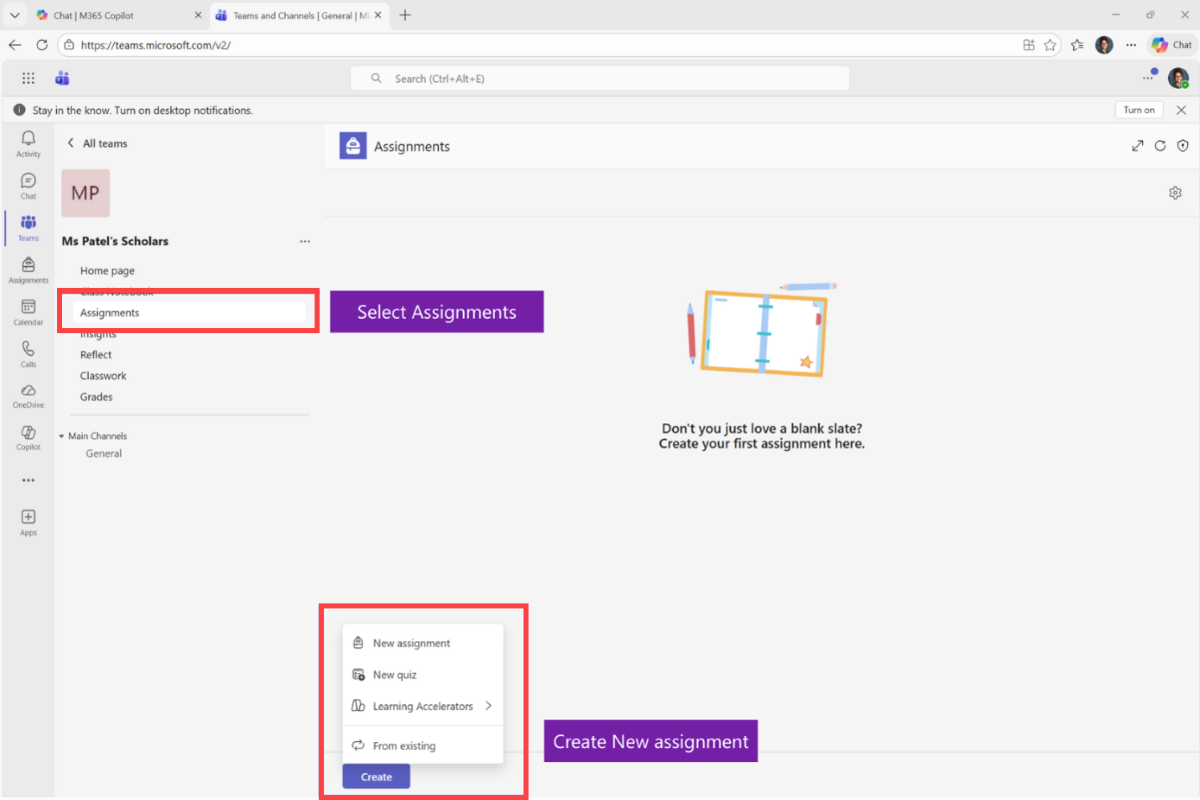
Select Assignments in the Microsoft Teams rail, or open the Assignments tab in your class team.
Choose Create to create a new assignment.
Complete the assignment details such as the title, instructions, due date.
Select Attach, then choose OneNote Class Notebook from the resource options.
In the pop-up window, first choose the page you want to attach, then select Next. Choose the destination section in the student notebooks, then select Attach.

Activity
Create an assignment in Microsoft Teams, either using the page you created in the Content Library unit or another one you created. Make sure the destination section exists before distributing.
Reflection
- What are the benefits of linking your tasks to an assignment in Teams?
- How does this help students to grasp how to use OneNote?