Manage daily actions with the communications assistant
Daily actions and the Assistant
When sellers manage daily activities, they can miss follow-ups and record updates, especially when information spreads across CRM, email, and calendar. These gaps create pipeline risk through stalled opportunities, outdated close dates, or cold contacts. The Assistant reduces that risk by surfacing time-sensitive items that need attention.
The Assistant delivers these prompts as action cards. Each card identifies the issue (for example, no recent activity or an upcoming close date), the record it applies to, and a suggested next step. Sellers use cards to prioritize work and take quick actions without searching through multiple views or reports.
The Assistant evaluates Dynamics 365 Sales data along with tracked Microsoft 365 activity (such as emails and meetings) when your organization enables tracking. The Assistant generates cards and routes them to the record owner based on rules and thresholds that Microsoft or your admin team sets.

The Assistant continuously monitors activity data, relationship signals, and record changes in the background. When it detects a condition that matches a defined rule, the Assistant generates an action card and delivers it to the appropriate seller. The process runs automatically, and sellers don't need to set up searches or configure views.
Action card types
Action cards fall into two categories: built-in cards and custom cards. Microsoft provides built-in cards, and administrators can enable them by default or switch them on later. System administrators or customizers configure custom cards to match the specific processes and thresholds that matter to a particular organization.
Built-in action card types include:
- Meeting Today: Reminds the seller when they have a meeting scheduled with a contact who is part of an open opportunity or account.
- Email Opened: Notifies the seller when a contact opens an email they sent, allowing timely follow-up while the topic is still fresh.
- Email Reminder: Prompts the seller to follow up when an email they sent hasn't received a response after a configurable number of days.
- Upcoming Close Date: Alerts the seller when an opportunity is approaching its estimated close date without moving forward in the pipeline.
- No Activity: Flags records with no interaction—calls, emails, or meetings—over a defined period so relationships don't go cold unnoticed.
- Deal at Risk: Surfaces opportunities that show declining engagement signals or stagnant pipeline stages and may need immediate attention.
- Stakeholder Change: Notifies the seller when a key contact on an account or opportunity changes roles or leaves the organization.
- News: Brings relevant news articles about an account directly to the seller so they can start a conversation informed and prepared.
How cards are generated
The Assistant uses a rules-based engine that evaluates conditions against data in Dynamics 365 and connected Microsoft 365 services. When a condition is met—such as an opportunity with a close date within seven days that shows no activity in two weeks—the engine generates a card and assigns it to the record owner.
When email tracking is enabled through Dynamics 365's relationship tracking and Exchange integration, real-time signals from the seller's mailbox drive cards like Email Opened and Email Reminder. The Assistant reads activity data from tracked emails and meetings and correlates it with CRM records to surface cards with specific, accurate context.
The Assistant surfaces in the places where sellers already work, so they don't need to navigate to a separate tool to stay informed. It appears in four locations within Dynamics 365 Sales.
Where sellers see the Assistant
- Sales Insights dashboard / home page: Shows all active action cards across the seller's records in one prioritized view, with filters to focus on specific card or record types. Sellers can open a card to jump directly to the related record and take action.
- Record pages (lead, opportunity, contact, account): Displays cards relevant to the record the seller currently views for in-context guidance. From the card, the seller can take quick actions such as sending an email, scheduling a meeting, or updating the record.
- Sales Accelerator work queue: Surfaces action cards alongside sequence activities so sellers can adjust outreach based on new signals. Sellers can reprioritize which records to work first when a strong signal appears, such as an email open or a deal risk indicator.
- Mobile experience: Presents cards in a simplified format so sellers can review and take quick actions while mobile. The mobile experience surfaces the most relevant items when a seller works away from their desk—such as before a customer visit or between meetings.
Action cards appear throughout the application. The following table summarizes card types and available actions by record type.
| Record Type | Primary Signals | Common Card Types | Typical Actions |
|---|---|---|---|
| Lead | Email opens, no follow-up activity, new contact data | Email Opened, No Activity, Email Reminder | Send follow-up email, Qualify lead, Log a phone call |
| Opportunity | Close date proximity, pipeline stagnation, deal risk signals | Upcoming Close Date, No Activity, Deal at Risk, Meeting Today | Advance pipeline stage, Schedule meeting, Add stakeholder |
| Contact | Relationship health, news about their company, role changes | Stakeholder Change, News, No Activity | Update contact information, Send relationship email |
| Account | News about the company, overall relationship health, no activity | News, No Activity, Stakeholder Change | Schedule account review, Add note, Engage on news item |
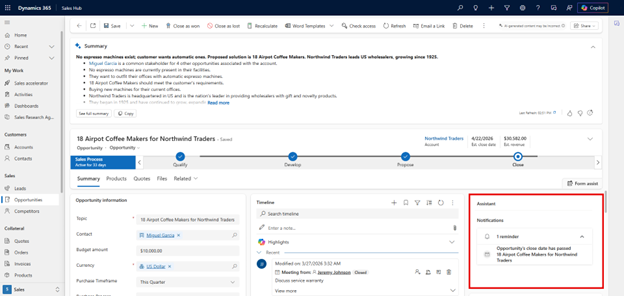
The following example shows how a seller might use action cards.
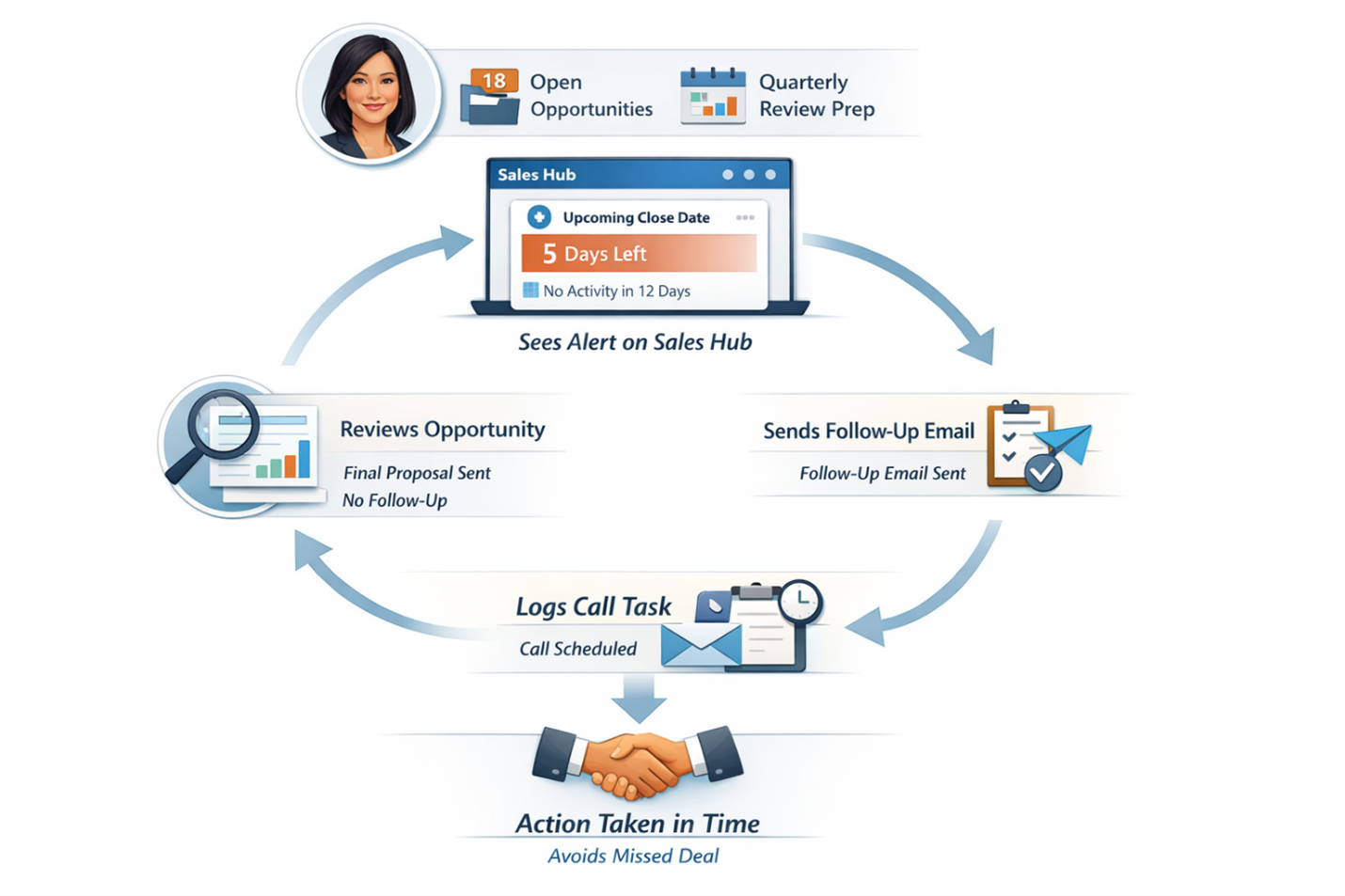
Maria Chen is an account executive who has 18 open opportunities and prepares for a quarterly business review with her manager. She opens the Sales Hub home page on Monday morning and sees an Upcoming Close Date card for an opportunity with a software licensing deal. The card notes that the close date is five days away and that there is no activity on the record in 12 days. She selects the card, reviews the opportunity, and realizes she never followed up after sending the final proposal. She uses the integrated email activity to send a follow-up and logs a call task for later that afternoon. Without the Assistant surfacing this gap, the deal might have reached its close date with no action taken.
Summary
In Dynamics 365 Sales Insights, the Assistant helps sellers manage pipeline risk by surfacing action cards on records that may need attention (for example, a close date coming up with no recent activity). The Assistant generates cards when rule conditions are met based on CRM data and, if enabled, tracked Microsoft 365 activity. Cards appear on the Sales Hub home page, on individual record pages, in the Sales Accelerator work queue, and on mobile. Use cards as a prioritization aid: review them at the start of the day and when opening key records, then take the suggested next step (or clear the card if it's not relevant).