Note
Access to this page requires authorization. You can try signing in or changing directories.
Access to this page requires authorization. You can try changing directories.
Note
Microsoft Power Fx is the new name for the canvas apps formula language. These articles are work in progress as Microsoft extracts the language from canvas apps, integrates it with other Microsoft Power Platform products, and makes it available as open source. Start with the Microsoft Power Fx Overview for an introduction to the language.
Learn how Power Fx variables differ from variables in tools such as Visual Basic or JavaScript, and when formulas are a better choice. This article explains how to choose global variables, context variables, or collections to manage app values and state.
In other tools, you might explicitly perform a calculation and store the result in a variable. However, Power Fx and Excel both automatically recalculate formulas as the input data changes, so you usually don't need to create and update variables. By taking this approach whenever possible, you can more easily create, understand, and maintain your app.
In some cases, you need to use variables in Power Fx. Power Fx extends Excel's model by adding behavior formulas. These formulas run when, for example, a user selects a button. Within a behavior formula, it's often helpful to set a variable to use in other formulas.
In general, avoid using variables. But sometimes only a variable can enable the experience you want. You implicitly create and type variables when they appear in functions that set their values.
Translate Excel into Power Fx
Excel
Let's review how Excel works. A cell can contain a value, such as a number or a string, or a formula that's based on the values of other cells. After the user enters a different value into a cell, Excel automatically recalculates any formulas that depend on the new value. You don't have to do any programming to enable this behavior.
In the following example, cell A3 is set to the formula A1+A2. If A1 or A2 changes, A3 automatically recalculates to reflect the change. This behavior requires no coding outside of the formula itself.
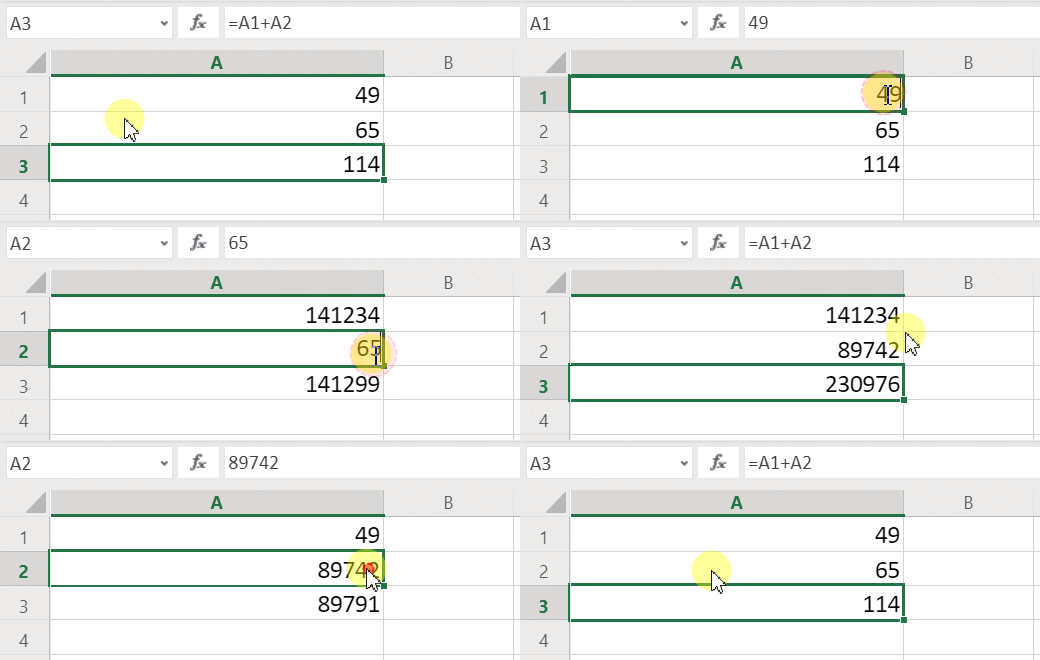
Excel doesn't have variables. The value of a cell that contains a formula changes based on its input, but there's no way to remember the result of a formula and store it in a cell or anywhere else. If you change a cell's value, the entire spreadsheet might change, and any previously calculated values are lost. An Excel user can copy and paste cells, but that's under the user's manual control and isn't possible with formulas.
Power Fx
Logic that you create in Power Fx behaves very much like Excel. Instead of updating cells, you can add controls wherever you want on a screen and name them for use in formulas.
For example in Power Apps, you can replicate the Excel behavior in an app by adding a Label control, named Label1, and two Text input controls, named TextInput1 and TextInput2. If you then set the Text property of Label1 to TextInput1.Text + TextInput2.Text, it always shows the sum of whatever numbers are in TextInput1 and TextInput2 automatically.

Notice that the Label1 control is selected, showing its Text formula in the formula bar at the top of the screen. Here you find the formula TextInput1.Text + TextInput2.Text. This formula creates a dependency between these controls, just as dependencies are created between cells in an Excel workbook. Let's change the value of TextInput1:
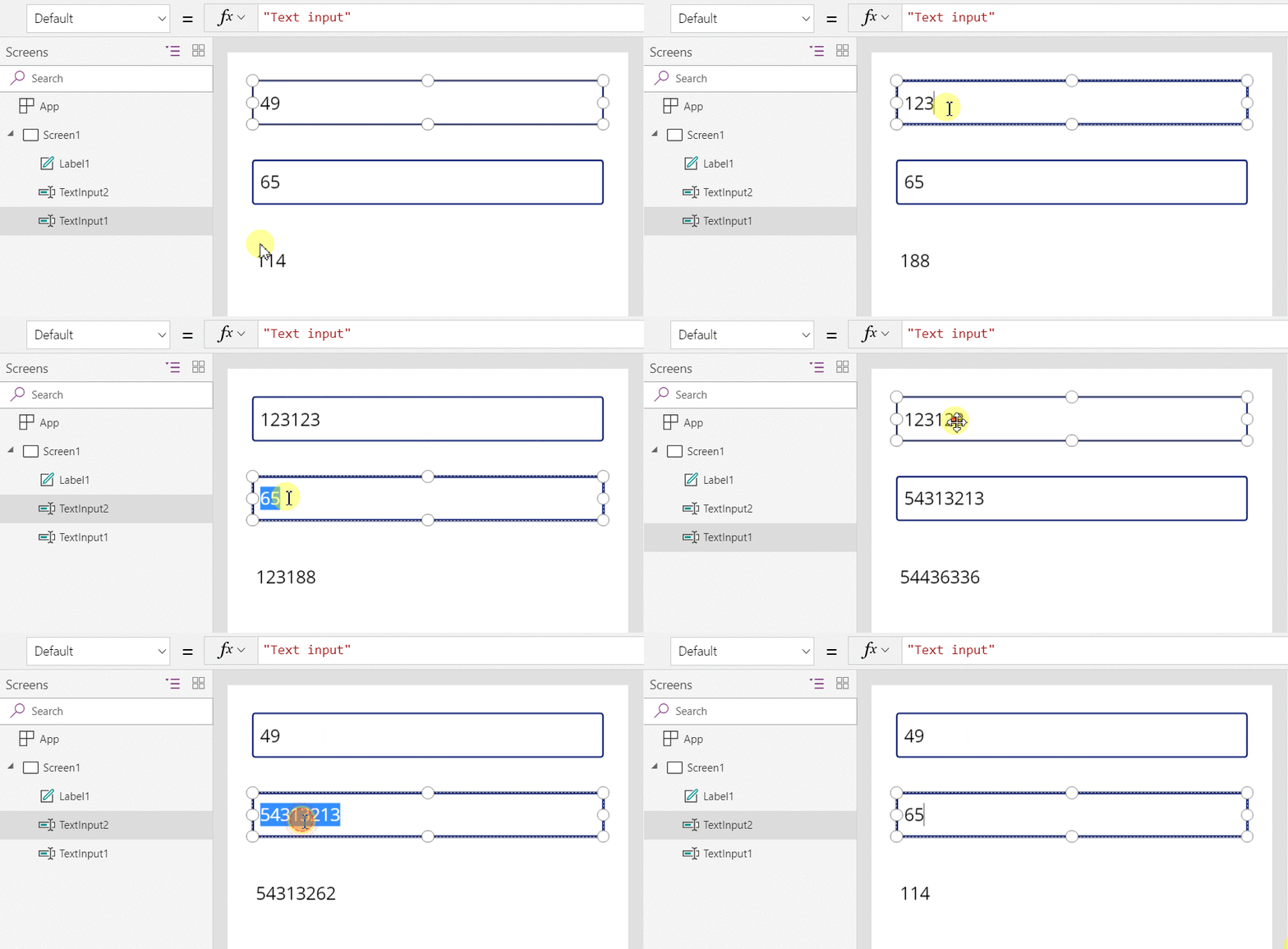
The formula for Label1 is automatically recalculated, showing the new value.
In Power Fx, you can use formulas to determine not only the primary value of a control but also properties such as formatting. In the next example, a formula for the Color property of the label automatically shows negative values in red. The If function should look familiar from Excel:
If( Value(Label1.Text) < 0, Color.Red, Color.Black )

You can use formulas for a wide variety of scenarios:
- By using your device's GPS, a map control can display your current location with a formula that uses Location.Latitude and Location.Longitude. As you move, the map automatically tracks your location.
- Other users can update data sources. For example, others on your team might update items in a SharePoint list. When you refresh a data source, any dependent formulas automatically recalculate to reflect the updated data. Furthering the example, you might set a gallery's Items property to the formula Filter( SharePointList ), which automatically displays the newly filtered set of records.
Benefits of Power Fx formulas
Using formulas to build apps offers many advantages:
- If you know Excel, you know Power Fx. The model and formula language are the same.
- If you use other programming tools, consider how much code you'd need to accomplish these examples. In Visual Basic, you'd need to write an event handler for the change event on each text-input control. The code to perform the calculation in each of these event handlers is redundant and could get out of sync, or you'd need to write a common subroutine. In Power Fx, you accomplish all of that work with a single, one-line formula.
- To understand where Label1's text comes from, you know exactly where to look: the formula in the Text property. There's no other way to affect the text of this control. In a traditional programming tool, any event handler or subroutine could change the value of the label, from anywhere in the program. This approach can make it hard to track down when and where a variable was changed.
- If the user changes a slider control and then changes their mind, they can change the slider back to its original value. It's as if nothing ever changed: the app shows the same control values as it did before. There are no ramifications for experimenting and asking "what if," just as there are none in Excel.
In general, if you can achieve an effect by using a formula, you're better off. Let the formula engine in Power Fx do the work for you.
Know when to use variables
Let's change our simple adder to act like an old-fashioned adding machine, with a running total. If you select an Add button, you add a number to the running total. If you select a Clear button, you reset the running total to zero.
| Display | Description |
|---|---|

|
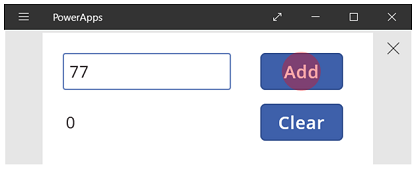
When the app starts, the running total is 0. The red dot represents the user's finger in the text-input box, where the user enters 77. |
|
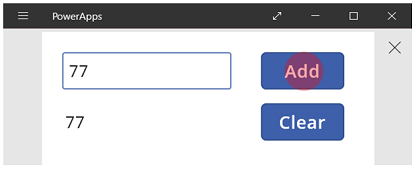
The user selects the Add button. |
|
77 is added to the running total. The user selects the Add button again. |
|
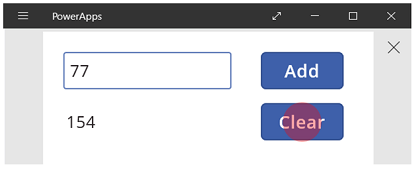
77 is again added to the running total, resulting in 154. The user selects the Clear button. |
|
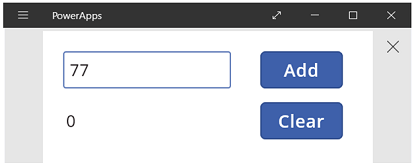
The running total is reset to 0. |
Our adding machine uses something that doesn't exist in Excel: a button. In this app, you can't use only formulas to calculate the running total because its value depends on a series of actions that the user takes. Instead, you must record and update the running total manually. Most programming tools store this information in a variable.
You'll sometimes need a variable for your app to behave the way you want. But the approach comes with caveats:
- You must manually update the running total. Automatic recalculation won't do it for you.
- You can't calculate the running total based on the values of other controls. It depends on how many times the user selected the Add button and what value was in the text-input control each time. Did the user enter 77 and select Add twice, or did they specify 24 and 130 for each of the additions? You can't tell the difference after the total reaches 154.
- Changes to the total can come from different paths. In this example, both the Add and Clear buttons can update the total. If the app doesn't behave the way you expect, which button is causing the problem?
Use a global variable
To create your adding machine, you need a variable to hold the running total. The simplest variables to work with in Power Fx are global variables.
How global variables work:
- Use the Set function to set the value of the global variable. Set( MyVar, 1 ) sets the global variable MyVar to a value of 1.
- Use the global variable by referencing the name you used with the Set function. In this case, MyVar returns 1.
- Global variables can hold any value, including strings, numbers, records, and tables.
Let's rebuild our adding machine by using a global variable:
Add a text-input control, named TextInput1, and two buttons, named Button1 and Button2.
Set the Text property of Button1 to "Add", and set the Text property of Button2 to "Clear".
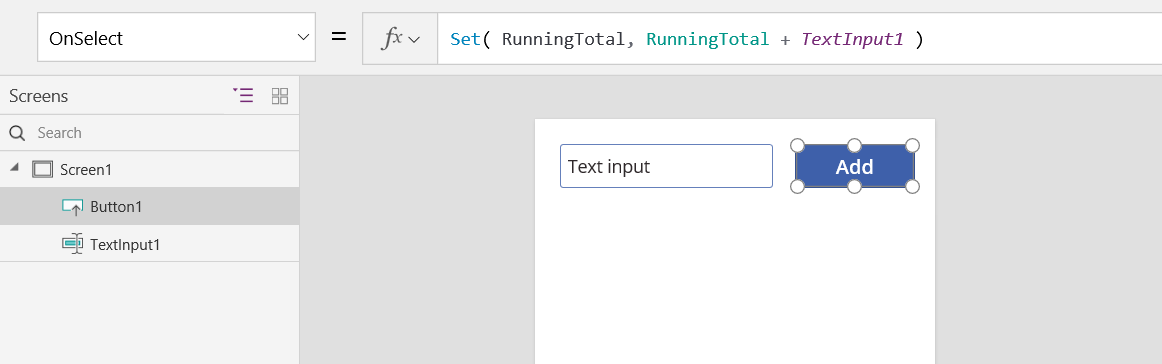
To update the running total whenever a user selects the Add button, set its OnSelect property to this formula:
Set( RunningTotal, RunningTotal + TextInput1.Text )
The mere existence of this formula establishes RunningTotal as a global variable that holds a number because of the + operator. You can reference RunningTotal anywhere in the app. Whenever the user opens this app, RunningTotal has an initial value of blank.
The first time that a user selects the Add button and Set runs, RunningTotal is set to the value RunningTotal + TextInput1.
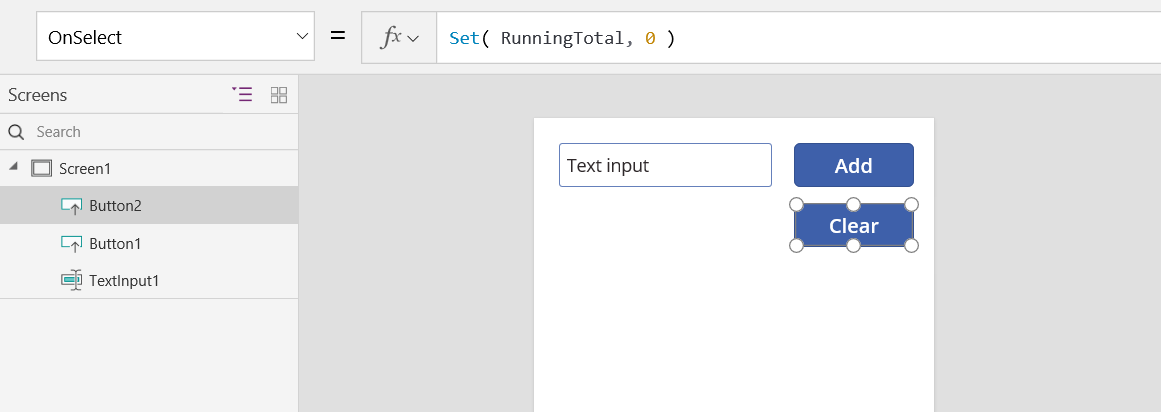
To set the running total to 0 whenever the user selects the Clear button, set its OnSelect property to this formula:
Set( RunningTotal, 0 )
Add a Label control, and set its Text property to RunningTotal.
This formula automatically recalculates and shows the user the value of RunningTotal as it changes based on the buttons that the user selects.
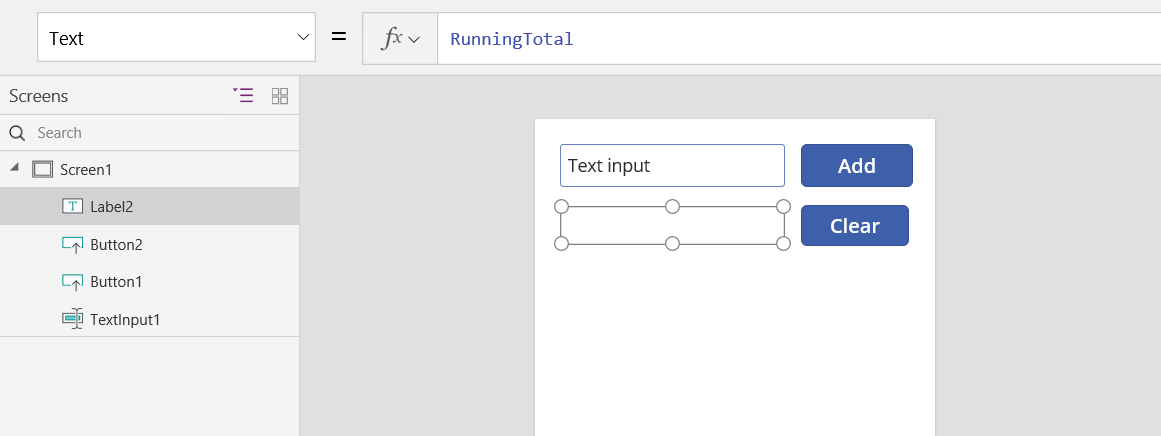
Preview the app, and you have your adding machine as described earlier. Enter a number in the text box and press the Add button a few times. When ready, return to the authoring experience by using the Esc key.

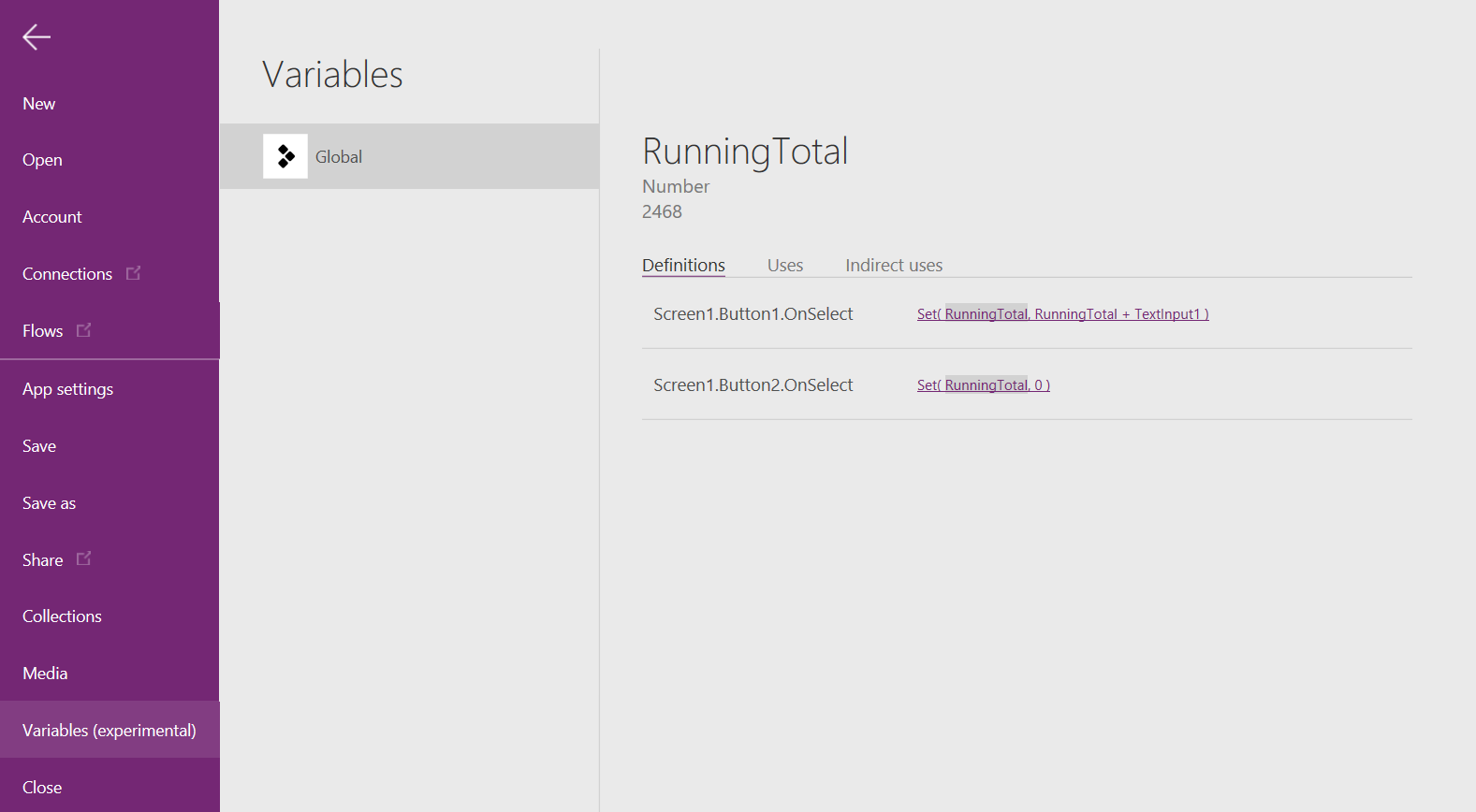
To show the global variable's value, select the File menu, and select Variables in the left-hand pane.

To show all the places where the variable is defined and used, select it.
Types of variables
Power Fx has two types of variables:
| Variable type | Scope | Description | Functions that establish |
|---|---|---|---|
| Global variables | App | Simplest to use. Holds a number, text string, Boolean, record, table, and more. You can reference it from anywhere in the app. | Set |
| Collections | App | Holds a table that you can reference from anywhere in the app. You can modify the contents of the table rather than setting it as a whole. You can save it to the local device for later use. | Collect ClearCollect |
When you use Power Apps, you see a third type of variable:
| Variable type | Scope | Description | Functions that establish |
|---|---|---|---|
| Context variables | Screen | Great for passing values to a screen, much like parameters to a procedure in other languages. You can reference it from only one screen. | UpdateContext Navigate |
Create and remove variables
You create all variables implicitly when they appear in a Set, UpdateContext, Navigate, Collect, or ClearCollect function. To declare a variable and its type, just include it in any of these functions anywhere in your app. None of these functions create variables; they only fill variables with values. You never declare variables explicitly as you might in another programming tool, and all typing is implicit from usage.
For example, you might have a button control with an OnSelect formula equal to Set( X, 1 ). This formula establishes X as a variable with a type of number. You can use X in formulas as a number, and that variable has a value of blank after you open the app but before you select the button. When you select the button, you give X the value of 1.
If you add another button and set its OnSelect property to Set( X, "Hello" ), an error occurs because the type (text string) doesn't match the type in the previous Set (number). All implicit definitions of the variable must agree on type. Again, all this happened because you mentioned X in formulas, not because any of those formulas actually ran.
You remove a variable by removing all the Set, UpdateContext, Navigate, Collect, or ClearCollect functions that implicitly establish the variable. Without these functions, the variable doesn't exist. You must also remove any references to the variable because they cause an error.
Variable lifetime and initial value
The app holds all variables in memory while it runs. After the app closes, the values that the variables held are lost.
You can store the contents of a variable in a data source by using the Patch or Collect functions. You can also store values in collections on the local device by using the SaveData function.
When the user opens the app, all variables have an initial value of blank.
Read variables
Use the variable's name to read its value. For example, you can define a variable with this formula:
Set( Radius, 12 )
Then you can simply use Radius anywhere that you can use a number, and it replaces with 12:
Pi() * Power( Radius, 2 )
If you give a context variable the same name as a global variable or a collection, the context variable takes precedence. However, you can still reference the global variable or collection if you use the disambiguation operator [@Radius].
Use a context variable (Power Apps only)
Here's how to create the adding machine using a context variable instead of a global variable.
How context variables work:
- You implicitly establish and set context variables by using the UpdateContext or Navigate function. When the app starts, the initial value of all context variables is blank.
- You update context variables with records. In other programming tools, you commonly use "=" for assignment, as in "x = 1". For context variables, use { x: 1 } instead. When you use a context variable, use its name directly without the record syntax.
- You can also set a context variable when you use the Navigate function to show a screen. If you think of a screen as a kind of procedure or subroutine, this approach resembles parameter passing in other programming tools.
- Except for Navigate, context variables are limited to the context of a single screen, which is where they get their name. You can't use or set them outside of this context.
- Context variables can hold any value, including strings, numbers, records, and tables.
Let's rebuild our adding machine by using a context variable:
Add a text-input control, named TextInput1, and two buttons, named Button1 and Button2.
Set the Text property of Button1 to "Add", and set the Text property of Button2 to "Clear".
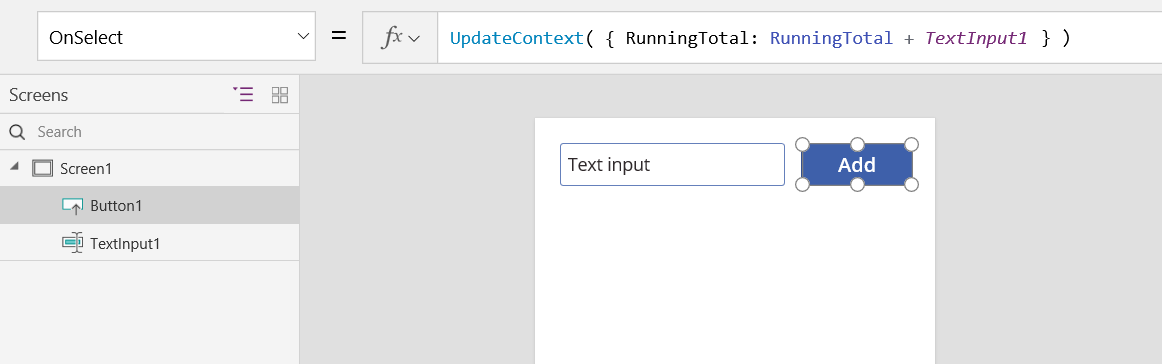
To update the running total whenever a user selects the Add button, set its OnSelect property to this formula:
UpdateContext( { RunningTotal: RunningTotal + TextInput1.Text } )
The mere existence of this formula establishes RunningTotal as a context variable that holds a number because of the + operator. You can reference RunningTotal anywhere in this screen. Whenever the user opens this app, RunningTotal has an initial value of blank.
The first time that the user selects the Add button and UpdateContext runs, RunningTotal is set to the value RunningTotal + TextInput1.
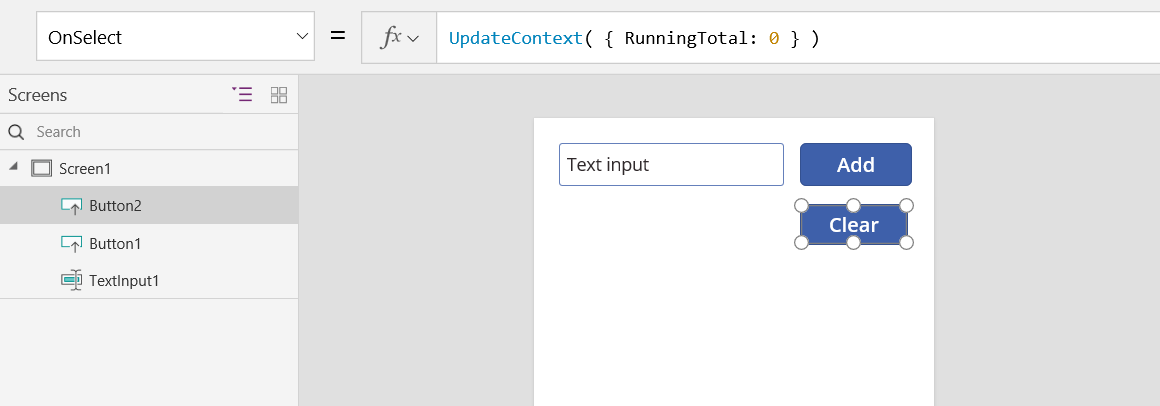
To set the running total to 0 whenever the user selects the Clear button, set its OnSelect property to this formula:
UpdateContext( { RunningTotal: 0 } )
Again, UpdateContext is used with the formula UpdateContext( { RunningTotal: 0 } ).
Add a Label control, and set its Text property to RunningTotal.
This formula automatically recalculates and shows the user the value of RunningTotal as it changes based on the buttons that the user selects.
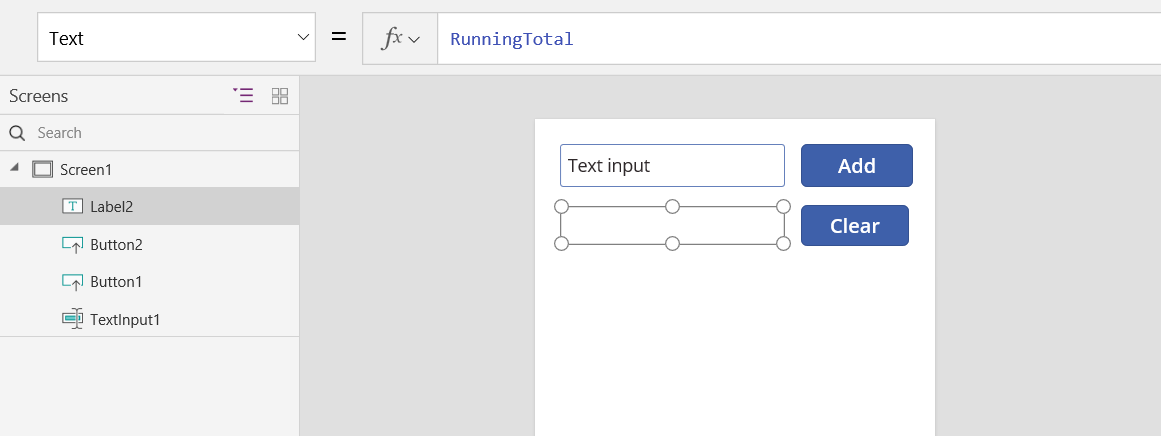
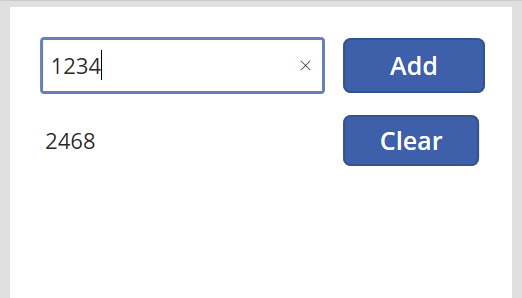
Preview the app and you have your adding machine as described earlier. Enter a number in the text box and press the Add button a few times. When ready, return to the authoring experience by using the Esc key.
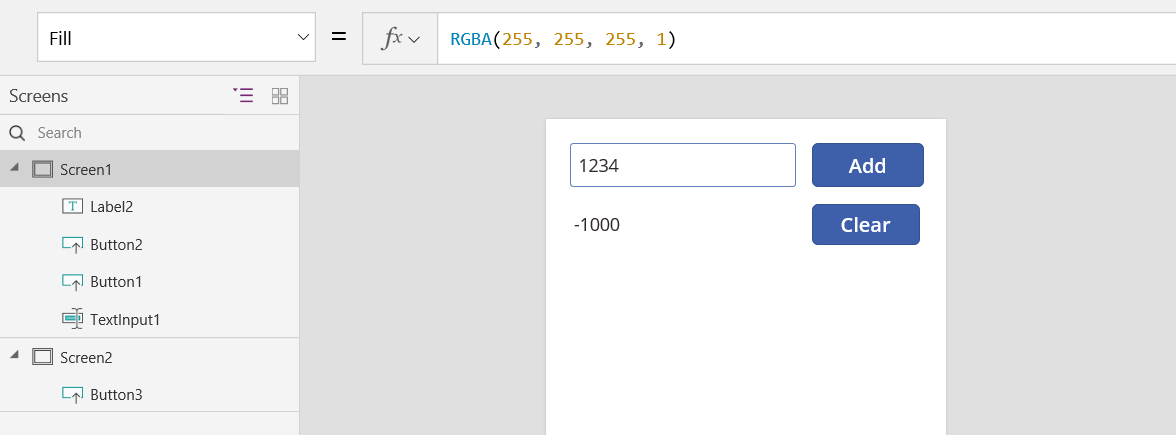
You can set the value of a context variable while navigating to a screen. This technique is useful for passing "context" or "parameters" from one screen to another. To demonstrate this technique, insert a screen, insert a button, and set its OnSelect property to this formula:
Navigate( Screen1, None, { RunningTotal: -1000 } )

Hold down the Alt key while you select this button to both show Screen1 and set the context variable RunningTotal to -1000.
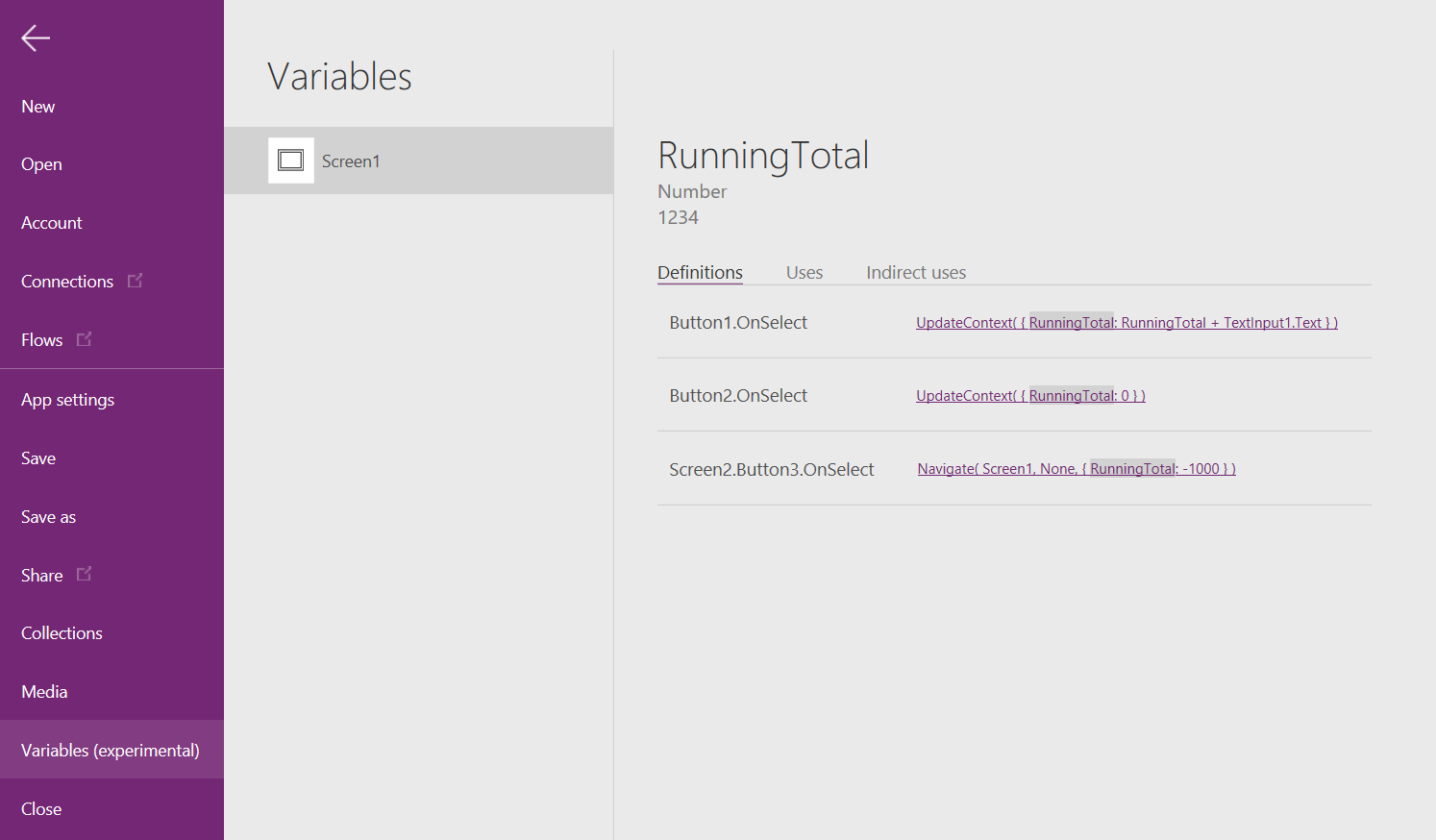
To show the value of the context variable, select the File menu, and then select Variables in the left-hand pane.
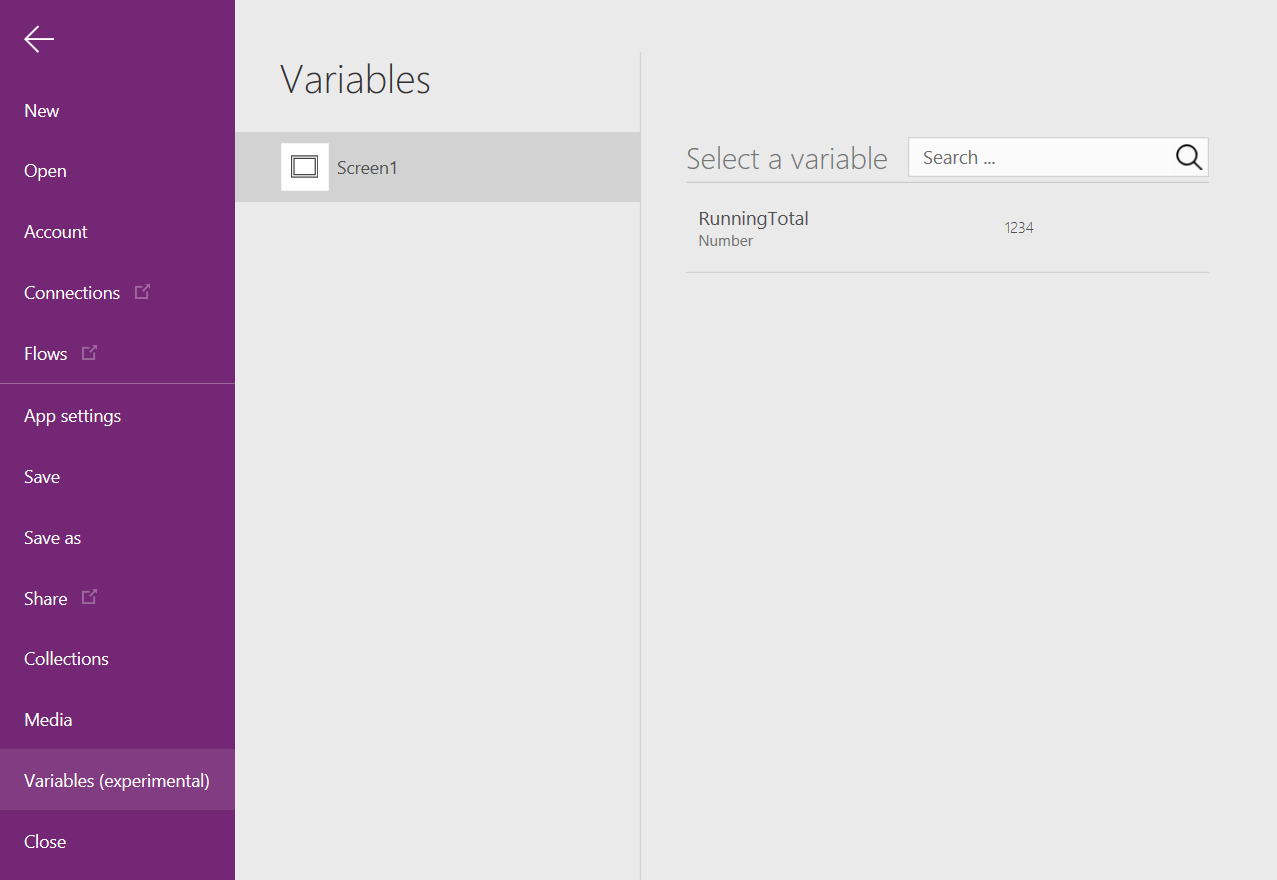
Select the context variable to see where it's defined and used.
Use a collection
Finally, let's look at creating our adding machine with a collection. Since a collection holds a table that you can easily modify, this adding machine keeps a "paper tape" of each value as you enter them.
How collections work:
- Use the ClearCollect function to create and set collections. You can use the Collect function instead, but it effectively requires another variable instead of replacing the old one.
- A collection is a kind of data source and, therefore, a table. To access a single value in a collection, use the First function, and extract one field from the resulting record. If you use a single value with ClearCollect, this value is the Value field, as in this example:
First( VariableName ).Value
Let's recreate our adding machine by using a collection:
Add a Text input control, named TextInput1, and two buttons, named Button1 and Button2.
Set the Text property of Button1 to "Add", and set the Text property of Button2 to "Clear".
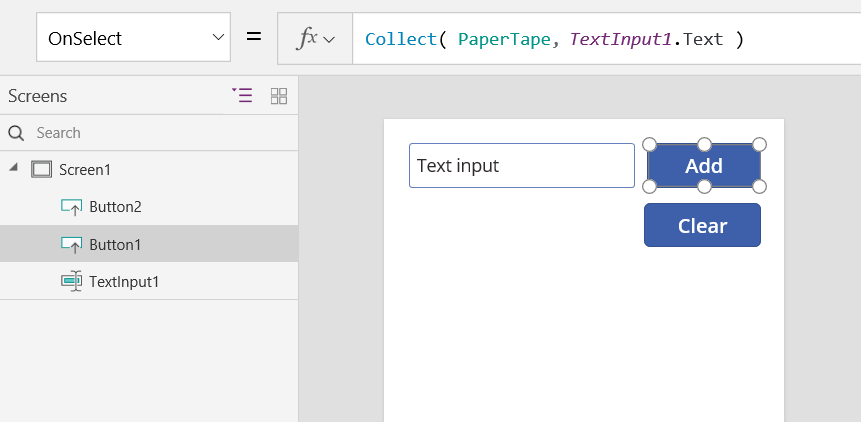
To update the running total whenever a user selects the Add button, set its OnSelect property to this formula:
Collect( PaperTape, TextInput1.Text )
The mere existence of this formula establishes PaperTape as a collection that holds a single-column table of text strings. You can reference PaperTape anywhere in this app. Whenever a user opens this app, PaperTape is an empty table.
When this formula runs, it adds the new value to the end of the collection. Because you're adding a single value, Collect automatically places it in a single-column table, and the column's name is Value, which you use later.
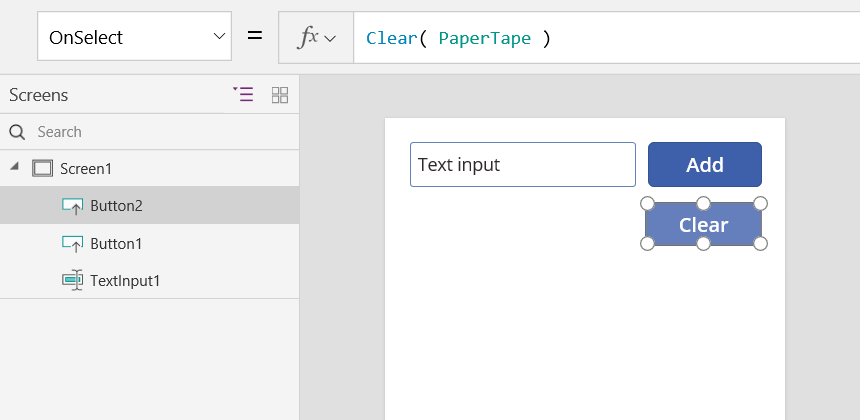
To clear the paper tape when the user selects the Clear button, set its OnSelect property to this formula:
Clear( PaperTape )
To display the running total, add a label, and set its Text property to this formula:
Sum( PaperTape, Value )

To run the adding machine, press F5 to open Preview, enter numbers in the text-input control, and select buttons.
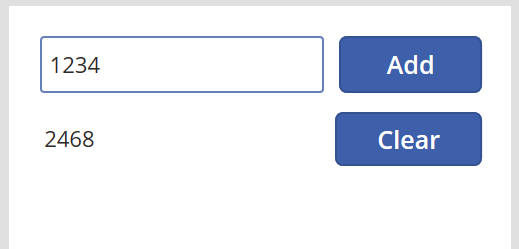
To return to the default workspace, press the Esc key.
To display the paper tape, insert a Data table control, and set its Items property to this formula:
PaperTape
In the right-hand pane, select Edit fields and then select Add field, select Value column and then select Add to show it.

To see the values in your collection, select Collections on the File menu.

To store and retrieve your collection, add two additional button controls, and set their Text properties to Load and Save. Set the OnSelect property of the Load button to this formula:
Clear( PaperTape ); LoadData( PaperTape, "StoredPaperTape", true )
You need to clear the collection first because LoadData will append the stored values to the end of the collection.

Set the OnSelect property of the Save button to this formula:
SaveData( PaperTape, "StoredPaperTape" )

Preview again by pressing the F5 key, enter numbers in the text-input control, and select buttons. Select the Save button. Close and reload the app, and select the Load button to reload your collection.