Note
Access to this page requires authorization. You can try signing in or changing directories.
Access to this page requires authorization. You can try changing directories.
This quickstart shows how to use the Microsoft Dataverse SDK for .NET in a minimal C# console application. Connect to the Organization service by using the ServiceClient class and execute a web service request to verify access to your environment's business data.
Your application calls the IOrganizationService.Execute method and passes an instance of the WhoAmIRequest class. The result returned from the web service is a populated WhoAmIResponse.UserId value that is the unique identifier of your Dataverse system user account.
Note
This quickstart example doesn't include exception handling for brevity. This quickstart is a minimum code example of what you need to connect to and use the SDK for .NET.
You can get the complete code sample from GitHub GetStarted. Consult the program's README for more details.
Prerequisites
- Visual Studio (2026 or later)
- Internet connection
- Sign-in credentials for a Dataverse system user account for the target environment
- URL address of the Dataverse environment you want to connect with
- Basic understanding of the Visual C# language
Read the following important information about using a connection string or username/password authentication in application code.
Important
Microsoft recommends that you use the most secure authentication flow available. The authentication flow described in this article requires a very high degree of trust in the application, and carries risks that are not present in other flows. You should only use this flow when other more secure flows, such as managed identities, aren't viable.
Create a .NET console app project in Visual Studio
Create a new project. For this project, use Visual Studio 2026.

Choose the .NET console app project template.
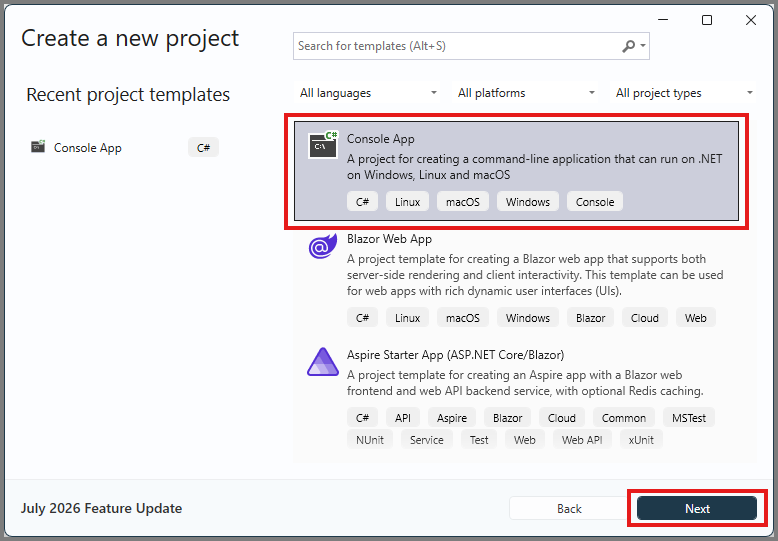
Select Next.
Set the name of the project and the location.

Select Next.
Select .NET 10.0 (Long Term Support) as the Framework.
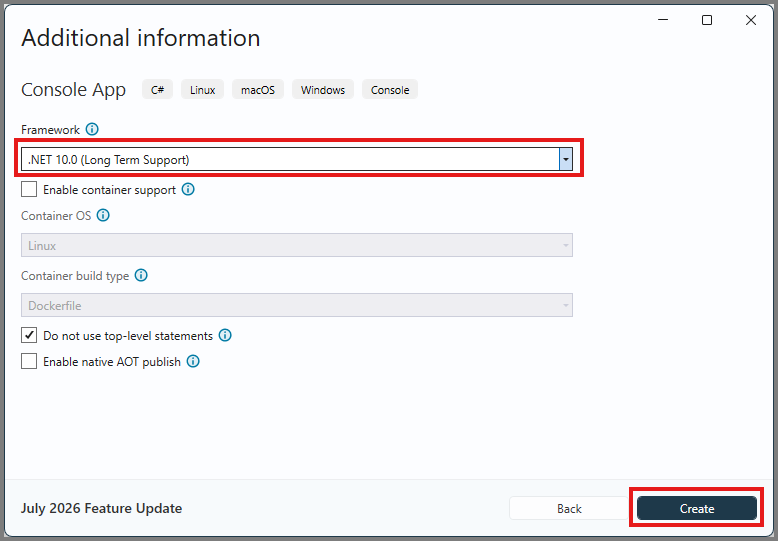
Select Create.
In Solution Explorer, right-click the project you created and select Manage NuGet Packages... in the context menu.
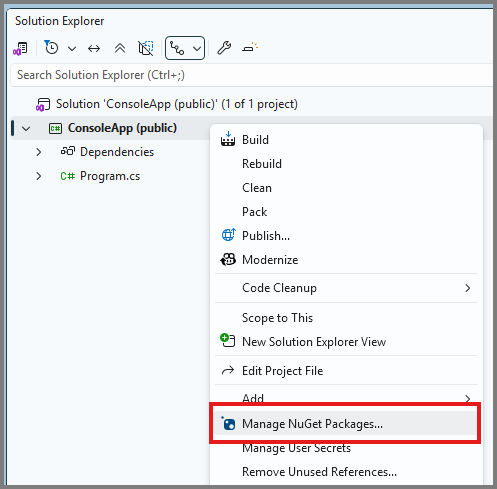
Browse for the latest version of the
Microsoft.PowerPlatform.Dataverse.ClientNuGet package and install it.
Note
You're prompted to select Apply to preview changes, and then select I Accept in the Licence Acceptance dialog.
Add code for the Dataverse SDK for .NET request
In Solution Explorer, double-click
Program.csto edit the file. Replace the file's contents with the following code.using Microsoft.Crm.Sdk.Messages; using Microsoft.PowerPlatform.Dataverse.Client; using Microsoft.Xrm.Sdk; /// <summary> /// Public client authentication followed by a web service request. /// Use of username and password for authentication. /// </summary> /// <remarks>This sample uses a standard app registration used for /// demonstrating SDK code samples.</remarks> class Program { // TODO Enter your Dataverse environment's URL and logon info. static string url = "https://myorg.crm.dynamics.com"; static string userName = "someone@myorg.onmicrosoft.com"; static string password = "password"; // This service connection string uses the info provided above. // The standard AppId and RedirectUri are provided for sample code demonstration only. static string connectionString = $@" AuthType = OAuth; Url = {url}; UserName = {userName}; Password = {password}; AppId = 51f81489-12ee-4a9e-aaae-a2591f45987d; RedirectUri = http://localhost; LoginPrompt=Auto; RequireNewInstance = True"; static void Main() { // ServiceClient class implements IOrganizationService interface IOrganizationService service = new ServiceClient(connectionString); var response = (WhoAmIResponse)service.Execute(new WhoAmIRequest()); Console.WriteLine($"User ID is {response.UserId}."); // Pause the console so it does not close. Console.WriteLine("Press the <Enter> key to exit."); Console.ReadLine(); } }Change the values for the
url,userName, andpasswordas indicated by the// TODOcode comment.Note
You can find your environment URL in the legacy web application under Settings > Customization > Developer Resources or in Power Apps Settings (gear icon) > Developer Resources.
While this code sample places the username and password information in the code for simplicity, other code samples use the more recommended approach of prompting for that information or storing it in a separate
App.configorappsettings.jsonfile.You can find supported values for AuthType listed in Connection string parameters.
Run the program
Press F5 to run the program. The output should look similar to the following example:
User ID is 00aa00aa-bb11-cc22-dd33-44ee44ee44ee
Press any key to exit.
Use the IOrganizationService interface methods
The Dataverse.Client.ServiceClient that this program uses implements the IOrganizationService Interface, which includes the Execute method.
To better understand the IOrganizationService interface, try the following steps:
Go to the reference article for the WhoAmIRequest class.
Copy the example method from that article. It looks like this:
/// <summary>
/// Outputs the data returned from the WhoAmI message
/// </summary>
/// <param name="service">Authenticated client implementing the IOrganizationService interface</param>
static void WhoAmIExample(IOrganizationService service) {

   var response = (WhoAmIResponse)service.Execute(new WhoAmIRequest());

   Console.WriteLine($"OrganizationId:{response.OrganizationId}");
   Console.WriteLine($"BusinessUnitId:{response.BusinessUnitId}");
   Console.WriteLine($"UserId:{response.UserId}");

}
Notice that it accepts an
IOrganizationServiceservice instance as the parameter.Paste this
WhoAmIExamplemethod below theMainmethod in your program.Replace the
Mainmethod in your program with this:static void Main() { //ServiceClient implements IOrganizationService interface IOrganizationService service = new ServiceClient(connectionString); WhoAmIExample(service: service); // Pause the console so it does not close. Console.WriteLine("Press the <Enter> key to exit."); Console.ReadLine(); }Run the sample again. You should see something like:
OrganizationId:00aa00aa-bb11-cc22-dd33-44ee44ee44ee
BusinessUnitId:11bb11bb-cc22-dd33-ee44-55ff55ff55ff
UserId:22cc22cc-dd33-ee44-ff55-66aa66aa66aa
Press the <Enter> key to exit.
Next steps
Now that you have a simple console program that connects to Dataverse, use this project to try other methods and messages. You can use this Quick Start console application project to do ad-hoc testing.
Try other IOrganizationService interface methods
Tip
In the documentation, you can find many example methods like this WhoAmIExample that accept an IOrganizationService service parameter.
Try the examples for these IOrganizationService methods:
Try other messages
You can find other messages that you can invoke by using the Execute method in these namespaces:
Learn to work with record data
The following articles explain how to work with business data in Dataverse tables:
- Entity class operations using the SDK for .NET
- Create table rows using the SDK for .NET
- Retrieve a table row using the SDK for .NET
- Update and delete table rows using the SDK for .NET
- Associate and disassociate table rows using the SDK for .NET
Explore our code samples
You can find SDK for .NET sample code in our GitHub repository at PowerApps-Samples/dataverse/orgsvc.
Use ServiceClient extensions
In addition to implementing the IOrganizationService interface, ServiceClient offers extension methods beyond the core methods defined by IOrganizationService and the capability to enable logging with ILogger. Learn more about using ServiceClient