Note
Access to this page requires authorization. You can try signing in or changing directories.
Access to this page requires authorization. You can try changing directories.
The Sales agent is an AI-powered chat interface that allows you to interact with your sales data using natural language. You can ask questions and gain insights from your CRM data and past customer conversations—all through natural language.
Learn more about the differences between the Sales agent in Microsoft 365 Copilot and Copilot in Dynamics 365 Sales and how to migrate to the Sales agent.
Access Sales agent
The Sales agent is available as an agent in Microsoft 365 Copilot. To use it, you need to have the Sales agent installed and be signed in to your CRM system from the Sales agent in either Outlook or Teams.
Note
If you see the error that chat isn't set up to connect to your CRM, contact your administrator to set up Sales agent.
To access the Sales agent:
Open Microsoft 365 Copilot. Alternatively, in Microsoft Teams, select the Copilot icon on the left sidebar to open Microsoft 365 Copilot.
Under Agents, select Sales.
Enter your question in the chat box and select the send icon or press Enter.
Note
A few starter prompts are available below the chat box to help you get started.
Microsoft 365 Copilot prompts you to grant permission to share information with the Sales agent service. Review the request and select Accept to continue.
The Sales agent then provides a response with the information you requested.

For a list of example prompts you can use with the Sales agent, see What can Sales agent help you with?
Note
The following capabilities are in preview:
- Sales agent is also accessible in Microsoft 365 Copilot within Outlook, Word, PowerPoint, Excel, and Dynamics 365. However, only conversational chat capabilities are available in these embedded experiences. Meeting preparation features aren't accessible in these locations.
- Sales agent is accessible in Dynamics 365 only if your administrator has enabled Microsoft 365 Copilot in model-driven apps. Learn how to access Sales agent in Dynamics 365 (preview).
- When you access Sales agent from Dynamics 365, you're signed in to the same environment as your Dynamics 365 session.
Get a summary of an account or opportunity
You can use the Sales agent to get a summary of an account or opportunity, including key information, the pipeline, the three closest opportunities, and a summary of meetings from the last 30 days. For example, you can ask:
- Get me the summary of account
<account name>. - Get me the summary of opportunity
<opportunity name>. - Give me an overview of account
<account name>. Summarize the meetings in the last (x) months. - Get the key details of account
<account name>. List the open opportunities as a table.

For a list of example prompts you can use with the Sales agent, see What can Sales agent help you with?
Note
Your CRM administrator can customize the details included in the account and opportunity summary.
Catch up on past customer meetings
Meeting insights generated by the Sales agent are accessible through the Sales agent. You can use the Sales agent to get insights from past meetings to catch up on missed customer conversations, coaching, and more. For example, you can ask:
- What was discussed in the previous meeting with
<account name>? - Summarize the discussions with
<account name>in the last six months. List the top 5 topics of interest to them.
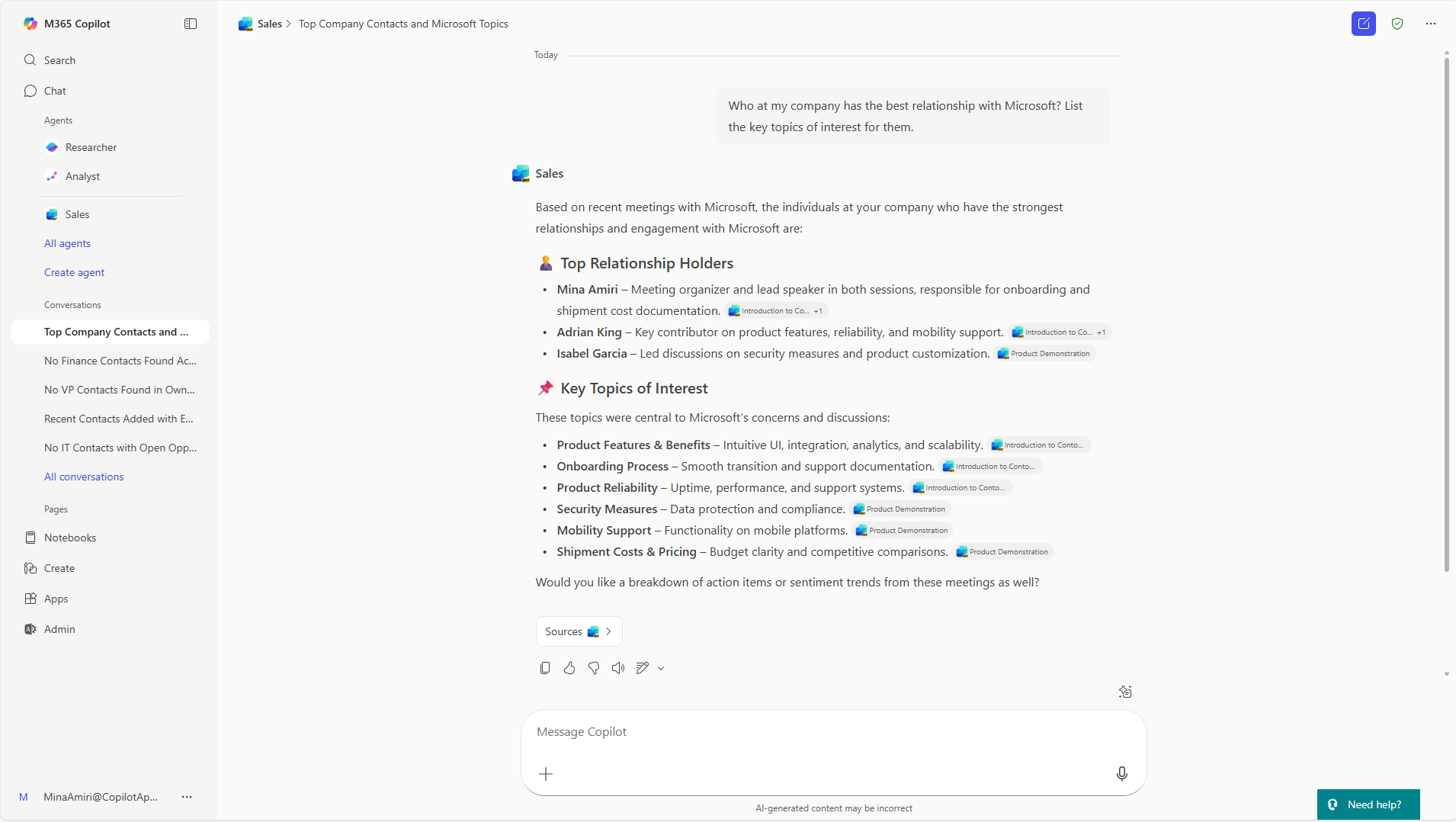
For a list of example prompts you can use with the Sales agent, see What can Sales agent help you with?
Look up information about CRM
You can use the Sales agent to look up information about your customer accounts, contacts, and deals in your CRM system. For example, you can ask:
- What is the opportunity pipeline for
<account name>? - Who is the primary customer contact for
<account name>? - Get the estimated revenue across opportunities by forecast category.

For a list of example prompts you can use with the Sales agent, see What can Sales agent help you with?
Prepare for and follow up on your sales meetings
The meeting experience in Microsoft 365 Copilot helps you prepare for customer meetings and follow up afterward with the right information. It brings AI-generated insights, CRM data, and recent communications into a single, easy-to-read view alongside the Sales agent chat interface, so you can ask follow-up questions or dig deeper without leaving your workflow.
Note
- The meeting experience is only available in the full-screen mode of Sales agent chat experience. It's not available when using Microsoft 365 Copilot in Outlook, Word, PowerPoint, Excel, or Dynamics 365.
- Specific licensing requirements apply when you use meeting preparation card Microsoft 365 Copilot. Learn more in Microsoft Product Terms.
Under the chat box of the Sales agent, you can see a list of meetings organized under two tabs:
- Upcoming meetings shows upcoming sales meetings (a meeting with at least one external contact) scheduled for the next four days. A maximum of five meetings is shown in this list, and you can select Show all to see more if you have more than five meetings.
- Past meetings shows sales meetings from the past seven days.
For upcoming meetings, the meeting card displays up to three high-value AI highlights to help you prepare more effectively. Each highlight is written to be actionable and concise, enabling you to absorb the most important context in seconds. In some cases, you might see a message indicating that meeting insights aren't available. This can occur when insights are still being generated for newly scheduled meetings. Check back later, as it typically takes at least 15 minutes for insights to be generated for new meetings.
For past meetings, an information banner explains that the content is a premeeting brief and includes a button to open the meeting recap in Teams.
The post-meeting experience includes:
- Key takeaways that summarize the most important meeting outcomes.
- Meeting summary and Action items from the existing AI meeting recap.
Select Prepare with insights to open the detailed view alongside Sales agent chat interface. This allows you to explore deeper insights, ask follow-up questions, and access more context without leaving your workflow.
Submit feedback
If you have feedback or encounter issues while using Sales agent, you can get debug information from Microsoft 365 Copilot to share with your Microsoft representative.
To submit feedback:
- Type
/sharein the chat box and select the Send icon or press Enter. - Copy the generated debug information and share it with your Microsoft representative.