Note
Access to this page requires authorization. You can try signing in or changing directories.
Access to this page requires authorization. You can try changing directories.
To add a new field to an existing table, first create a table extension. For example, to add a field that holds the radius of the released product, create an extension for the InventTable table in your model, as shown in the following illustration.

Add the field to the extension, just as you would add a field to a table in your model. Use one of the following methods:
- In the designer, right-click the Fields node, select New, and then select the type of field to add.
- Drag an existing Extended Data Type or Base Enumeration from your project onto the Fields node.
When you finish, modify the properties of the new field. In the following illustration, only the Label property was modified.

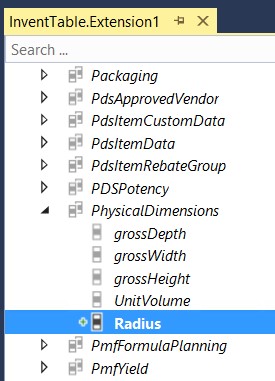
Optionally, add the new field either to one of the existing field groups or to a new field group that you create. In the following illustration, the Radius field was added to the PhysicalDimensions field group.
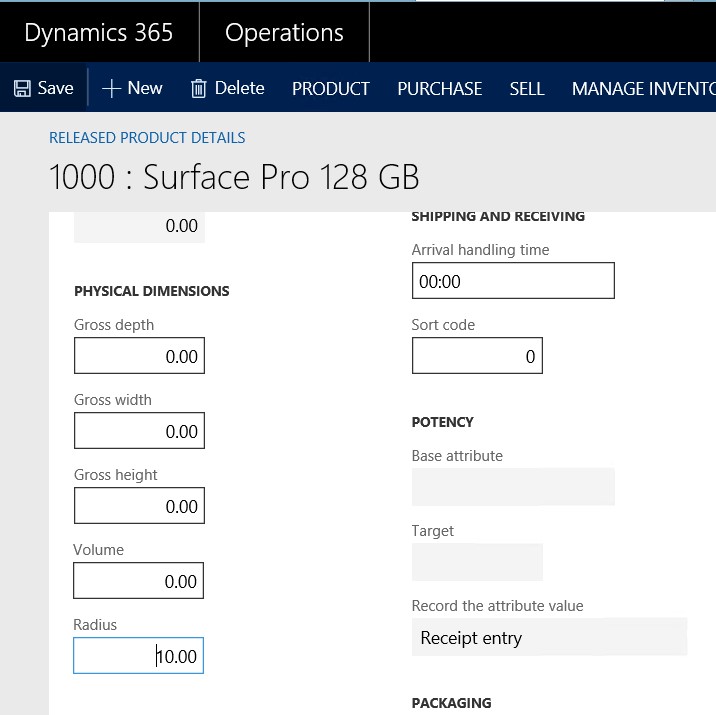
After compilation and synchronization of the database, you can see and edit the new field in the user interface.