Note
Access to this page requires authorization. You can try signing in or changing directories.
Access to this page requires authorization. You can try changing directories.
Booking rules in Field Service create warning or error messages that users see when creating or editing a resource booking record, based on custom conditions. For example, create a booking rule to warn a user when they attempt to book a work order to a resource on the schedule board that doesn't have the characteristics required for the job.
Booking rules are custom JavaScript methods that execute before the Bookable Resource Booking record is created or edited. The JavaScript method can accept a parameter that contains information for the Bookable Resource Booking record being created and must return a JavaScript object with the required properties.
Set up booking rules to validate a booking when it's created or modified.
Note
- Booking rules are only available for the hourly view, and not daily, weekly, or monthly views of the schedule board and schedule assistant. They're available when a booking is created or updated on the Bookable Resource Booking form.
- Booking rules aren't available on the Bookable Resource Booking form if it has a business process flow enabled on the form.
- Booking rules aren't available on the reassign function on the schedule board.
- Each custom booking rule can return only one error or warning. To return multiple messages, set up individual booking rules for each validation.
Create a solution
Create a custom JavaScript web resource. Create a solution in Microsoft Power Apps to add your custom JavaScript web resource or use an existing solution you use for customizations.
Create a new solution for your booking rule JavaScript web resources. Use a unique publisher rather than the default publisher.
After creating the solution, create a new web resource.
Select JavaScript (JS) as the type.
Enter your JavaScript code for the booking rule.
Select Save and Publish.
Set up a booking rule
Go to Field Service and select the Resources area.
Under Booking Settings, select Booking Rules, and then select New.

Enter the following information:
- The name of the booking rule.
- The web resource that you recently created.
- The method name you defined in your JavaScript.
Select Save & Close. The schedule board's hourly view, schedule assistant, and the entity form use the booking rule.
Note
The schedule board's hourly view and schedule assistant are the only places that support booking rules. Booking rules also apply when users create or update bookings through the Bookable Resource Booking form. Booking rules don't execute on delete of a booking record. Booking rules don't work on forms when using multiedit. To stop the execution of the rule, deactivate the booking rule.
Create a custom process action
To perform the validation as part of a booking rule, use Create a custom process action. In the JavaScript of your custom web resource, call the custom process action and evaluate the results from the action. To see how to call a custom process action, go to the sample code.
Use the solution you defined for your custom web resource to add your custom process action.
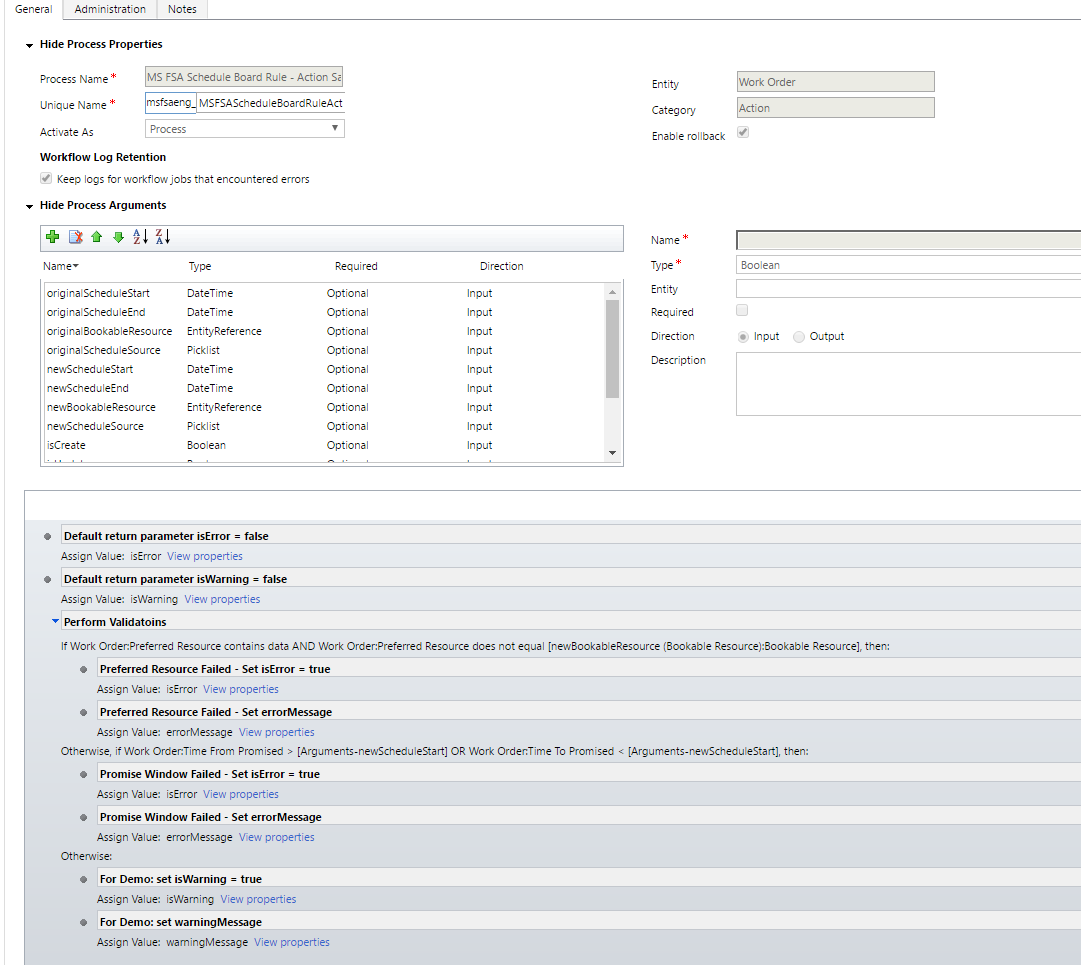
Use the following input and output parameters. You can add more input and output parameters as your scenario requires. Ensure the JavaScript that you define to call your custom process action is updated to support your other input and output parameters.
Input parameters:
- originalScheduleStart – DateTime
- originalScheduleEnd – DateTime
- originalBookableResource – EntityReference
- originalScheduleSource – Picklist
- newScheduleStart – DateTime
- newScheduleEnd – DateTime
- isCreate – Boolean
- isUpdate – Boolean
Output parameters:
- isError – Boolean
- isWarning – Boolean
- errorMessage – String
- warningMessage - String
The following screenshot shows an example custom process action. This sample checks if the newBookableResource matches the preferred resource on the work order, and if the newScheduleStart is inside of the Time From Promised and Time To Promised. It's assumed the dates of the promised window are for a single date. Example: Time From Promised: 01/01/2026 8:00AM / Time To Promised: 01/01/2026 12:00PM.
Sample code
The JavaScript function you create can accept a single parameter, which is the booking context. The booking context parameter isn't a typical CRM context used in client-side scripting.
Booking context schema:
export type BookingRuleContext = {
    oldValues: BookingRuleBookingRecord;
    newValues: BookingRuleBookingRecord;
    isCreate: boolean;
    isUpdate: boolean;
};

export type BookingRuleBookingRecord = {
    ResourceRequirementId?: string;
    ResourceId?: string;
    StartTime?: Date;
    EndTime?: Date;
    ResourceScheduleSource?: string;
};
The booking context parameter has the following JavaScript definition.
Note
You don't need to include this JavaScript code in the custom web resource for the booking rule.
The possible values for ResourceScheduleSource come from the resource schedule source global option set. Use this property to know if the booking rule is being triggered from the schedule board or scheduling assistant.
    var sbContext = {
    oldValues: {
        StartTime: "01/01/2016 08:00AM",
        EndTime: "01/01/2016 05:00PM",
        ResourceId: "00000000-0000-0000-0000-00000000",
        ResourceScheduleSource: 690970001
    },
    newValues: {
        StartTime: "01/01/2016 08:00AM",
        EndTime: "01/01/2016 05:00PM",
        ResourceId: "00000000-0000-0000-0000-00000000",
        ResourceScheduleSource: 690970001
    },
    isCreate: true,
    isUpdate: false
    };
Your validation method must return a JavaScript object with the following definition.
Note
You don't need to include this JavaScript code in the custom web resource for the booking rule.
    var ruleResult = {
    IsValid: false,
    Message: "Some Message Here",
    Type: "error" // this can be either "error" or "warning"
};
Example JavaScript function definition. The following JavaScript code is the only JavaScript code you need to include in your custom web resource.
    function Validate(ctx) {
      var url = Xrm.Page.context.getClientUrl();
      var ruleResult = {
  	IsValid: false,
       Message: '',
       Type: 'error'
      };

      //
      // perform some lookups or other validation logic here.
      //

      ruleResult.IsValid = false;
      ruleResult.Message = 'Some Error Message Here.';
      ruleResult.Type = 'error';

      return ruleResult;
    }
The following JavaScript can be used to call a custom CRM action that has the same input and output parameters as the previous sample.
On the booking rule record, the Method Name must be: MSFSAENG.ScheduleBoard.Validate. For reference, see the screenshot in the "Setting Up A Booking Rule" section of this article.
    /// <reference path="xrm.d.ts" />
    function brErrorCallback(sb) {
    // Add custom error handeling here if desired.
     return;
    }
    function brWarningCallback(sb) {
    // Add custom warning handeling here if desired.
    return;
    }
    function brSuccessCallback(sb) {
    // add custom sucess handeling here if desired.
    return;
    }
    var MSFSAENG;
    (function (MSFSAENG) {
    MSFSAENG.ScheduleBoard = {
        url: Xrm.Page.context.getClientUrl() + "/api/data/v8.1/",
        actionName: "msfsaeng_MSFSAScheduleBoardRuleActionSample",
        actionInputParameters: function (ctx) {
            var inputParameters = {};
            if (ctx.isUpdate) {
                inputParameters = {
                    "originalScheduleStart": ctx.oldValues.StartTime,
                    "originalScheduleEnd": ctx.oldValues.EndTime,
                    "originalBookableResource": {
                        "@odata.type": "Microsoft.Dynamics.CRM.bookableresource",
                        "bookableresourceid": ctx.oldValues.ResourceId,
                        "name": ""
                    },
                    "originalScheduleSource": ctx.oldValues.ResourceScheduleSource,
                    "newScheduleStart": ctx.newValues.StartTime,
                    "newScheduleEnd": ctx.newValues.EndTime,
                    "newBookableResource": {
                        "@odata.type": "Microsoft.Dynamics.CRM.bookableresource",
                        "bookableresourceid": ctx.newValues.ResourceId,
                        "name": ""
                    },
                    "newScheduleSource": ctx.newValues.ResourceScheduleSource,
                    "isCreate": ctx.isCreate,
                    "isUpdate": ctx.isUpdate
                };
            }
            else {
                inputParameters = {
                    "newScheduleStart": ctx.newValues.StartTime,
                    "newScheduleEnd": ctx.newValues.EndTime,
                    "newBookableResource": {
                        "@odata.type": "Microsoft.Dynamics.CRM.bookableresource",
                        "bookableresourceid": ctx.newValues.ResourceId,
                        "name": ""
                    },
                    "newScheduleSource": ctx.newValues.ResourceScheduleSource,
                    "isCreate": ctx.isCreate,
                    "isUpdate": ctx.isUpdate
                };
            }
            return JSON.stringify(inputParameters);
        },
        ctx: null,
        ruleResult: {
            IsValid: true,
            Message: "",
            Type: ""
        },
        outputParameters: {
            isError: false,
            isWarning: false,
            errorMessage: "",
            warningMessage: ""
        },
        Validate: function (context) {
            this.ctx = context;
            ScheduleBoardHelper.callActionWebApi(this);
            return this.ruleResult;
        },
        errorCallback: brErrorCallback,
        warningCallback: brWarningCallback,
        successCallback: brSuccessCallback
    };
    var ScheduleBoardHelper = (function () {
        function ScheduleBoardHelper() {
        }
        ScheduleBoardHelper.callActionWebApi = function (sb) {
            var oDataEndpoint = sb.url + sb.actionName;
            var req = new XMLHttpRequest();
            req.open("POST", oDataEndpoint, false);
            req.setRequestHeader("Accept", "application/json");
            req.setRequestHeader("Content-Type", "application/json; charset=utf-8");
            req.setRequestHeader("OData-MaxVersion", "4.0");
            req.setRequestHeader("OData-Version", "4.0");
            req.onreadystatechange = function () {
                if (req.readyState == 4) {
                    req.onreadystatechange = null;
                    if (req.status == 200) {
                        sb.outputParameters = JSON.parse(req.response);
                        if (sb.outputParameters.isError) {
                            sb.ruleResult.IsValid = false;
                            sb.ruleResult.Message = sb.outputParameters.errorMessage;
                            sb.ruleResult.Type = 'error';
                            if (sb.errorCallback)
                                sb.errorCallback(sb);
                            return;
                        }
                        else if (sb.outputParameters.isWarning) {
                            sb.ruleResult.IsValid = false;
                            sb.ruleResult.Message = sb.outputParameters.warningMessage;
                            sb.ruleResult.Type = 'warning';
                            if (sb.warningCallback)
                                sb.warningCallback(sb);
                            return;
                        }
                        else {
                            sb.ruleResult.IsValid = true;
                            sb.ruleResult.Message = '';
                            sb.ruleResult.Type = '';
                            if (sb.successCallback)
                                sb.successCallback(sb);
                            return;
                        }
                    }
                    else {
                        alert('Error calling Rule Action. Response = ' + req.response + ', Status = ' + req.statusText);
                    }
                }
            };
            req.send(sb.actionInputParameters(sb.ctx));
        };
        return ScheduleBoardHelper;
    }());
    })(MSFSAENG || (MSFSAENG = {}));
Use business process flows and other custom scripts
When you turn on bookable resource booking, use booking rules to create warnings or error messages that users see when they create or edit a resource booking record, based on custom conditions. The system uses preventDefault in booking rules. Therefore, you can't use business process flows and other custom scripts that bind to the onSave event on the Bookable Resource Booking entity when booking rules are enabled.
However, you can disable the processing of booking rules on the save of the Booking form by enabling the following setting. This change lets users use the business process flows. Use the client APIs to enable this setting at an environment level.
- Read current value of the setting
msdyn_DisableProcessBookingRulesOnSaveBookingForm.
Xrm.Utility.getGlobalContext().getCurrentAppSettings()["msdyn_DisableProcessBookingRulesOnSaveBookingForm"]
- Enable the setting
msdyn_DisableProcessBookingRulesOnSaveBookingForm.
Xrm.Utility.getGlobalContext().saveSettingValue("msdyn_DisableProcessBookingRulesOnSaveBookingForm",true,).then(() => {a = "success"}, (error) => {a = error})
- Disable the setting
msdyn_DisableProcessBookingRulesOnSaveBookingForm.
Xrm.Utility.getGlobalContext().saveSettingValue("msdyn_DisableProcessBookingRulesOnSaveBookingForm",false,).then(() => {a = "success"}, (error) => {a = error})