Note
Access to this page requires authorization. You can try signing in or changing directories.
Access to this page requires authorization. You can try changing directories.
[This article is prerelease documentation and is subject to change.]
Create commonly used measures quickly by using predefined templates. These templates calculate metrics such as average transaction value, loyalty points balance, and customer lifespan by using mapped data from the Unified Activity table.
Available measure templates include:
- Average transaction value (ATV)
- Total transaction value
- Average daily revenue
- Average monthly revenue
- Average yearly revenue
- Transaction count
- Loyalty points earned
- Loyalty points redeemed
- Loyalty points balance
- Active customer lifespan
- Loyalty membership duration
- Time since last purchase
Important
- This is a preview feature.
- Preview features aren't meant for production use and may have restricted functionality. These features are available before an official release so that customers can get early access and provide feedback.
Prerequisites
Configure customer activities.
Build a new measure using a template
Go to Insights > Measures.
Select New and select Choose a template.
Find the template that fits your need and select Choose template.
Review the required data and select Get started if you have all the data in place.
Select Edit details next to Measure name. Provide a name for the measure. Optionally, add tags to the measure.

Select Done.
In the Set time period section, define the time frame of the data. Choose if you want the new measure to cover the entire dataset by selecting All time, or if you want the measure to focus on a Specific time period.
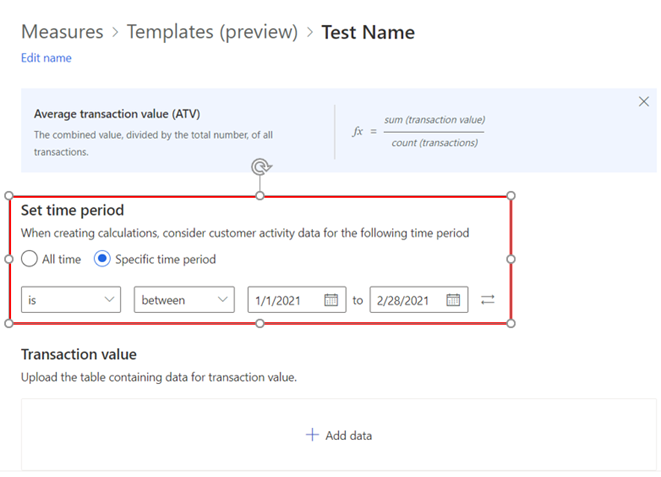
In the next section, select Add data to choose the activities and map the corresponding data from your Unified Activity table.
- Step 1 of 2: Under Activity type, choose the table type you want to use. For Activities, select the tables you want to map, and then select Next.
- Step 2 of 2: Choose the attribute from the Unified Activity table for the component required by the formula. For example, for Average transaction value, it's the attribute representing the Transaction value. For Activity timestamp, choose the attribute from the Unified Activity table that represents the date and time of the activity.
- Select Save.
When the data mapping is successful, the status shows Complete and the name of the mapped activities and attributes display.
Select Run to calculate the results of the measure. Select Save draft if you want to keep the current configuration and run the measure later. The Measures page displays.
Next steps
- Schedule a measure.
- Use existing measures to create a customer segment.