Note
Access to this page requires authorization. You can try signing in or changing directories.
Access to this page requires authorization. You can try changing directories.
[This article is prerelease documentation and is subject to change.]
Use Microsoft's proprietary data to enrich your customer data with brand affinities, interest affinities, and share of voice (SoV). These affinities and SoV come from data about people with demographics similar to your customers. This information helps you better understand and segment your customers based on their affinities or SoV to specific brands and interests.
How Microsoft determines affinities and SoV
Microsoft uses online search data to find affinities and SoV for brands and interests across various demographic segments (defined by age, gender, or location). The online search volume for a brand or interest forms the basis for determining the affinity or SoV. However, each metric provides a different perspective to understanding your customers.
Affinity is a comparison across demographic segments. Use this information to identify demographic segments that have the highest affinity for a given brand or interest, compared to other segments.
Share of voice is a comparison across your selected brands or interests. Use this information to identify which brand or interest has the highest share of voice for a given demographic segment, compared to other brands or interests you selected.
Affinity level and score
On every enriched customer profile, Microsoft provides two related values: affinity level and affinity score. These values help you determine how strong the affinity is for that profile’s demographic segment, for a brand or interest, as compared to other demographic segments.
Affinity level consists of four levels and affinity score is calculated on a 100-point scale that maps to the affinity levels.
| Affinity level | Affinity score |
|---|---|
| Very high | 85-100 |
| High | 70-84 |
| Medium | 35-69 |
| Low | 1-34 |
Depending on the granularity you want for measuring the affinity, use either affinity level or score. Affinity score gives you more precise control.
Share of voice (SoV)
This model calculates SoV on a 100-point scale. The total SoV across all brands or interests for every enriched customer profile adds up to 100. Unlike affinities, SoV is relative to the brands and interests you select. For example, the SoV values for "Microsoft" can be different if the selected brands are ("Microsoft", "GitHub") versus ("Microsoft", "LinkedIn").
Supported countries and regions
Currently, the solution supports the following countries and regions: Australia, Canada (English), France, Germany, United Kingdom, or United States (English).
Configure the enrichment
Go to Data > Enrichment and select the Discover tab.
To configure brand affinities and SoV enrichment, select Enrich my data on the Brands tile.
To configure interest affinities and SoV enrichment, select Enrich my data on the Interests tile.

Review the overview and then select Next.
To change your country or region, select Change next to Country/Region. In the Country/Region settings pane, choose a supported country/region and select Apply.
Note
When you choose your own brands, the system provides suggestions based on the selected country or region. When you choose an industry, you get the most relevant brands or interests based on the selected country or region.
Choose up to five brands or interests using one or both of these options:
- Industry: Select your industry from the dropdown list and then choose from the top brands or interests for that industry.
- Choose your own: Enter a brand or interest that is relevant to your organization and then choose from the matching suggestions. If the list doesn't include a brand or interest you're looking for, send us feedback by using the Suggest link.
Select Next and review your default enrichment preferences. Update them as needed.
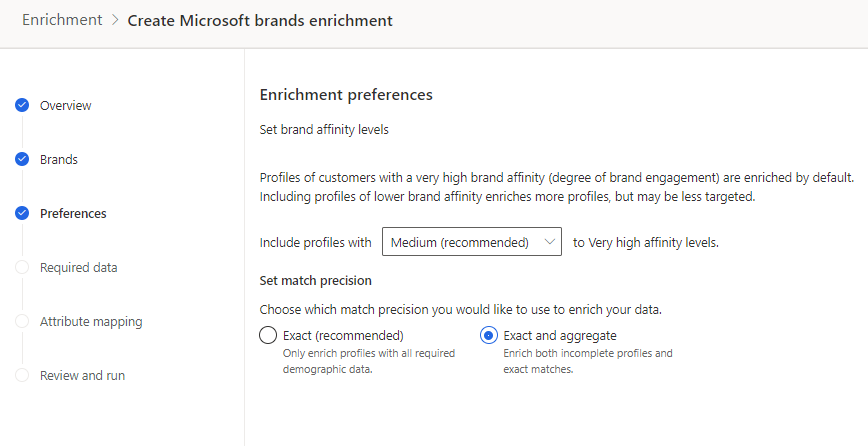
Select Next.
Select the Customer data set and choose the profile or segment you want to enrich with data from Microsoft. The Customer table enriches all your customer profiles, whereas a segment enriches only customer profiles contained in that segment.
Select Next.
Map your fields from your unified customer table to the Microsoft data.
Note
At least Date of Birth or Gender attributes are required. Country/Region and at least City (and State/Province) or Postal code are required. Convert date of birth to DateTime type during data ingestion. Alternatively, it can be a string in ISO 8601 format "yyyy-MM-dd" or "yyyy-MM-ddTHH:mm:ss".
Select Next to complete the field mapping.
Provide a name for the enrichment. The Output table name is automatically selected.
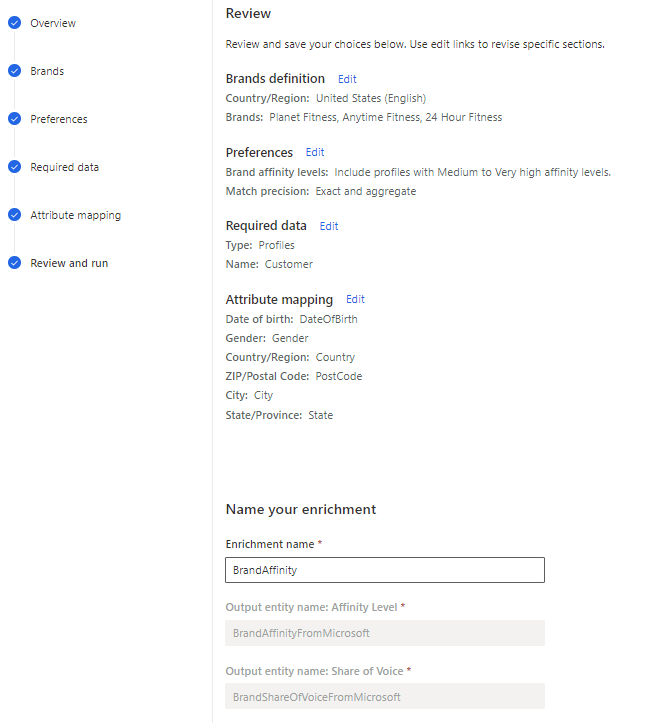
Select Save enrichment after reviewing your choices.
Select Run to start the enrichment process or close to return to the Enrichments page.
When you enrich profiles, the process enriches all customer profiles for which it gets data for the selected brands and interests, including profiles that aren't in the selected country or region. For example, if you selected Germany, the process enriches profiles located in the United States if it has data available for the selected brands and interests in the US.
View enrichment results
After a completed enrichment run, select the enrichment to review the results.
The results show the number of enriched profiles and the number of enriched profiles over time. The Enriched customers preview card shows a sample of the generated enrichment table. To see a detailed view, select See more.

The results include Affinity Level or Share of Voice charts.
The tables created from the enrichments appear under the Enrichment group in Data > Tables > Output. Enriched data for brands goes to the BrandAffinityFromMicrosoft and BrandShareOfVoiceFromMicrosoft tables. Data for interests is in the InterestAffinityFromMicrosoft and InterestShareOfVoiceFromMicrosoft tables.
See enrichment data on the customer card
You can also view brand and interest SoV on individual customer cards. Go to Customers and select a customer profile. In the customer card, you find charts for the brand or interest SoV based on people in that customer's demographic profile.

Next steps
Build on top of your enriched customer data. Create segments and measures by selecting the icons on the command bar. You can also export the data to deliver personalized experiences to your customers.