Note
Access to this page requires authorization. You can try signing in or changing directories.
Access to this page requires authorization. You can try changing directories.
Use app governance to gain visibility and meaningful insights on your app ecosystem.
For example, view a list of the OAuth-enabled apps registered to Microsoft Entra ID in your tenant, and react or respond to a rich view on app activities.
Required administrator roles
For more information, see App governance roles.
Visibility and insight scope
App governance provides access to the following data:
A dashboard of all insights on the App governance > Overview tab
Data accessed and permissions used by all apps with workload and user level insights.
App information and metadata, such as Graph API and legacy permissions, registration date, last used date and certification.
Publisher information and metadata, such as name and verification status.
Usage of top resources, such emails and files across the tenant.
A cumulative view of users accessing apps.
Insights on alerts, policies, and the following entities:
High-privileged apps.
Overprivileged apps.
Unused apps.
High-usage apps.
Top consented users whose data a specific app can access.
Priority accounts who have data that a specific app can access.
OAuth applications that have accessed sensitive or regular content on SharePoint, OneDrive, Exchange Online, or Teams.
Also use the App governance page to:
- Drill down to a single app details page, with all associated insights
- Understand top users and priority accounts based on app governance data
- Export a list of your apps plus respective insights
Limitations to Microsoft 365 activity insights
To provide insights into how OAuth apps use Microsoft 365 data, including data with sensitivity labels, app governance tracks a set of commonly used Graph API operations.
While these insights don’t cover all app activity on Microsoft 365, they can flag risky behavior associated with increased data usage and access to potentially sensitive data.
To get detailed information about app activity on Microsoft 365, search the Microsoft Purview audit log. For more information, see Microsoft Purview documentation.
Get started with visibility and insights
Start by viewing the app governance dashboard on the App governance > Overview tab in the Microsoft Defender Portal.
Your sign-in account must have one of the required app governance administrator roles to view any app governance data.
For example:

What's available on the Overview tab
The dashboard on the Overview tab contains a summary of your app ecosystem:
| Dashboard element | Description |
|---|---|
| Tenant summary | The count of key app and incident categories. |
| Latest incidents | The 10 most recent active incidents in the tenant |
| Data usage | Mouse over each month column in the graph to see the corresponding value: - Total data usage: Tracks total data accessed by all apps in the tenant through Graph API over the last four calendar months. Currently includes emails, files, and chat and channel messages read and written by apps that access Microsoft 365 using Graph API. - Data usage by resource type: Data usage over the last four calendar months, broken down by resource type. Currently includes emails, files, and chat and channel messages read and written by apps that access Microsoft 365 using Graph API. |
| Apps that accessed data in Microsoft 365 services | The count of apps that have accessed data with and without sensitivity labels on SharePoint, OneDrive, Exchange Online, and Teams in the last 30 days. For example, in the screenshot above, 99 apps accessed OneDrive in the last 30 days, out of which 27 apps accessed data with sensitivity labels. |
| Sensitivity labels accessed | Count of apps that accessed labeled data in SharePoint, OneDrive, Exchange Online, and Teams in the last 30 days, sorted by the count. For example, in the screenshot above, 90 apps accessed confidential data on SharePoint, OneDrive, Exchange Online, and Teams. |
| Predefined policies | Count of active and total predefined policies that identify risky apps, such as apps with excessive privileges, unusual characteristics, or suspicious activities. |
| App categories | The top apps sorted by these categories: - All categories: Sorts by all available categories. - Highly privileged: High privilege is an internally determined category based on platform machine learning and signals. - Overprivileged: When app governance receives data that indicates that a permission granted to an application hasn't been used in the last 90 days, that application is overprivileged. App governance must be operating for at least 90 days to determine if any app is overprivileged. - Unused: Apps that have not signed in within the last 90 days - Unverified publisher: Applications that haven't received publisher certification are considered unverified. - App only permissions: Application permissions are used by apps that can run without a signed-in user present. Apps with permissions to access data in the tenant are potentially a higher risk. - New apps: New apps that have been registered in the last seven days. |
View app insights
One of the primary value points for app governance is the ability to quickly view app alerts and insights.
To view insights for your apps:
On the App governance page, select one of the apps tabs to display your apps.
The apps listed depend on the apps present in your tenant.
Filter the apps listed using one or more of the following default filter options:
API access
Privilege level
Permission
Permission usage
App origin
Permission type
Roles (built-in Microsoft Entra roles only)
Publisher verified
Last used
Services accessed
Sensitivity labels accessed
Use one of the following nondefault filters to further customize the apps listed:
- Last modified
- Added on
- Certification
- Users
- Data usage
Tip
Save the query to save the currently selected filters for use again in the future.
Select the name of an app to view more details. For example:
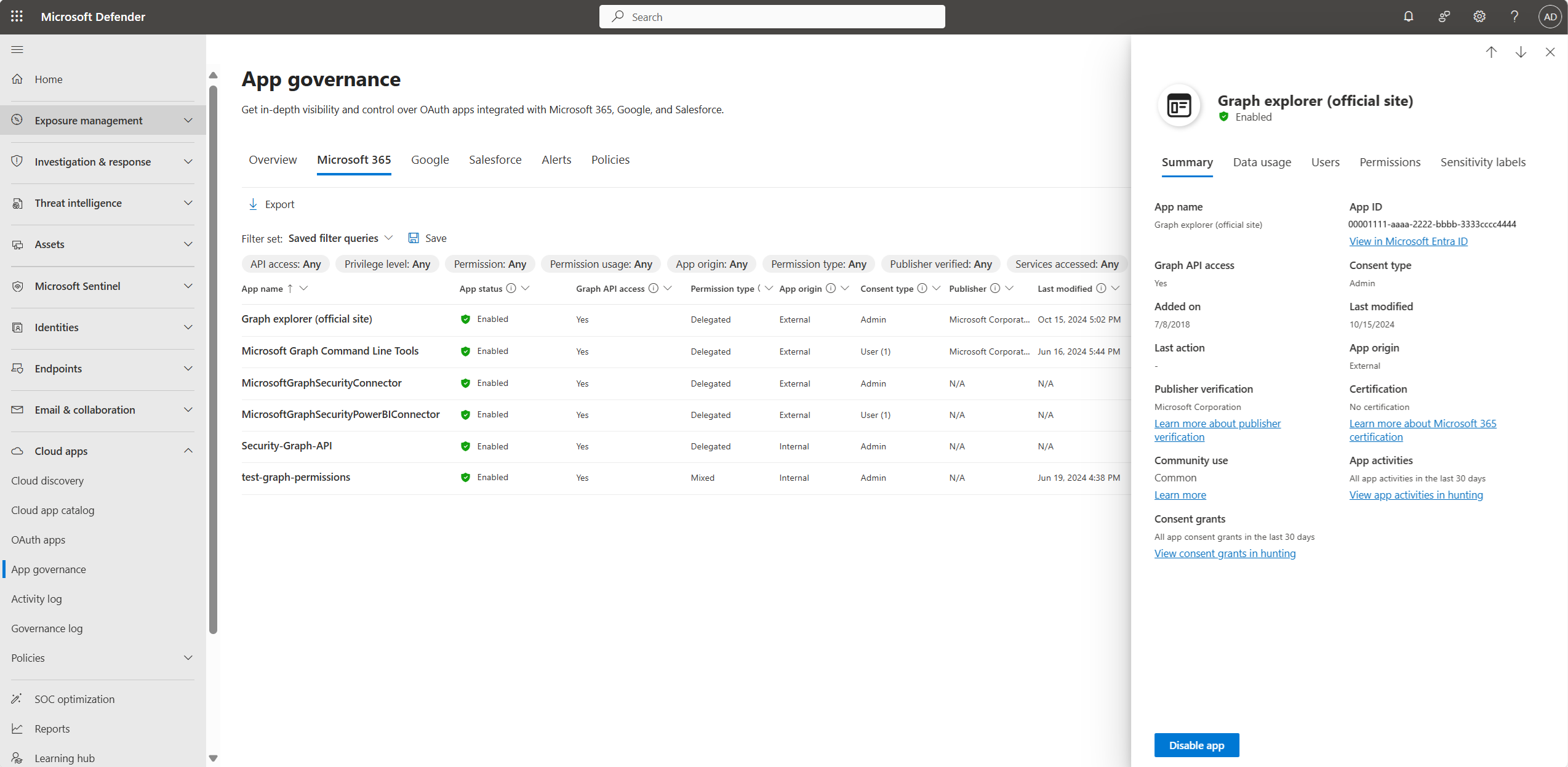
The details pane lists the app usage over the past 30 days, the users who have consented to the app, and the permissions assigned to the app.
For example, an administrator might review the activity and permissions of an app that is generating alerts and make a decision to disable the app using the Disable App button towards the bottom of the app details pane.