Note
Access to this page requires authorization. You can try signing in or changing directories.
Access to this page requires authorization. You can try changing directories.
The Microsoft Defender portal enables your security team to respond to and mitigate detected threats. This article walks you through an example of how you can use Defender for Business to review threat indicators on the Home page, investigate at-risk devices in the device inventory, and take response actions such as running an antivirus scan or initiating an automated investigation.
View detected threats
Use the following steps to view detected threats in the Microsoft Defender portal and take response actions.
Go to the Microsoft Defender portal and sign in.
Notice the cards on the Home page. These cards show how many threats were found, how many user accounts were affected, and which devices or other assets are at risk. The following image is an example:

Select a button or link on a card to view more details. For example, the Devices at risk card has a View details button. Select the View details button to open the Devices list, as shown in the following image:

The Devices page lists company devices with their risk level and exposure level.
Select an item, such as a device. A flyout pane opens with more details about alerts and incidents for the selected device, as shown in the following image:
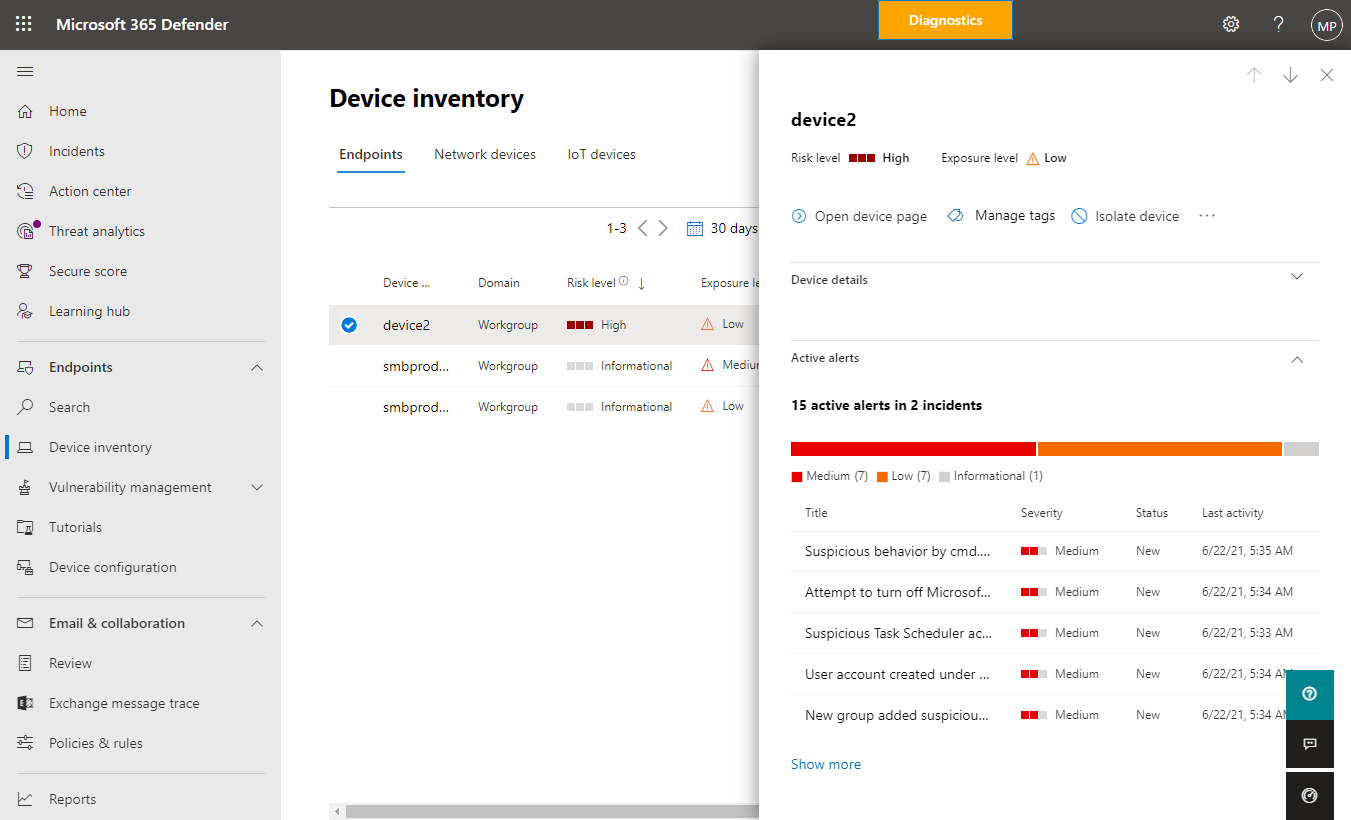
On the flyout, review the details. Select the ellipsis (...) to open a menu of available actions, as shown in the following image:

Select an available action. For example, you might choose Run antivirus scan, which starts a quick scan with Microsoft Defender Antivirus on the device. Or, you could select Initiate Automated Investigation to trigger an automated investigation on the device.
Next steps
Learn more about related Defender for Business tasks: