Note
Access to this page requires authorization. You can try signing in or changing directories.
Access to this page requires authorization. You can try changing directories.
By using the connector for MQTT, you can model MQTT endpoints as assets in Azure IoT Operations. These MQTT endpoints can be on external MQTT brokers or on the built-in MQTT broker in Azure IoT Operations. The MQTT connector detects new topic paths as they appear, and you can view the custom resources that represent the detected topics.
An asset in Azure IoT Operations is a logical entity that you create to represent a physical asset or device. An Azure IoT Operations asset can have custom properties, data points, streams, and events that describe its behavior and characteristics. An asset is associated with one or more devices. Azure IoT Operations stores asset definitions in the Azure Device Registry.
A device in Azure IoT Operations is a logical entity that defines the connections to physical assets or devices. Without a device, data can't flow from a physical device or asset to the MQTT broker. When you configure a device and asset, a connection is established to the physical asset or device and data point values, events, and streams arrive in Azure IoT Operations instance. A device has one or more inbound endpoints. Azure IoT Operations stores device definitions in the Azure Device Registry.
The following table summarizes the features that the connector for MQTT supports:
| Feature | Supported | Notes |
|---|---|---|
| Username/password authentication | Yes | Basic HTTP authentication |
| X.509 user certificates (mTLS) | Yes | Certificates for client authentication and authorization |
| Anonymous access | Yes | For testing purposes |
| Southbound certificate trust list | Yes | MQTTS for secure communications with the inbound endpoint |
| OpenTelemetry integration | Yes | |
| WASM data transformation | Yes | Optionally transform incoming data using WebAssembly modules |
| Schema generation | Yes | Registers inferred schema with the schema registry |
| Health status reports | Yes | Report health status of assets and endpoints in operations experience and Azure portal |
The connector for MQTT:
- Detects new topics that appear under a given topic path or MQTT wildcard path and communicates with Akri.
- Akri creates the discovered asset custom resource ready for OT approval and import into Azure Device Registry.
- For approved assets, the connector for MQTT subscribes to the topics and forwards the data to the unified namespace topics you specify.
Important
The connector for MQTT doesn't support adding new datasets to an imported asset, manually creating an asset, or changing the dataSource field value of a dataset.
This article explains how to use the connector for MQTT to perform tasks such as:
- Define the devices that connect MQTT endpoints to your Azure IoT Operations instance.
- Import discovered assets, and define the data points to enable the data flow from the MQTT source to the MQTT broker.
- Configure management actions that let you send commands to the MQTT source by publishing messages to MQTT topics.
- Configure data transformations by using WebAssembly (WASM) modules.
Prerequisites
The Azure CLI examples in this article use environment variables so that you can set each value once and then copy and paste the commands as-is. If you're using the Azure IoT Operations Codespaces environment from the quickstart, these variables are already set for you and you can skip this step. Otherwise, set the following environment variables in your shell before you run the commands.
The following scripts set the most commonly used environment variables:
| Environment variable | Description |
|---|---|
SUBSCRIPTION_ID |
The ID of the subscription that contains your Azure IoT Operations instance. |
RESOURCE_GROUP |
The name of the resource group that contains your Azure IoT Operations instance. |
AIO_INSTANCE_NAME |
The name of your Azure IoT Operations instance. To list your instances, run az iot ops list -o table. |
CLUSTER_NAME |
The name of the Azure Arc-enabled Kubernetes cluster that hosts your instance. |
LOCATION |
The Azure region to use for new resources, for example eastus. |
SUBSCRIPTION_ID=<subscription-id>
RESOURCE_GROUP=<resource-group-name>
AIO_INSTANCE_NAME=<instance-name>
CLUSTER_NAME=<cluster-name>
LOCATION=<region>
You only need to set the variables that this article uses. This article might use additional environment variables for resource names that you choose. The article explains how to set them where they're introduced.
A deployed instance of Azure IoT Operations with resource sync rules enabled. To enable resource sync rules run the following command on your Azure IoT Operations instance. This command also sets the required permissions on the custom location:
az iot ops enable-rsync -n $AIO_INSTANCE_NAME -g $RESOURCE_GROUP
To sign in to the operations experience web UI, you need a Microsoft Entra ID account with at least contributor permissions for the resource group that contains your Kubernetes - Azure Arc instance. You can't sign in with a Microsoft account (MSA). For more information, see Troubleshoot access to the operations experience web UI.
Your IT administrator must configure the connector for MQTT template for your Azure IoT Operations instance in the Azure portal.
You need credentials to access the MQTT source. If the MQTT source requires authentication, you need to create a Kubernetes secret that contains the username and password for the MQTT source.
MQTT connector template instance
Before an OT user can create a device that uses the connector for MQTT, an IT administrator must add an MQTT connector template instance to your Azure IoT Operations instance. To learn more, see Create and manage connector template instances.
Configure a certificate trust list for the connector
Each connector has its own trust list: the set of certificates the connector uses to validate the TLS certificate that a southbound endpoint presents when the connector establishes a secure connection to it. Add a certificate to the trust list when the southbound endpoint uses a TLS certificate that's signed by a private or enterprise certificate authority (CA), or a self-signed certificate that the connector doesn't already trust. Client certificates that the connector presents to the southbound endpoint for mutual TLS are configured separately as part of the device's user authentication.
Note
For the connector for OPC UA, the trust list also handles OPC UA application-instance certificates. To learn more, see Understand the OPC UA certificates infrastructure.
You can add a certificate to a connector's trust list in two ways:
Operations experience. In the operations experience web UI, you can either upload a certificate file directly or pick an existing secret from Azure Key Vault. The operations experience adds the certificate to Azure Key Vault as a secret (if needed), creates the synced secret resource on the cluster, and wires it into the connector's trust list for you. To learn more, see Manage certificates for external communications.
Azure CLI. The Azure CLI flow assumes the certificate is already stored as a secret in Azure Key Vault. You use
az iot ops secretsync secret setto create a synced secret on the cluster that references the Key Vault secret, and thenaz iot ops connector template updateto add a reference to the synced secret in the connector template's trust list. To learn more, see Add and use certificates. To learn how to add a certificate to Azure Key Vault, see Add certificates as secrets to Azure Key Vault.
The operations experience and the Azure CLI flows partially overlap. The operations experience can both upload a new certificate to Azure Key Vault and sync it to the cluster in one experience. The Azure CLI flow assumes the certificate is already in Azure Key Vault and only handles the sync and trust-list wiring.
Create a device
To configure the connector for MQTT, first create a device that defines the connection to the MQTT topic to subscribe from. The device includes the address of the MQTT topic and any credentials you need to access it. You can configure the inbound endpoint to connect to an external MQTT broker or the built-in MQTT broker in Azure IoT Operations:
- External MQTT broker: Use this option when connecting to an MQTT broker other than the built-in MQTT broker on your Azure IoT Operations instance. You must supply the server URL in the specified format and any required authentication credentials.
- Built-in MQTT broker: Use this option when you want to subscribe to topics on the built-in MQTT broker that's part of your Azure IoT Operations instance. This option is useful for bridging data between the built-in broker and other parts of the system by routing it through the asset model.
The connector also discovers assets from MQTT topics based on a topic filter and forwards data to a unified namespace path defined by a topic mapping prefix:
- The topic filter specifies which topics the connector subscribes to. The filter supports the single-level wildcard (
+). The connector detects a new asset each time a message arrives on a topic that matches the filter at the wildcard position. For example, the filterA/B/+detectsA/B/asset1andA/B/asset2as separate assets. Topic filters don't support the multilevel wildcard (#) or system topics (topics that start with$SYS/). - The topic mapping prefix maps the incoming topic to a unified namespace path. For example, if the prefix is
X/Yand the incoming topic isA/B/asset1, the connector forwards data toX/Y/A/B/asset1.
Important
Design the topic filter carefully before creating the device. After you create the device, you can't change the asset discovery configuration unless you delete and recreate the device. The connector silently ignores messages sent to topics that don't match the topic filter and doesn't create discovered assets from them.
In the operations experience web UI, select Devices in the left navigation pane. Then select Create new.
Enter a name for your device, such as
mqtt-connector. To add the inbound endpoint for the connector for MQTT, select New on the Microsoft.Mqtt tile.On the Basic page, add the endpoint details:
External MQTT broker: Add an endpoint name, server URL, and any authentication credentials.
Built-in MQTT broker: Add a name for the endpoint,
mqtt://aio-broker:18883as the server URL, and Anonymous for the authentication credentials.Tip
The built-in MQTT broker configuration doesn't require authentication values and has a known URL. The values you enter are ignored.
On the Advanced page, configure the topic discovery and broker connection settings:

Add the Topic filter and Topic mapping prefix values.
If you're using the built-in MQTT broker, enable the Use built in mqtt broker setting. Ignore the external broker configuration settings.
If you're connecting to an external MQTT broker, optionally configure the following settings:

Setting Type Default Description keepAliveinteger 60 The keep alive interval in seconds for the MQTT connection. receiveMaxinteger 65535 The maximum number of in-flight QoS 1 and QoS 2 publishes that the client is willing to process concurrently. receivePacketSizeMaxinteger None The maximum packet size in bytes that the client accepts. sessionExpiryinteger 3600 The expiry of the session in seconds. connectionTimeoutinteger 30 The connection timeout in seconds for the MQTT connection.
Select Apply to save the endpoint.
On the Device details page, select Next to continue.
On the Add custom property page, add any other properties you want to associate with the device. For example, you might add a property to indicate the manufacturer of the device. Then select Next to continue.
On the Summary page, review the details of the device and select Create to create the asset.
After the device is created, you can view it in the Devices list:


Configure a device to use a username and password
The previous example uses the Anonymous authentication mode. This mode doesn't require a username or password.
To use the Username password authentication mode, complete the following steps:
In the operations experience, when you add the inbound endpoint and choose the Username password authentication mode, select Add reference to add the secret references for the username and password. The operations experience offers two options:
- Create a new secret: uploads the value to Azure Key Vault and synchronizes it to the cluster as a synced secret.
- Add from Azure Key Vault: synchronizes an existing Key Vault secret to the cluster.
The operations experience saves both the username and password references in a single synced secret resource on the cluster, and you give that synced secret a name.
To learn more, see Add and use secrets.
Configure a device to use an X.509 certificate
In the operations experience, when you add the inbound endpoint and choose the X509 certificate authentication mode, select Add reference to add the secret reference for the client certificate and private key. The operations experience offers two options:
- Create a new secret: uploads the certificate and private key files to Azure Key Vault and synchronizes them to the cluster as a synced secret.
- Add from Azure Key Vault: synchronizes existing Key Vault secrets to the cluster.
The operations experience saves the certificate and key references in a single synced secret resource on the cluster, and you give that synced secret a name.
To learn more, see Sync a client certificate and private key for mutual TLS.
Note
Currently, the connector doesn't support intermediate certificates when it connects to external MQTT brokers.
Discover and create assets
When you send a message to a topic that matches the topic filter on the asset discovery configuration for a device, the connector for MQTT detects the new topic and creates a detected asset custom resource. For example, if you specify the topic filter as A/B/+, and you send a message to the topic A/B/asset1, the connector for MQTT detects the new topic and creates a discovered asset that you can view in the operations experience web UI:

To create an asset from the discovered asset, follow these steps:
In the operations experience, select the discovered asset from the list and then select Import and create asset.
On the Asset details page, the inbound endpoint is already selected from the device. Add a name, a description, and any custom properties you want to associate with the asset. Then select Next to continue.
On the Datasets page, you see a dataset that the connector created automatically from the discovered asset using the topic filter and asset name:

Select Next to continue.
On the review page, review the details of the asset and select Create to create the asset. After a few minutes, the asset appears on the Assets page:


In this example, the imported asset has a dataset definition with the following settings:
| Setting | Value |
|---|---|
| Dataset name | A/B/asset1 |
| Data source | A/B/asset1 |
| Destination topic | X/Y/A/B/asset1 |
Now, the connector copies any messages published to the topic A/B/asset1 to the unified namespace topic X/Y/A/B/asset1.
Add management groups and actions
A management group is a logical grouping of actions that you can invoke against an MQTT asset. An action lets you publish a message to a topic that a subscriber can act on. Actions must belong to a management group.
Note
The operations experience doesn't automatically discover management groups and actions for the connector for MQTT. You must create them manually while or after you import the asset.
To add a management group and define actions for it:
- In the operations experience, select the asset from the Assets list and select the Management groups tab.
- Select Add management group and give it a name.
- Within the management group, select Add action and configure the action:
- Name: A friendly name for the action.
- Target URI: The MQTT topic on your device endpoint to publish the action payload to. For example,
A/B/asset1/commands. - Topic: The MQTT topic to publish action execution request to.
- Action type:
Writeis the only supported action type for the connector for MQTT. - Time out: The time-out value before the action execution request times out.
When you invoke the action, the connector publishes the action payload to the Target URI topic on the device's inbound endpoint. A downstream subscriber on that topic receives the message and can act on it.
For background on how management groups and actions work across connectors, see:
- Enable and run management actions
- Control OPC UA servers — explains the action invocation pattern and the MQTT RPC protocol used to trigger actions.
- Manage and control the camera — shows how a similar pattern is used for the connector for ONVIF.
Transform incoming data
To transform the incoming data by using a WASM module and graph, complete the following steps:
Develop a WASM module to perform the custom transformation. For more information, see Develop WebAssembly (WASM) modules.
Configure your transformation graph. For more information, see Configure WebAssembly (WASM) graph definitions.
Deploy both the module and graph to your container registry. For more information, see Deploy WebAssembly (WASM) modules and graph definitions.
Set up authentication and connection details so Azure IoT Operations can access the container registry.
Configure your asset's dataset with the URL of the deployed WASM graph in the Transform field:
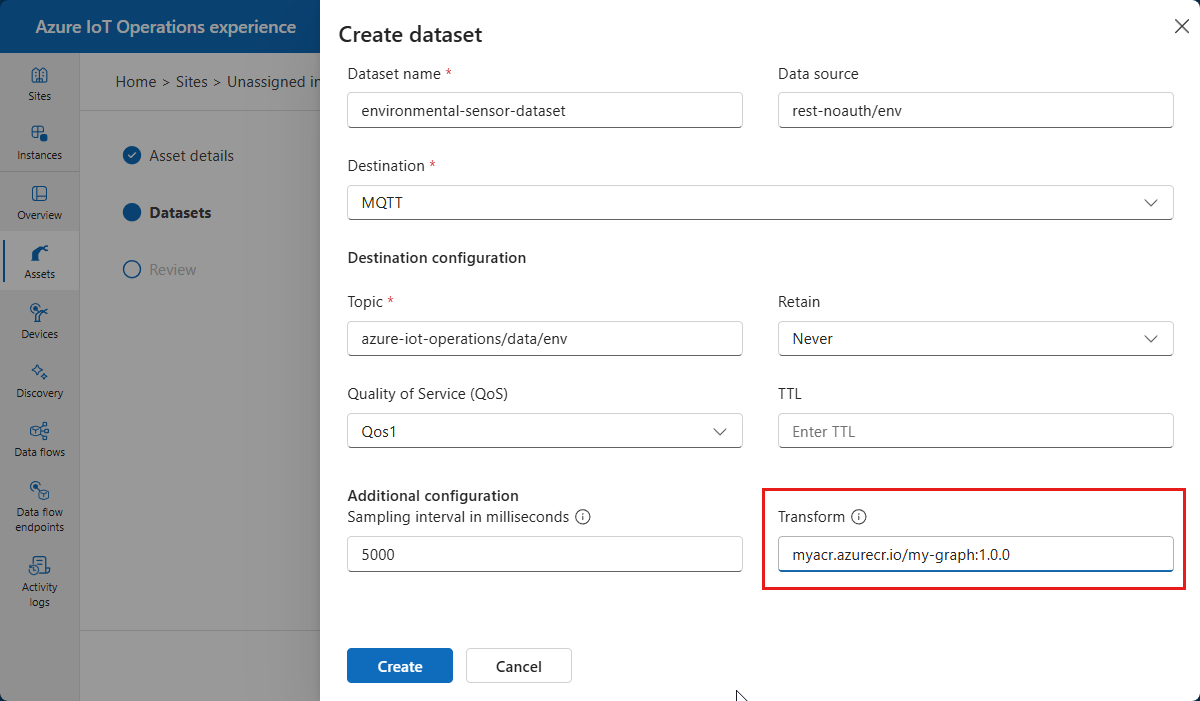
A data transformation in the connector only requires a single map operator, but WASM graphs are fully supported with the following restrictions:
- The graph must have a single
sourcenode and a singlesinknode. - The graph must consume and emit the
DataModel::Messagedatatype. - The graph must be stateless. Currently, this restriction means that accumulate operators aren't supported.
Known issues
The following known issue applies to the connector for MQTT:
Misconfigured asset discovery settings produce no diagnostic output
If the asset discovery configuration - topic filter or topic mapping prefix - is invalid or inconsistent, the connector doesn't report an error. No discovered assets appear and no warning is surfaced in the UI or logs.
To diagnose a misconfiguration, verify that:
- Messages are being published to a topic that matches the topic filter.
- The connector pod logs don't show connection errors to the broker endpoint.
If you need to correct the configuration, delete and recreate the device.