Note
Access to this page requires authorization. You can try signing in or changing directories.
Access to this page requires authorization. You can try changing directories.
In this article, you learn how to deploy an update to IoT devices by using Azure Device Update for IoT Hub in the Azure portal or with Azure CLI.
Important
Migrate to Device Update data plane API version 2026-06-01 ahead of the scheduled retirement dates: February 28, 2027 for preview API versions, and August 31, 2029 for API version 2022-10-01. This version adds download security, which lets you choose, for each new deployment, whether devices download update content over HTTPS (the default) or HTTP. For more information, see Understand download security (TLS) in Device Update for IoT Hub.
Prerequisites
- A Standard (S1) or higher instance of Azure IoT Hub with Device Update for IoT Hub enabled.
- An IoT device or simulator provisioned for Device Update within the IoT hub. The provisioned device can be a member of a user-created device group or the default group.
- An imported update for the provisioned device.
Deploy the update
This section describes how to deploy the update by using the Azure portal or Azure CLI.
In the Azure portal, go to your IoT hub.
Select Updates under Device management in the left navigation.

On the Updates page, select the Groups and Deployments tab and view the update compliance chart and device group list. You might need to refresh the view to see recently imported updates available for your device group.
Under Status in the group list, select Deploy next to One or more new updates are available for this group.

View the update compliance chart and group list. You should see a new update available for your tag based or default group. You might need to refresh once. For more information, see Device Update compliance.
Select Deploy next to the one or more updates available status.
From the list on the right, select the desired update to deploy.

For Download security, select HTTPS (recommended) or HTTP. This setting controls the protocol that devices use to download the update content. HTTPS is the default and encrypts update content in transit.
For guidance on choosing a protocol and preparing your devices, see Understand download security (TLS) in Device Update for IoT Hub.
Schedule your deployment to start immediately or in the future.
Tip
By default, the Start date and time is 24 hours from your current time. Be sure to select a different date and time if you want the deployment to begin sooner or later.
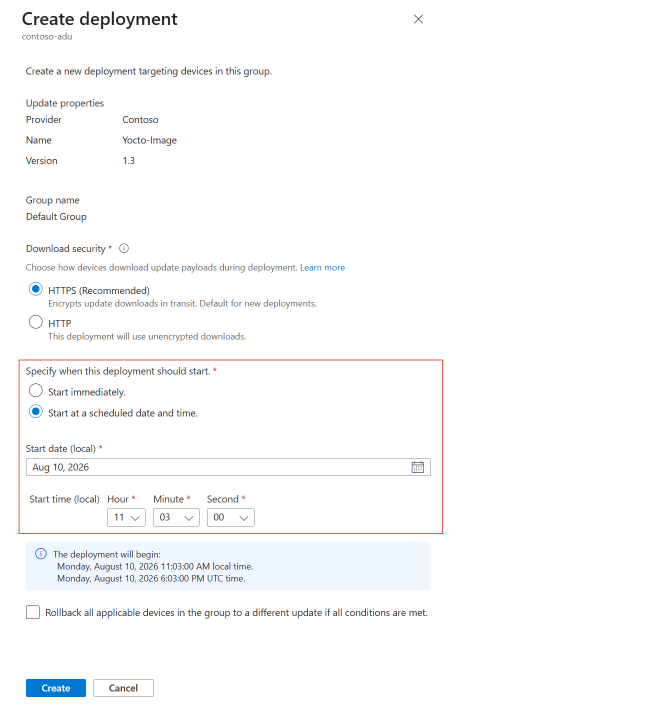
Create an automatic rollback policy if needed. Then select Create.
In the Current updates tab, you can view the status of your deployment.

In the Group basics view, the compliance chart shows that the update is now in progress.
After your device successfully updates, your compliance chart and deployment details update to reflect that status.


Monitor deployment status
On the Groups and Deployments tab of the Updates page, select the group you deployed to.
On the Group details page, go to the Current deployment or Deployment history tab to confirm that a deployment is in progress.

Select Details next to a deployment to view the deployment details, update details, and target device class details. You can optionally add a friendly name for the device class.
Select Refresh to view the latest status details.


Note
The deployment details show the download security setting. You can open the deployment details from the Current deployment and Deployment history tabs. You can't change this setting after you create the deployment. To use a different protocol, create a new deployment.
Go to the Group basics tab of the Group details page to search for the status of a particular device, or filter to view devices that failed the deployment.
Retry an update deployment
If your deployment fails, you can retry the deployment for failed devices.
Go to the Current deployment tab on the Group details screen.
Select Retry failed devices and acknowledge the confirmation notification.