Note
Access to this page requires authorization. You can try signing in or changing directories.
Access to this page requires authorization. You can try changing directories.
An admin VM is a virtual machine you create to securely access enclave resources for administrative purposes. Deploy admin VMs to the enclave's management subnet and access them remotely through Azure Bastion. They serve as your access point for focused, privileged enclave administration. Use them for time-limited administrative tasks, not persistent workloads.
Create an Admin VM
Use the Admin VM to quickly create a VM that can access and configure your enclave resources.
When to use an admin VM
Use admin VMs when you need to:
- Perform privileged administrative tasks in your enclave
- Access enclave workloads or resources from outside the enclave boundary
- Troubleshoot or manage enclave connectivity
Note
Admin VMs are administrative tools, not production workload resources. For workload-specific access patterns, consider creating a workload with its own access endpoints and connections.
Access admin VM
By default, Azure Enclave provisions an Azure Bastion instance within the enclave managed resource group to enable community and enclave owners to securely access admin VMs through Remote Desktop Protocol (RDP).
Connect to the Admin VM by using Azure Bastion
In the Azure portal, go to the Admin VM resource.
Select
Connectand then selectConnect via Bastion.
Enter your credentials for the Admin VM and select Connect.
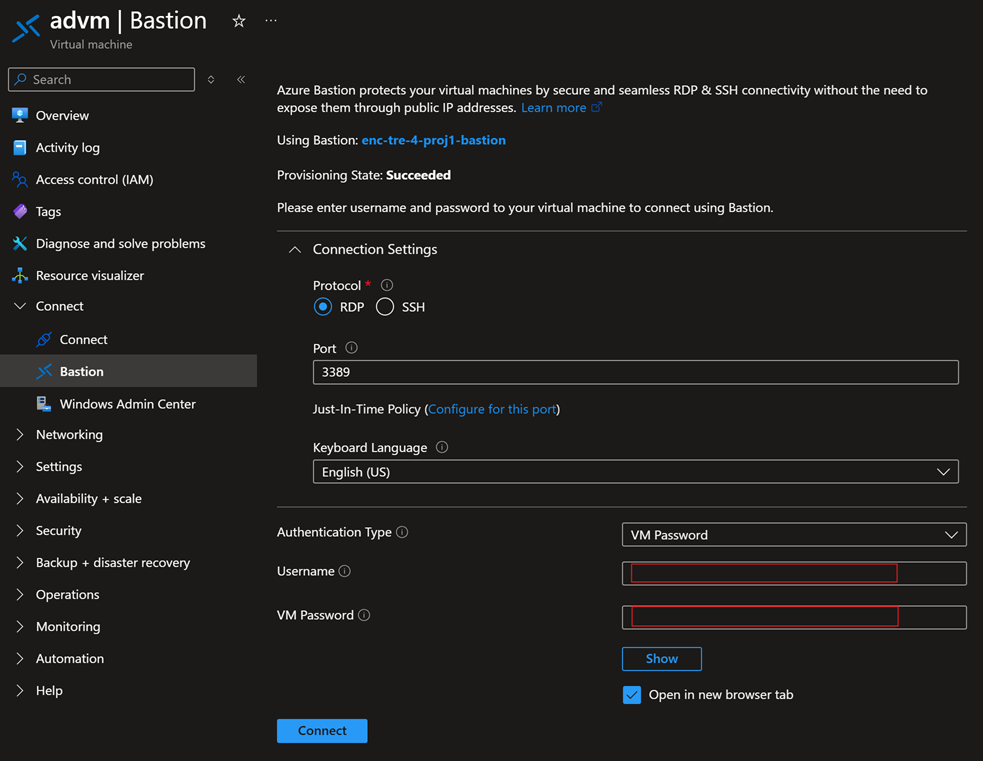
Connect to resources inside the enclave
After you connect to the Admin VM, use Remote Desktop to access other VMs within the enclave:
When the Admin VM desktop appears, select the Windows Start menu and enter
RDCin the search field.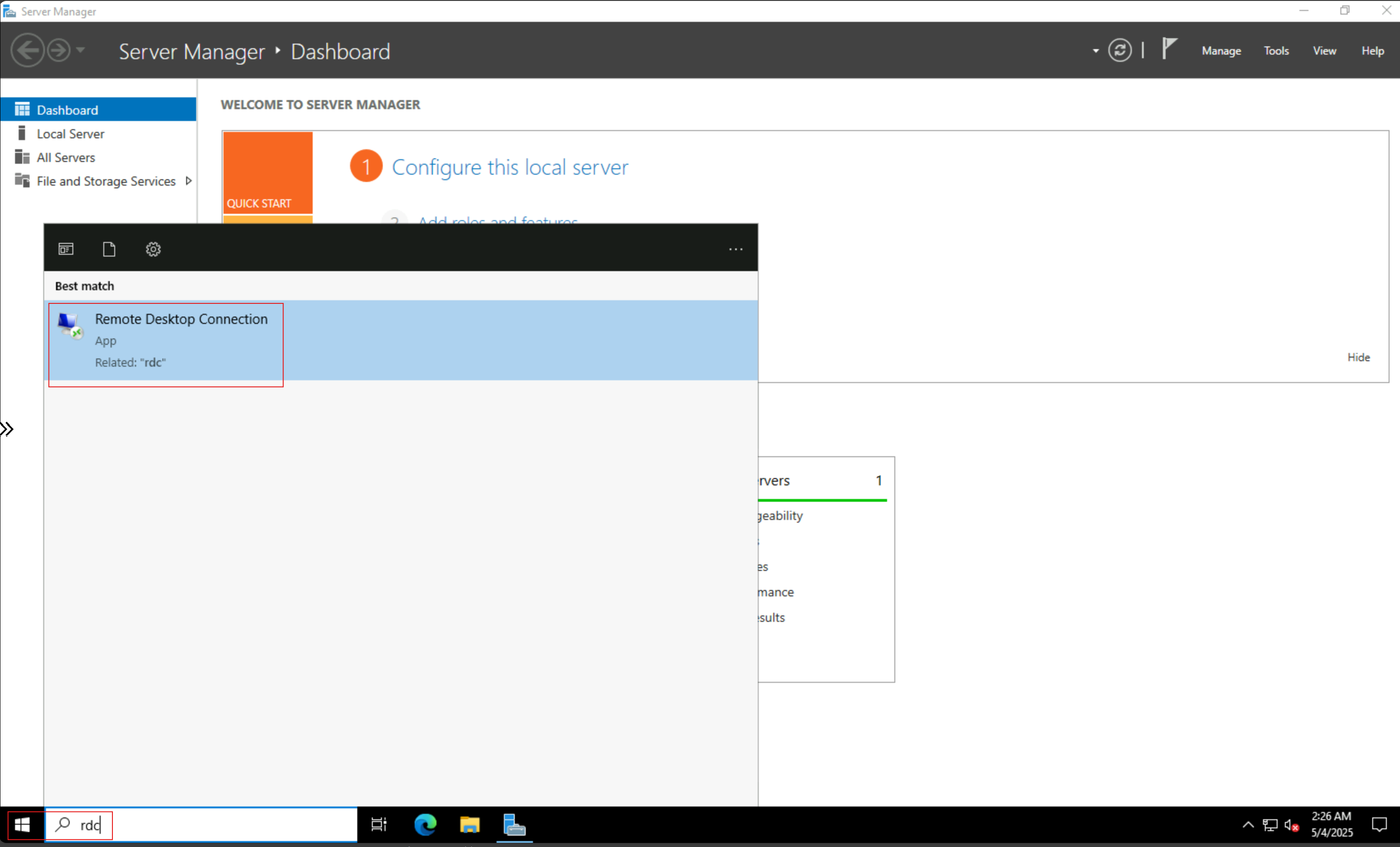
Select the
Remote Desktop Connectionapplication from the list.Enter the IP address or hostname of the enclave resource you want to access by using Remote Desktop.
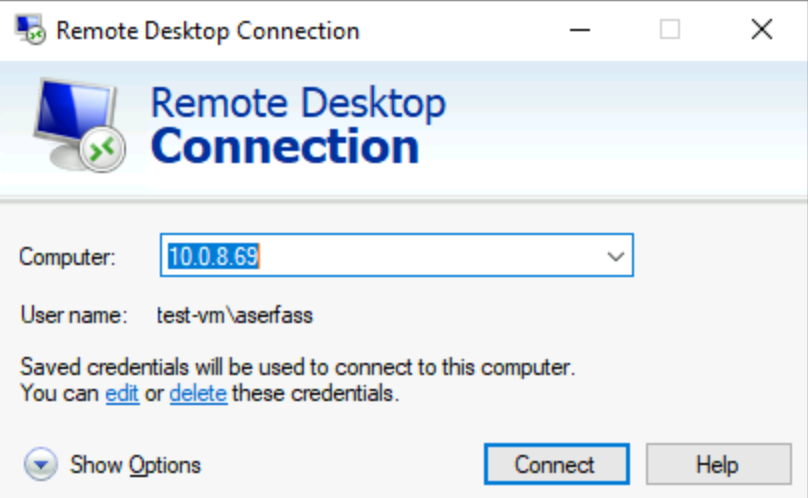
Complete your administrative tasks on the remote VM.
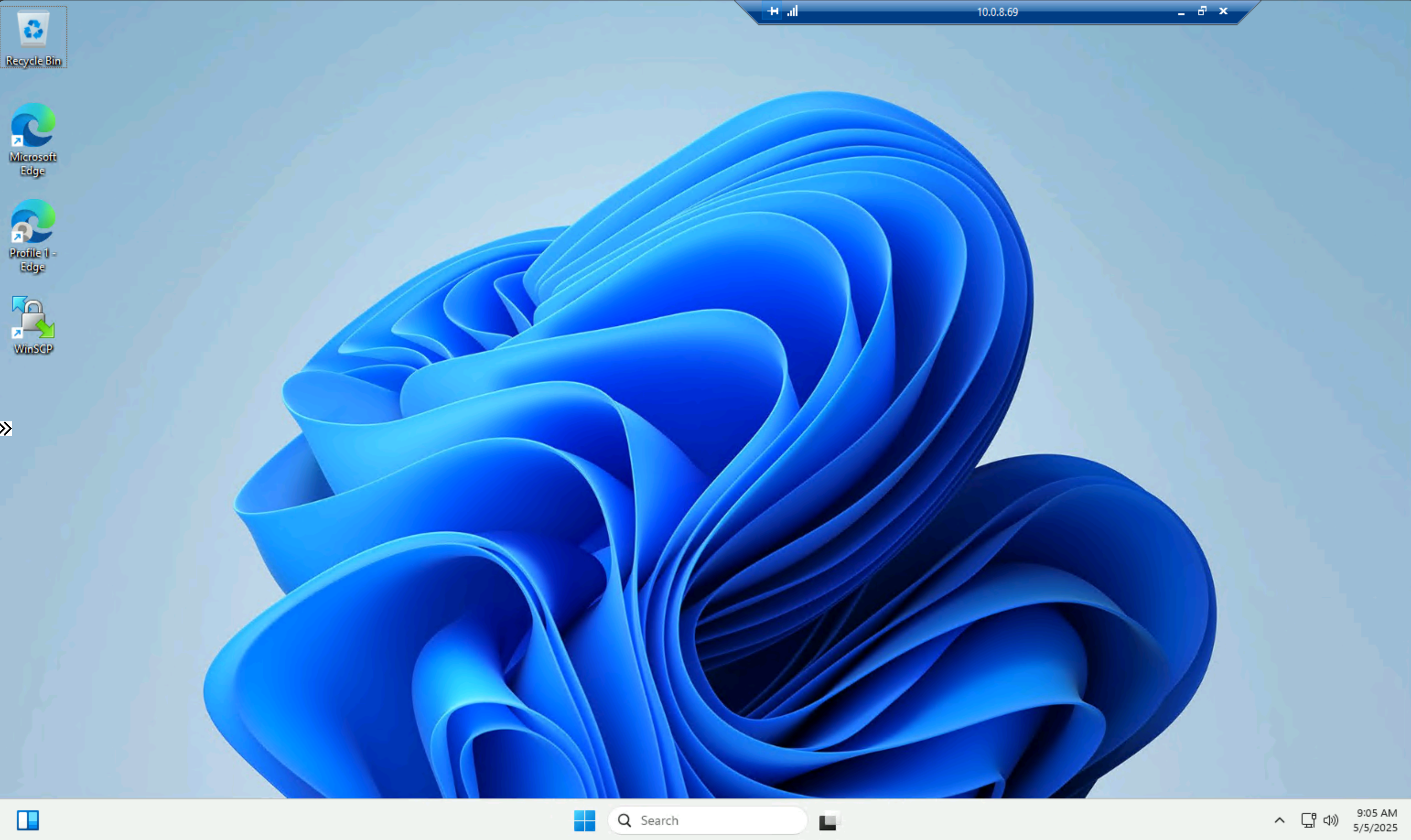
Manage admin VMs
Reset the admin VM password
If you forget the Admin VM's operating system password, reset it from the Azure portal:
- In the Azure portal, go to the Admin VM resource.
- In the left menu under Support + troubleshooting, select
Reset password. - Select a reset method and follow the prompts to set a new password.
- Enter your new password twice and select
Update.
Note
To reset the password, you need the Azure Contributor role on the VM resource.
Choose admin VM size
The Admin VM size depends on the number of concurrent administrators accessing the enclave. Larger VMs support more simultaneous Remote Desktop connections. You can resize the Admin VM after deployment from the VM's Compute page in the Azure portal.
For sizing recommendations, see Virtual Machine sizing in Azure documentation.
Customize the admin VM image
By default, Azure Enclave deploys Admin VMs by using the Windows Server Datacenter image from the Azure Marketplace. Use a custom image if you need preconfigured tools, security configurations, or organizational standards.
To use a custom image, provide the image resource ID in the Advanced tab when deploying the Admin VM from the service catalog template.