Note
Access to this page requires authorization. You can try signing in or changing directories.
Access to this page requires authorization. You can try changing directories.
Azure DevOps Services | Azure DevOps Server | Azure DevOps Server 2022
This guide walks you through configuring your project and restoring your NuGet packages using the dotnet command-line interface.
Prerequisites
| Product | Requirements |
|---|---|
| Azure DevOps | - An Azure DevOps organization. - An Azure DevOps project. - An Azure Artifacts feed. - Download and install the .NET SDK version 9.0.200 or later. |
Set up the Azure Artifacts Credential Provider
To authenticate with your feed, you must first install the Azure Artifacts Credential Provider. Using the tool installer included with dotnet, you can install the credential provider from the CLI using the following command:
dotnet tool install --global Microsoft.Artifacts.CredentialProvider.NuGet.Tool
If your repository-level nuget.config is configured to use only Azure Artifacts sources, run the install command from outside that directory, or explicitly set nuget.org as the source:
dotnet tool install --global Microsoft.Artifacts.CredentialProvider.NuGet.Tool --source https://api.nuget.org/v3/index.json
Optionally, pin the tool to a major version (for example, in container images where reproducibility matters):
dotnet tool install --global Microsoft.Artifacts.CredentialProvider.NuGet.Tool --version 2.* --source https://api.nuget.org/v3/index.json
First usage
The first time you perform an operation that requires authentication, use one of the following approaches:
- Run the command with
--interactivesodotnetcan prompt you to sign in. This is the recommended approach for most local development scenarios.
Before you run an interactive command, make sure your project is set up and your feed is added to nuget.config. For setup details, see project setup.
Once your project is set up and connected to your feed, navigate to your project directory and run:
dotnet restore --interactive
This command signs you in and acquires a session token. After sign-in succeeds, you can run authenticated commands without --interactive while the cached session token remains valid. For more information, see Session token cache locations.
- For non-interactive scenarios, such as Docker containers and custom automation, provide credentials through environment variables.
For Azure Pipelines, use the NuGetAuthenticate@1 task to authenticate to your feed before running commands such as dotnet restore or dotnet nuget push. See Restore NuGet packages with Azure Pipelines for more details.
Connect to a feed
Sign in to your Azure DevOps organization, and then navigate to your project.
Select Artifacts, and then select your feed from the dropdown menu.
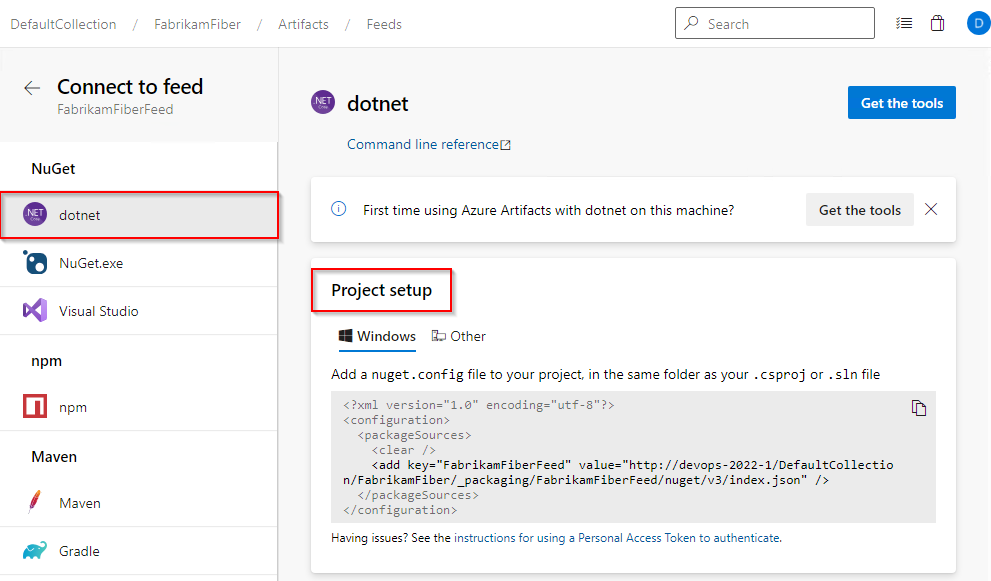
Select Connect to feed, and then select dotnet from the NuGet section on the left.
Create a nuget.config file in the same folder as your csproj or sln file. Copy the following XML snippet and paste it into your new file, replacing the placeholders with the relevant information:
Organization-scoped feed:
<?xml version="1.0" encoding="utf-8"?>
<configuration>
  <packageSources>
    <clear />
    <add key="<FEED_NAME>" value="https://pkgs.dev.azure.com/<ORGANIZATION_NAME>/_packaging/<FEED_NAME>/nuget/v3/index.json" />
  </packageSources>
</configuration>
Project-scoped feed:
<?xml version="1.0" encoding="utf-8"?>
<configuration>
  <packageSources>
    <clear />
    <add key="<FEED_NAME>" value="https://pkgs.dev.azure.com/<ORGANIZATION_NAME>/<PROJECT_NAME>/_packaging/<FEED_NAME>/nuget/v3/index.json" />
  </packageSources>
</configuration>
Sign in to your Azure DevOps server, and then navigate to your project.
Select Artifacts, and then select your feed.
Select Connect to Feed, and then select dotnet from the left navigation pane.
Follow the instructions in the Project setup section to connect to your feed.
Restore packages
Run the following command to restore your packages. The --interactive flag is used to prompt the user for credentials:
dotnet restore --interactive