Note
Access to this page requires authorization. You can try signing in or changing directories.
Access to this page requires authorization. You can try changing directories.
Microsoft Defender for Cloud provides SQL Vulnerability Assessment for your Azure SQL databases. SQL Vulnerability Assessment scans your databases for possible vulnerabilities based on database configurations and provides a list of findings. Scan cycles help maintain a high level of security and ensure compliance with organizational security policies.
Important
Express Configuration is generally available for Azure SQL Managed Instance and Azure Synapse Analytics Workspaces. This extends the generally available Microsoft-managed experience for Azure SQL Database, at no additional cost.
Express Configuration allows you to enable SQL VA without configuring a customer-managed storage account. Express Configuration is the recommended enablement mode and provides the same security value as Classic Configuration with a simplified setup.
A unified REST API (v2026-04-01-preview) manages SQL VA consistently across Azure SQL Database, SQL Managed Instance, Synapse Workspaces, and SQL on machines (Azure VM and Arc-enabled SQL).
SQL Vulnerability Assessment is available in two configurations: express and classic. Both configurations use the same logic, remediation guidance and baseline management. For remediation purposes, the only difference is when a baseline setting takes effect.
Ways to remediate a finding
A Vulnerability Assessment finding isn't always a definitive security problem. Each rule checks your database against Microsoft security best practices and common regulatory requirements, and the result appears as a recommendation on the scanned database. An unhealthy result flags a deviation from that best practice, which might be an unintended misconfiguration or a configuration that's intentional and acceptable for your environment. Review each finding in the context of your organization before you act.
You have three ways to remediate a finding:
- Fix the misconfiguration. If the finding is an unintended deviation, apply the remediation steps or run the remediation script provided with the finding to bring the resource back to the recommended configuration.
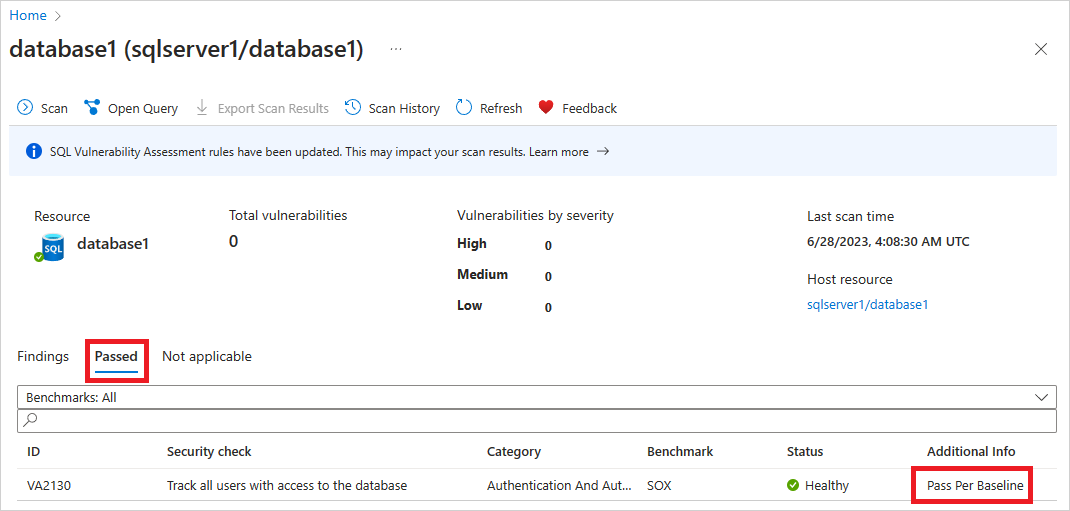
- Approve it as a baseline. If the current state is by design and expected for your environment, add the results to the baseline. Baselines are set per rule and per resource, so approving a result affects only that rule on that database. The finding is then reported as passed and stays healthy until a future scan detects a deviation from the approved baseline.
- Exempt the recommendation. If the check isn't relevant to your organization, create an exemption at the subscription or management group level so the recommendation no longer affects your secure score or compliance for that scope.
Note
The exemption setup succeeds, but it will not take effect unless the "Azure CSPM" standard is assigned on the selected scope.
Prerequisites
SQL Vulnerability Assessment is enabled on your Azure SQL resource.
Review the required permissions and the data residency conditions:
The baseline approval timing differs by configuration model.
If you aren't sure which Vulnerability Assessment configuration you're using, use the following steps to check: 1. Sign into the Azure portal. 1. Open your SQL Database resource. 1. Under the Security heading, select Microsoft Defender for Cloud. 1. In the Enablement Status, select Configure to open the Microsoft Defender for SQL settings pane for either the entire server or managed instance.
If the vulnerability settings show the option to configure a storage account, you're using the classic configuration. If not, you're using the express configuration.
Run an on-demand scan
Run a read-only, on-demand Vulnerability Assessment scan to refresh findings instead of waiting for the next scheduled scan.
To run an on-demand scan:
Sign into the Azure portal.
Open your SQL server or SQL database resource.
Under the Security heading, select Microsoft Defender for Cloud.
Open the database's Vulnerability Assessment page:
- From a SQL database resource, select View database vulnerability summary.
- From a SQL server resource, select View server vulnerability summary, and then select a database.
Select Scan.
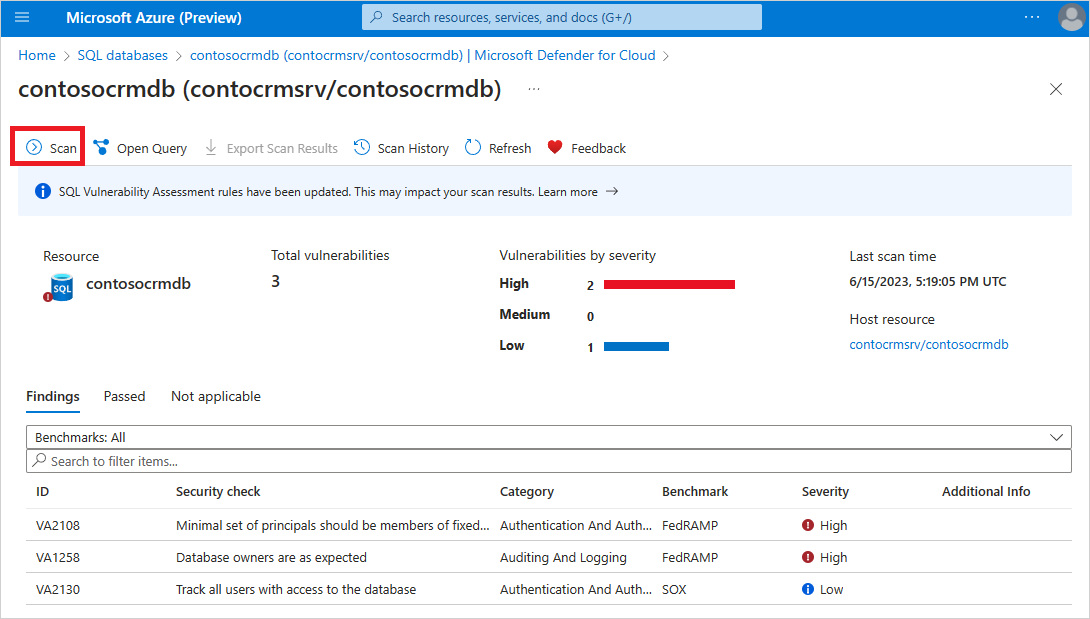
Alternatively, from a SQL database resource, select Open resource health page. In the SQL Vulnerability Assessment results section, select Scan now.

View the vulnerability assessment scan results
After a scan completes, the Vulnerability Assessment page shows a full view of your database security. This includes:
- An overview of your security state
- The number of issues found
- A severity summary of risks
- A list of findings for investigation
Review findings from the SQL resource's Defender for Cloud page
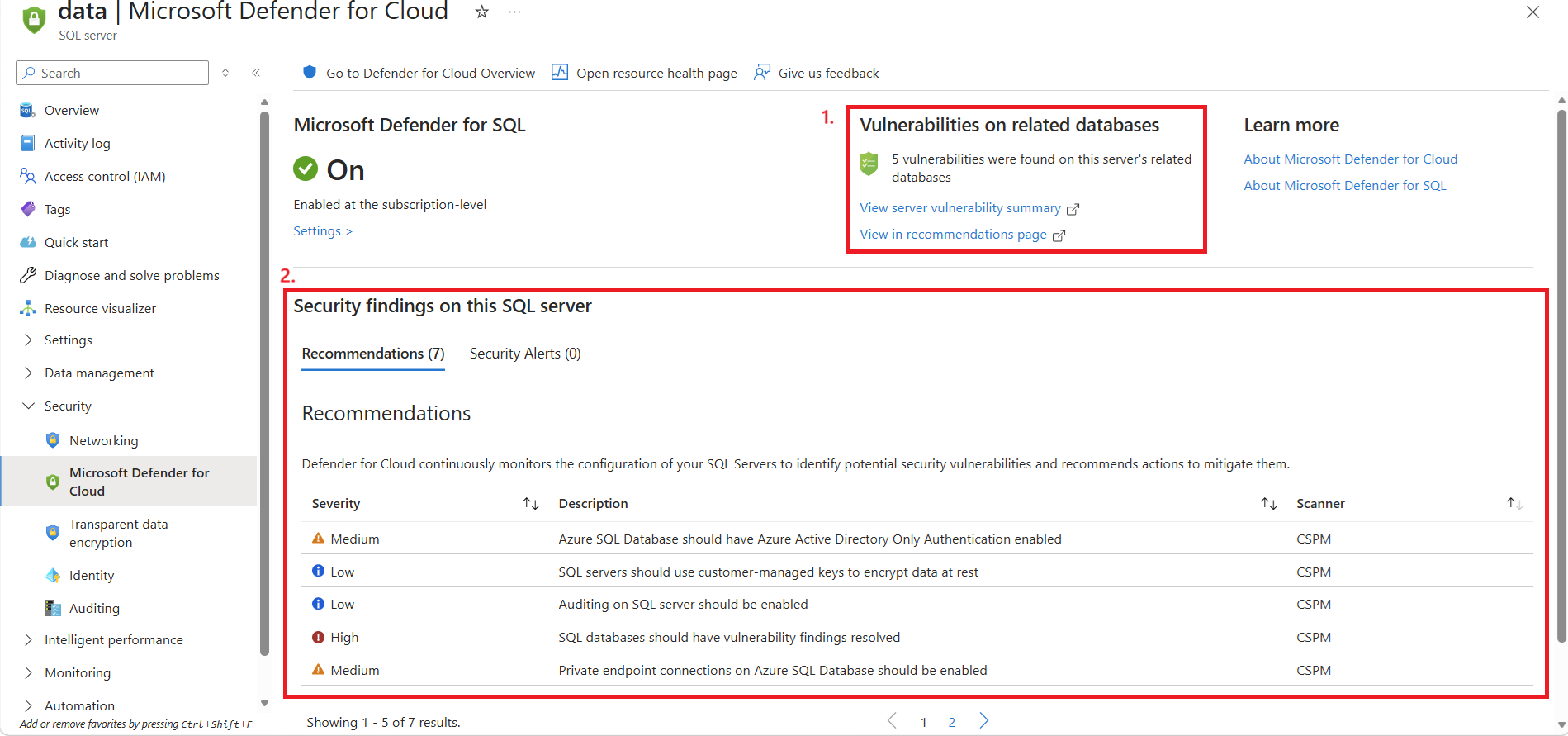
You can reach SQL Vulnerability Assessment findings directly from the Microsoft Defender for Cloud page on a SQL server or SQL database resource. This page shows the Defender for SQL enablement status, a summary of detected vulnerabilities, and the security recommendations and alerts reported on the resource.
To open the page:
- Sign in to the Azure portal.
- Open your SQL server or SQL database resource.
- Under the Security heading, select Microsoft Defender for Cloud.
From the top of the page you can select Go to Defender for Cloud Overview or Open resource health page. The Microsoft Defender for SQL card shows the current enablement status and a Settings link to the Defender for SQL configuration.
On a SQL server resource:
The Vulnerabilities on related databases card summarizes the number of vulnerabilities detected by SQL Vulnerability Assessment on the server's underlying databases and provides two ways to review them:
- View server vulnerability summary: opens the server-level SQL Vulnerability Assessment summary. This is the same summary that the now-deprecated SQL databases should have vulnerability findings resolved and SQL servers on machines should have vulnerability findings resolved recommendations used to open.
- View in recommendations page: opens the Defender for Cloud Recommendations page filtered by the SQL Vulnerability Assessment scanner, with the current server set as the Parent resource.
The Security findings on this SQL server section lists the Recommendations and Security Alerts reported on the server resource. Database-level SQL Vulnerability Assessment recommendations aren't listed here, because they're reported on the individual databases. The deprecated aggregated recommendations might still appear in the Recommendations tab until they're fully retired.

Review and remediate vulnerabilities (Azure portal)
Use the Azure portal to review findings, remediate issues, and manage baselines. Choose the tab that matches your experience.
Note
The database-level recommendations experience is currently in preview. The existing server-level (aggregated) experience remains available during preview.
In the database-level recommendations experience:
- SQL Vulnerability Assessment findings follow the same recommendation structure used across Microsoft Defender for Cloud.
- Each SQL Vulnerability Assessment rule corresponds to its own recommendation.
- Recommendations are associated directly with the affected SQL database resource.
- Each rule can be reviewed, remediated, or marked as baseline independently.
Sign in to the Azure portal.
Go to Defender for Cloud > Recommendations.
Select the Recommendations by risk view.
Adjust the view:
- Use the By Resource filter to list all instances of the assessment by reported resource.
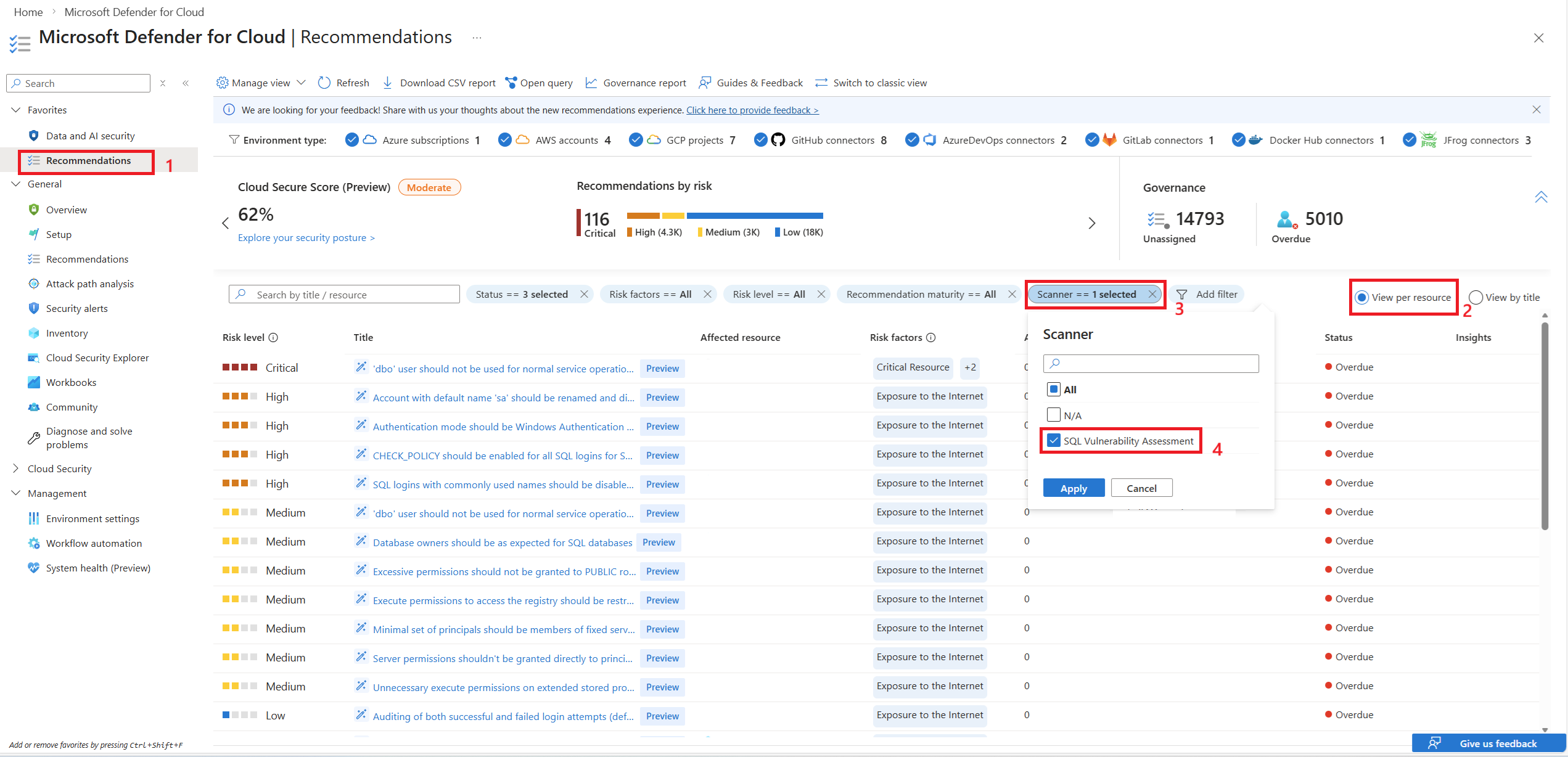
- Use the By Title filter to aggregate all instances of the assessment under one value.
- Use the By Resource filter to list all instances of the assessment by reported resource.
Select the Scanner filter and from the options, select SQL Vulnerability Assessment.
Review findings (By Resource only):
Select a recommendation.
Review its description.
Select Manage query results and remediation to review the query used for evaluating the recommendation, generate a remediation script, or set a baseline.
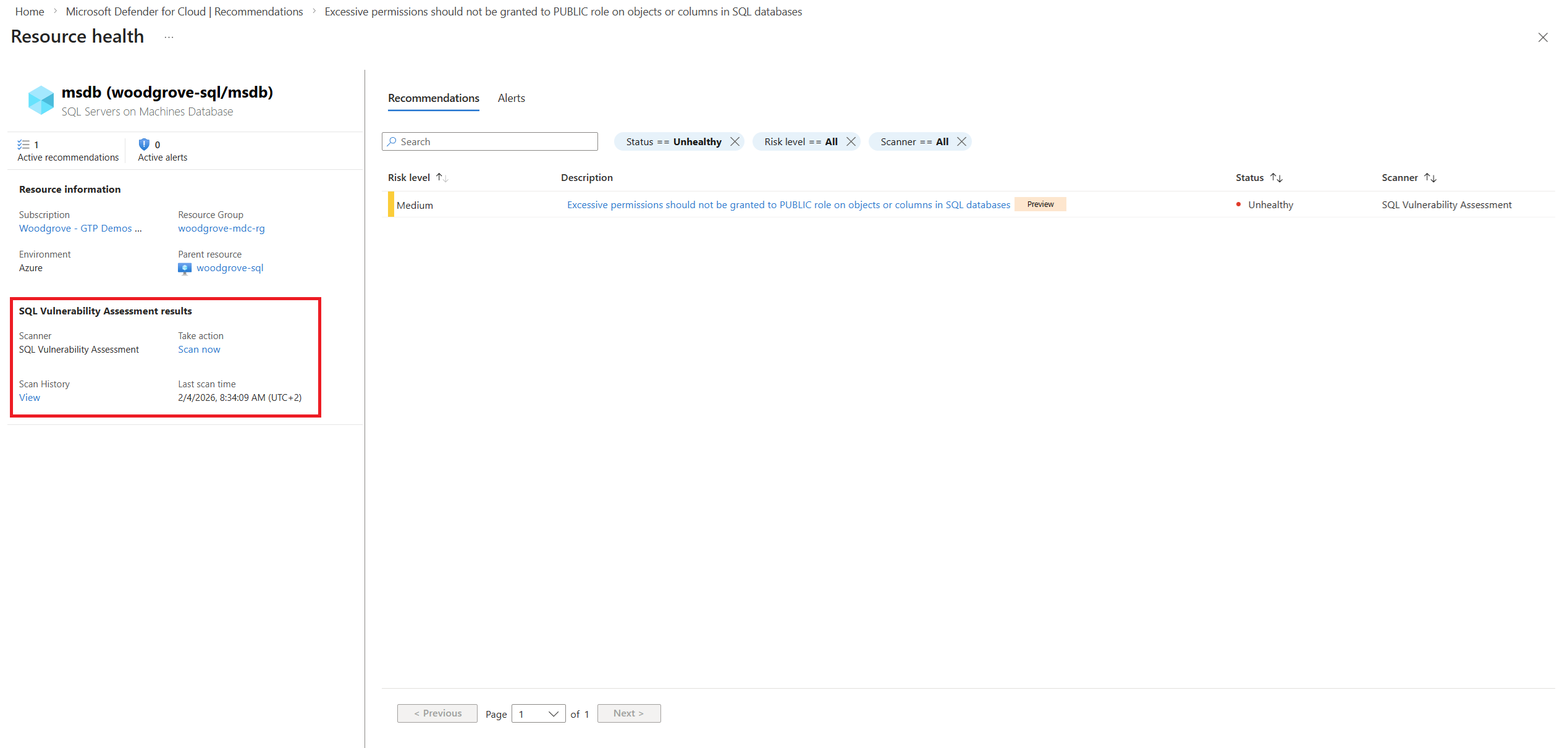
Select the resource name link for more information and actions.

In the database’s Resource health page, review the recommendations generated for the resource, trigger a SQL VA scan, or go to the SQL VA scan history page.
Review findings (By Title only):
Select a recommendation.
Select View remediation scripts for an aggregated view of the types of remediation operations for all databases in scope.
After reviewing, close the Remediation scripts side pane.
Scroll to the right to reach the Actions column under Affected resources.
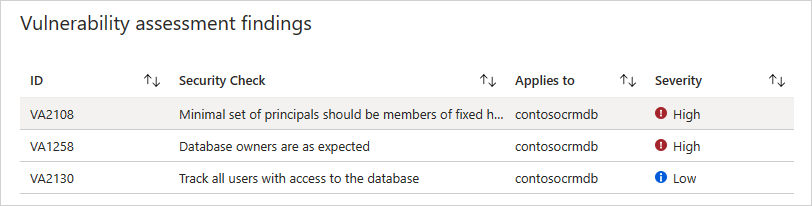
Select Show query and results for each affected database to set up baselines at scale.
Verify that the remediated findings appear as healthy. In the express configuration, baseline approval takes effect immediately. In the classic configuration, baseline approval takes effect the next scan.

Tip
You can set baselines at scale by using the By Title recommendations view and selecting a SQL Vulnerability Assessment recommendation. On the page that opens, scroll to the right in the Affected resources section and select Show query and results for each row to view and set baselines where applicable.



Review and remediate vulnerabilities (Defender portal)
Note
The Microsoft Defender portal experience is currently in preview. The existing server-level (aggregated) experience remains available in the Azure portal during preview.
In the Microsoft Defender portal experience:
- SQL Vulnerability Assessment findings follow the same recommendation structure used across Microsoft Defender for Cloud.
- Each SQL Vulnerability Assessment rule corresponds to its own recommendation.
- Recommendations are associated directly with the affected SQL database resource.
- Script generation and baseline settings are done using the Azure portal.
Go to the Microsoft Defender portal.
Select Exposure management > Recommendations.
Select the Cloud tab.
Select Misconfigurations.
Choose how you would like to view results:
- Recommendation per asset
- Recommendation title
Select the Scanner filter and from the options, select SQL Vulnerability Assessment.

Review findings (Recommendation per asset view only):
Select a recommendation to see its description and status.
Select Manage in Azure portal for SQL VA operations such as baseline settings and triggering SQL VA scans.

Review findings (Recommendation title view only):
Review the Status column for recommendations across all selected resources.
Click Manage in Azure portal for SQL VA operations such as baseline settings and triggering SQL VA scans.

Verify that the remediated findings appear as healthy. In the express configuration, baseline approval takes effect immediately. In the classic configuration, baseline approval takes effect the next scan.


Troubleshoot common issues
Use this table to resolve common issues when working with SQL Vulnerability Assessment:
| Issue | Likely cause | Resolution |
|---|---|---|
| Scan results not visible | Missing viewer role | Ensure Security Admin or Security Reader role is assigned. |
| Can't change settings | Insufficient configuration role | Assign SQL Security Manager (and for classic: Owner + Storage Blob Data Reader on storage account). |
| Baseline not reflected (classic) | New scan not run yet | Run another on-demand scan to apply baseline changes. |
| Baseline not reflected (express) | Expectation mismatch | Baseline applies immediately; refresh the Vulnerability Assessment tab. |
| Access error opening email link (classic) | Storage role missing | Add Storage Blob Data Reader for the storage account containing scan results. |
Next steps
- Learn more about Microsoft Defender for Azure SQL.
- Learn more about data discovery and classification.
- Learn more about storing vulnerability assessment scan results in a storage account accessible behind firewalls and VNets.