Note
Access to this page requires authorization. You can try signing in or changing directories.
Access to this page requires authorization. You can try changing directories.
Defender for Cloud's contextual security capabilities help security teams reduce the risk of significant breaches. Defender for Cloud uses environmental context to assess security issues, identify the biggest risks, and distinguish them from less risky issues. The cloud security explorer uses snapshot publishing, a method of publishing data at regular intervals known as snapshots. Snapshots ensure that the workload configuration data is refreshed daily, keeping it fresh and accurate.
Use the cloud security explorer to identify security risks in your cloud environment. Run graph-based queries on the cloud security graph, Defender for Cloud's context engine. Prioritize your security team's concerns while considering your organization's specific context and conventions.
Use the cloud security explorer to query security issues and environment context, including asset inventory, internet exposure, permissions, and lateral movement between resources across Azure, Amazon Web Services (AWS), and Google Cloud Platform (GCP).
Prerequisites
Before you use cloud security explorer, make sure the following requirements are met:
You must enable Defender Cloud Security Posture Management (CSPM)
- You must enable agentless scanning.
For agentless container posture, you must enable the following extensions:
Note
With only Defender for Servers P2 plan 2 enabled, you can query for keys and secrets. However, you need Defender CSPM to use the full explorer.
Required roles and permissions: You need one of the following Azure roles to use cloud security explorer:
- Security Reader
- Security Admin
- Reader
- Contributor
- Owner
Check the cloud availability tables to see which government and cloud environments are supported.
Build a query
The cloud security explorer lets you build queries to proactively hunt for security risks in your environments with dynamic and efficient features such as:
Multi-cloud and multi-resource queries - The entity selection control filters are grouped and combined into logical control categories to help you build queries across cloud environments and resources simultaneously.
Custom Search - Use the dropdown menus to apply filters and build your query.
Query templates - Use any of the available prebuilt query templates to build your query more efficiently.
Share query link - Copy and share a link to your query with others.
To build a query:
Sign in to the Azure portal.
Navigate to Microsoft Defender for Cloud > Cloud Security Explorer.

Find and select a resource from the drop-down menu.
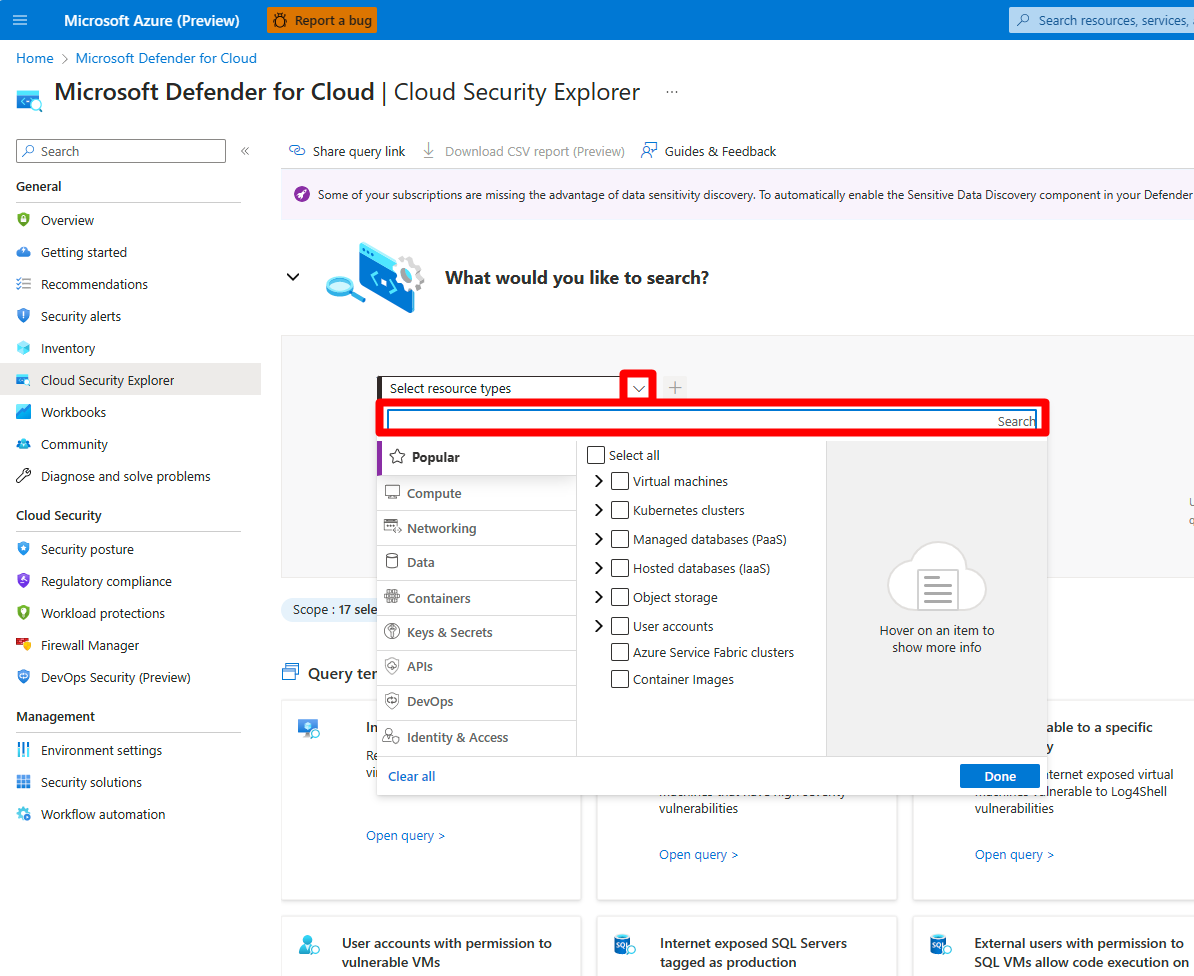
Select + to add more filters to your query.

Add subfilters if necessary.
After building your query, select Search to run it.

To save a copy of your results locally, select the Download CSV report button to save your search results as a CSV file.


Use query templates
Query templates are ready-made searches that use common filters. To use a template, scroll to the bottom of the page and select Open query.

You can change any template to fit your needs. Update the query, then select Search to see your results.
Share a query
You can share any query with others. After you create a query, select Share query link to copy it to your clipboard.
