Note
Access to this page requires authorization. You can try signing in or changing directories.
Access to this page requires authorization. You can try changing directories.
Microsoft Defender for Cloud helps improve security posture for supported machines with endpoint detection and response (EDR). Defender for Cloud:
- Works with Microsoft Defender for Endpoint as a built-in EDR solution.
- Scans Azure virtual machines (VMs), AWS machines, and GCP machines to check whether an EDR solution is installed and running. The EDR solution can be Defender for Endpoint or a supported non-Microsoft solution.
Based on scan results, Defender for Cloud provides recommendations to help you install and run EDR solutions correctly. This article describes how to fix those recommendations.
Note
- Defender for Cloud uses agentless scanning to assess EDR settings.
- Agentless scanning replaces the Log Analytics agent (also known as the Microsoft Monitoring Agent (MMA)), which was previously used to collect machine data.
- Scanning using the MMA was deprecated in November 2024.
- To exempt resources from these EDR assessments, ensure that the Azure CSPM initiative is assigned. This initiative is enabled by default when Defender cloud security posture management (Defender CSPM) is turned on.
Prerequisites
Before you investigate or remediate EDR solution recommendations, make sure you meet these requirements.
| Requirement | Details |
|---|---|
| Plan | Defender for Cloud must be available in the Azure subscription and one of these plans must be enabled: - Defender for Servers Plan 2 - Defender cloud security posture management (Defender CSPM) |
| Agentless scanning | Agentless scanning for machines must be turned on. Agentless scanning is enabled by default in both Defender for Servers Plan 2 and Defender CSPM. If you need to turn it on manually, see Enable agentless scanning for VMs. |
Investigate EDR solution recommendations
To review EDR recommendations for your machines:
In Defender for Cloud, open Recommendations.
Search for and select one of these recommendations:
EDR solution should be installed on Virtual MachinesEDR solution should be installed on EC2sEDR solution should be installed on Virtual Machines (GCP)
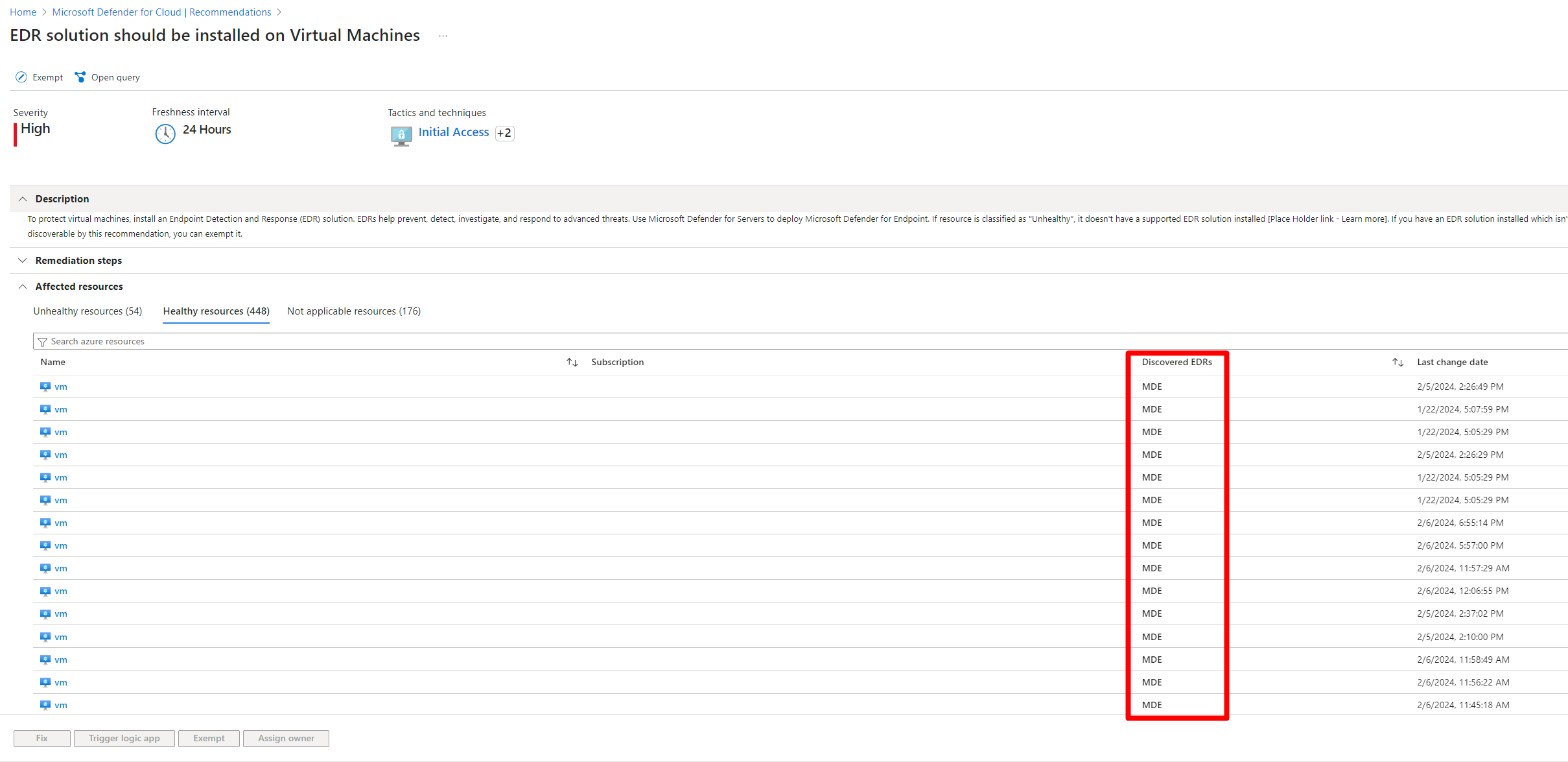
In the recommendation details, select the Healthy resources tab.
Find the EDR solution for each machine in the Discovered EDRs column.
Remediate EDR solution recommendations
To remediate EDR solution recommendations:
Select the relevant recommendation.

Select one of the listed recommended actions to see the remediation steps for that action.

Enable Defender for Endpoint integration
The Enable Microsoft Defender for Endpoint integration action appears when Defender for Endpoint can be installed on a machine. This action is available only when no supported non-Microsoft EDR solution is detected on the machine.
Enable Defender for Endpoint on the machine as follows:
Select the affected machine. You can also select multiple machines with the
Enable Microsoft Defender for Endpoint integrationrecommended action.Select Fix.

In Enable EDR solution, select Enable. This installs the Defender for Endpoint sensor on all Windows and Linux servers in the subscription.
After the process completes, it can take up to 24 hours for your machine to appear in the Healthy resources tab.


Turn on the required Defender plan
The Upgrade Defender plan action is available when:
- A supported non-Microsoft EDR solution isn't detected on the machine.
- A required plan (Defender for Servers Plan 2 or Defender CSPM) isn't turned on for the machine.
Fix the recommendation as follows:
Select the affected machine. You can also select multiple machines with the
Upgrade Defender planrecommended action.Select Fix.

In Enable EDR solution, select a plan in the dropdown menu. Each plan has a cost. See Defender for Cloud pricing details.
Select Enable.


After the process completes, it can take up to 24 hours for your machine to appear on the Healthy resources tab.
Troubleshoot Defender for Endpoint onboarding
The Troubleshoot onboarding action appears when Defender for Endpoint is found on a machine but didn't onboard correctly.
Select the affected VM.
Select Remediation steps.

Fix onboarding issues for your platform:

After you finish, it can take up to 24 hours for your machine to show on the Healthy resources tab.