Note
Access to this page requires authorization. You can try signing in or changing directories.
Access to this page requires authorization. You can try changing directories.
Use this article to query vulnerability assessment findings and export SQL scan results for investigation, reporting, and remediation workflows.
Query and export vulnerability assessment scan results
Defender for SQL's vulnerability assessment (VA) scans your databases every week and reports identified misconfigurations.
All findings are stored in Azure Resource Graph (ARG), which is the source for most of the Defender for SQL user interface experience. When findings are written to ARG, Defender for Cloud enriches them with related settings, such as disabled rules or exempt recommendations. As a result, ARG reflects the effective status of findings and recommendations.
This article describes several ways to consume and export your scan results.
Query and export findings in ARG with Defender for Cloud
Use the Defender for Cloud Recommendations page to query findings in Azure Resource Graph (ARG) and export results for reporting.
To query and export your findings with ARG with Defender for Cloud:
Sign in to the Azure portal.
Navigate to Microsoft Defender for Cloud > Recommendations.
Set the Scanner filter to SQL Vulnerability Assessment.
Select Open Query.
Select Run query.
Select Download as CSV.
The query changes based on the recommendations view you've selected.

These queries are editable. You can customize them for a specific resource, a set of findings, or a finding status.
Query findings directly in Resource Graph Explorer
Use Resource Graph Explorer to query findings directly when you need advanced query customization.
To query and export your findings with ARG:
Sign in to the Azure portal.
Navigate to Resource Graph Explorer.
Edit and enter the following query. Replace the placeholders in the
resourceIdfilter with the resource ID of your SQL database:securityresources | where type =~ "microsoft.security/assessments" | extend assessmentKey=extract(@"(?i)providers/Microsoft.Security/assessments/([^/]*)", 1, id), parentResourceId= extract("(.+)/providers/Microsoft.Security", 1, id) | extend resourceIdTemp = iff(properties.resourceDetails.id != "", properties.resourceDetails.id, extract("(.+)/providers/Microsoft.Security", 1, id)) | extend scanner = (// AssessmentsQueryBuilder.columnDefinitions.scanner (tostring( coalesce(bag_keys(parse_json(tostring(properties.additionalData.ScannersDetails)))[0], bag_keys(parse_json(tostring(properties.additionalData.ScannersDetails)))[0], properties.additionalData.scanner, properties.additionalData.scanner, properties.additionalData.Scanner, properties.additionalData.Scanner, properties.additionalData.SecretScannerName, properties.additionalData.SecretScannerName, properties.additionalData.ToolName, properties.additionalData.ToolName, properties.additionalData.ScannerName, properties.additionalData.ScannerName, todynamic("N/A"))))) | where scanner in~ ("SQL Vulnerability Assessment") | extend resourceId = iff(properties.resourceDetails.source =~ "OnPremiseSql", strcat(resourceIdTemp, "/servers/", properties.resourceDetails.serverName, "/databases/" , properties.resourceDetails.databaseName), resourceIdTemp) | where resourceId =~ "/subscriptions/<subscription-id>/resourceGroups/<resource-group-name>/providers/Microsoft.Sql/servers/<server-name>/databases/<database-name>" | project resourceId, subscriptionId, assessmentKey, RuleId=properties.additionalData.ruleId, name=properties.displayName, description=properties.metadata.description, severity=properties.additionalData.severity, status=properties.status.code, cause=properties.status.cause, category=properties.additionalData.category, impact=properties.additionalData.impact, remediation=properties.metadata.remediationDescription, benchmarks=properties.additionalData.benchmarks, scanner, HasBaseline=properties.additionalData.hasBaselineSelect Run query.
Select Download as CSV.


The Resource Graph Explorer query is editable. You can customize it for a specific resource, a set of findings, or a finding status.
Open a query from your SQL database
Use the SQL database resource page to query vulnerability findings for a specific SQL database.
To open a query from your SQL database:
Sign in to the Azure portal.
Navigate to the relevant SQL database.
Go to Security > Microsoft Defender for Cloud.
Select the relevant recommendation finding.
Select Open Query.
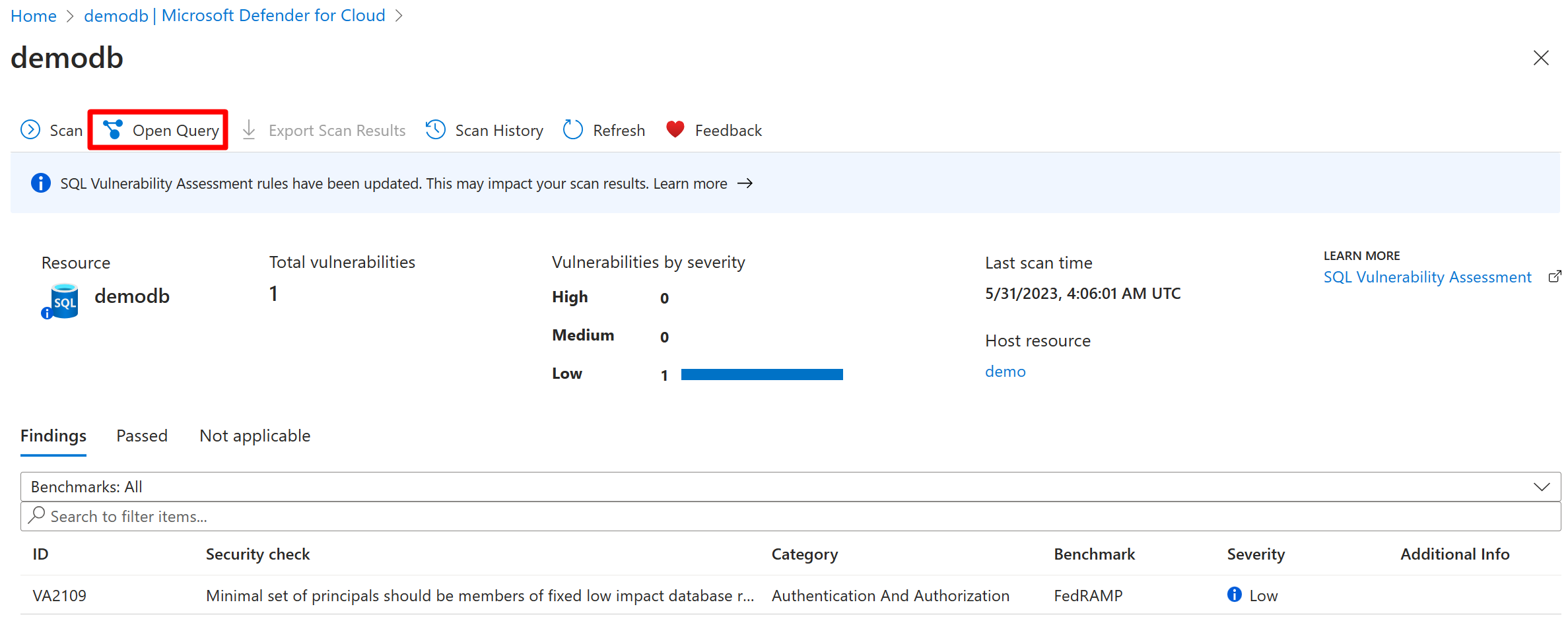
Select Run query.
Select Download as CSV.
The query opened from the SQL database resource page is editable. You can customize it for a specific resource, a set of findings, or a finding status.
Automate email notifications with Logic Apps
Azure Logic Apps is a low-code and no-code cloud service that automates workflows and integrates data and services across cloud and on-premises systems. You can use Logic Apps to automate reports for vulnerability assessment findings across supported SQL versions and send weekly report summaries for scanned servers. You can also customize schedules, such as daily, weekly, or monthly, and report scopes, such as database, server, or resource group.
To automate notifications by using the sample template, follow the Logic Apps email notification template for SQL vulnerability reports.
This example Logic App template automates a weekly email report that summarizes the vulnerability scan results for every database from a selected list of servers. After you deploy the template, you must authorize the Microsoft 365 connector to generate a valid access token to authenticate your credentials.
The recipients receive emails with the findings of the scan results.
Sample email Azure SQL server:

Sample email SQL VM:

Other methods for exporting scan results
You can use workflow automations to trigger actions based on changes to the recommendation's status.
You can also use the Vulnerability Assessments workbook to view an interactive report of your findings. The data from the workbook can be exported, and a copy of the workbook can be customized and stored. Learn how to create rich, interactive reports of Defender for Cloud data.
You can also enable Continuous export to stream alerts and recommendations as they're generated or to define a schedule to send periodic snapshots of all of the new data.