Note
Access to this page requires authorization. You can try signing in or changing directories.
Access to this page requires authorization. You can try changing directories.
When you onboard your Amazon Web Service (AWS) or Google Cloud Platform (GCP) environments, Defender for Cloud creates a security connector as an Azure resource. It also sets up an Identity and Access Management (IAM) role as the identity provider.
To assign permissions on a specific account or project connector, first decide which AWS accounts or GCP projects your users need. Then find the security connectors that match those accounts or projects.
Prerequisites
An Azure account. If you don't already have an Azure account, you can create your Azure free account today.
At least one security connector for Connect Azure subscriptions, Onboard AWS accounts, or Onboard GCP projects.
Configure permissions on the security connector
You manage permissions for security connectors through Azure role-based access control (RBAC). You can assign roles to users, groups, and applications at any level: subscription, resource group, or resource.
To configure connector permissions:
Sign in to the Azure portal.
Navigate to Microsoft Defender for Cloud > Environment settings.
Locate the relevant AWS or GCP connector.
Assign permissions to workload owners by using All resources or Azure Resource Graph in the Azure portal.
Search for and select All resources.

Select Manage view > Show hidden types.

Select the Types equals all filter.
Enter
securityconnectorin the value field and selectmicrosoft.security/securityconnectors.
Select Apply.
Select the relevant resource connector.
Select Access control (IAM).
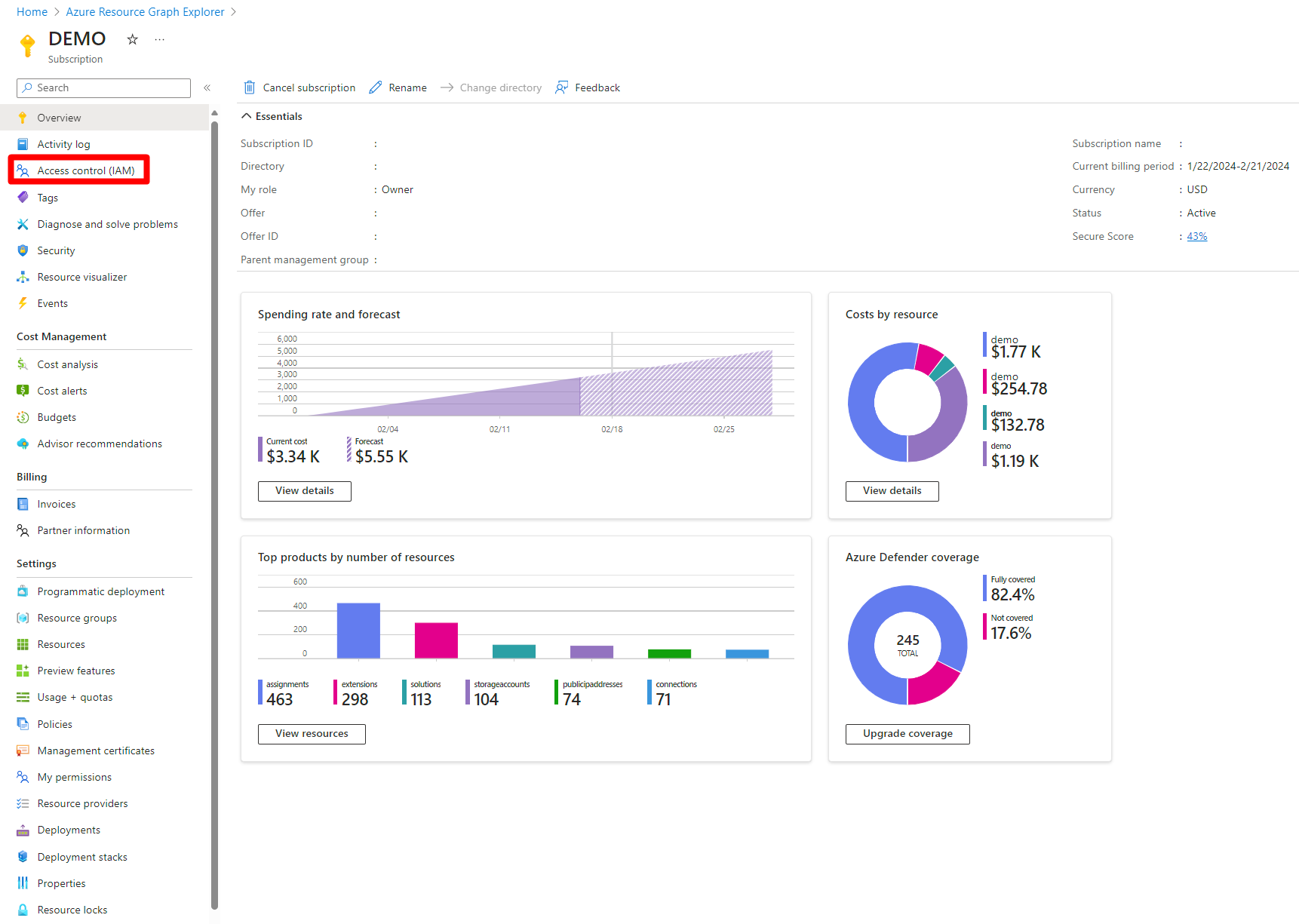
Select +Add > Add role assignment.
Select the desired role.
Select Next.
Select + Select members.

Search for and select the relevant user or group.
Select the Select button.
Select Next.
Select Review + assign.
Review the information.
Select Review + assign.


After you set permissions on the security connector, workload owners can view Defender for Cloud recommendations for associated AWS and GCP resources.