Note
Access to this page requires authorization. You can try signing in or changing directories.
Access to this page requires authorization. You can try changing directories.
Azure Monitor Logs provides an end-to-end solution for ingesting logs. From Log Analytics, Azure Monitor's user interface for querying logs, you can connect log data to Microsoft's Power BI data visualization platform.
This article explains how to connect Log Analytics to Power BI by exporting query results. Use the exported data from Log Analytics to build reports and dashboards in Power BI.
Note
Use free Power BI features to integrate and create reports and dashboards. More advanced features, such as sharing your work, scheduled refreshes, dataflows, and incremental refresh might require purchasing a Power BI Pro or Premium account. For more information, see Learn more about Power BI pricing and features.
Prerequisites
- To export the query to a .txt file that you can use in Power BI Desktop, you need Power BI Desktop.
- To create a new dataset based on your query directly in the Power BI service:
- You need a Power BI account.
- You must give permission in Azure for the Power BI service to write logs. For more information, see Prerequisites to configure Azure Log Analytics for Power BI.
Permissions required
- To export the query to a .txt file that you can use in Power BI Desktop, you need
Microsoft.OperationalInsights/workspaces/query/*/readpermissions to the Log Analytics workspaces you query, as provided by the Log Analytics Reader built-in role, for example. - To create a new dataset based on your query directly in the Power BI service, you need
Microsoft.OperationalInsights/workspaces/writepermissions to the Log Analytics workspaces you query, as provided by the Log Analytics Contributor built-in role, for example.
Connect to Power BI from Log Analytics
To export log data to Power BI, start with a query in Log Analytics:
- In the Azure portal, go to your Log Analytics workspace.
- Select Logs to open the Log Analytics query editor.
- Write or select a Kusto Query Language (KQL) query that returns the data you want to visualize in Power BI.
- Select Run to verify the query returns the expected results.
- On the toolbar, select Export, and then choose one of the Power BI options described in the next section.
Create Power BI datasets and reports from Log Analytics queries
The Export menu provides two options for working with your Log Analytics query results in Power BI:
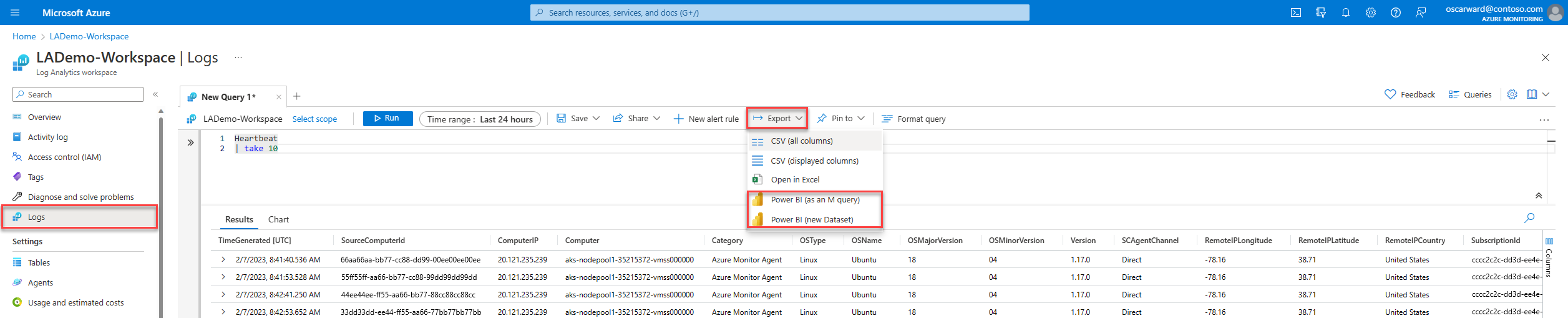
- Power BI (as an M query): This option exports the query to a .txt file that contains an M (Power Query formula language) script with the connection details for your Log Analytics workspace. Open this file in Power BI Desktop to load the query results as a data source. Use this option when you need to model or transform data in ways that aren't available in the Power BI service. Otherwise, consider exporting the query as a new dataset.
- Power BI (new Dataset): This option creates a new dataset based on your query directly in the Power BI service. After you create the dataset, you can create reports, use Analyze in Excel, share it with others, and use other Power BI features. For more information, see Create a Power BI dataset directly from Log Analytics.
Note
The export operation is subject to the Log Analytics Query API limits. If your query results exceed the maximum size of data returned by the Query API, the operation exports partial results.
Collect data with Power BI dataflows
Power BI dataflows provide an alternative way to bring Log Analytics data into Power BI. A dataflow is a cloud-based ETL (extract, transform, and load) process that collects, transforms, and stores data for use across multiple Power BI datasets.
Use dataflows when you need to:
- Centralize data preparation logic that multiple datasets and reports share.
- Combine Log Analytics data with data from other sources before modeling.
- Schedule data refresh without requiring Power BI Desktop.
To connect a dataflow to Log Analytics, add an Azure Log Analytics connector as a data source in your dataflow. For more information, see Create and use dataflows in Power BI.
Incremental refresh
Both Power BI datasets and Power BI dataflows support incremental refresh. Incremental refresh for datasets is available with Power BI Pro and Premium licenses. Incremental refresh for dataflows requires Power BI Premium.
Incremental refresh runs small queries and updates smaller amounts of data per run instead of ingesting all the data again and again when you run the query. You can save large amounts of data but add a new increment of data every time the query is run. This behavior is ideal for longer-running reports.
Power BI incremental refresh relies on the existence of a datetime field in the result set. Before you configure incremental refresh, make sure your Log Analytics query result set includes at least one datetime field.
To learn more and how to configure incremental refresh, see Power BI datasets and incremental refresh and Power BI dataflows and incremental refresh.
Reports and dashboards
After your data is available in Power BI, you can create reports and dashboards to visualize your log data. Common use cases include:
- Building dashboards that show operational health metrics from Azure Monitor logs.
- Creating trend reports that track log query results over time.
- Sharing insights with stakeholders who don't have access to Log Analytics.
For more information, see Create and share your first Power BI report and Introduction to dashboards for Power BI designers.
Next steps
Learn how to: