Note
Access to this page requires authorization. You can try signing in or changing directories.
Access to this page requires authorization. You can try changing directories.
This article describes how to implement Zero Trust security for web apps to enable inspection and end-to-end encryption. The Zero Trust model includes many other concepts, such as continuous identity verification and minimizing the size of the implicit trust areas.
This article focuses on the encryption and inspection component of a Zero Trust architecture for inbound traffic from the public internet. For more information about other aspects of deploying your application securely, such as authentication and authorization, see the Zero Trust documentation. The example in this article uses a multilayered approach. In a multilayered approach, network security makes up one of the layers of the Zero Trust model. In this layer, network appliances inspect packets to ensure that only legitimate traffic reaches applications.
Typically, different types of network appliances inspect different aspects of network packets:
Web application firewalls look for patterns that indicate an attack at the web application layer.
Next-generation firewalls can also look for generic threats.
This architecture focuses on a common pattern for maximizing security, in which Azure Application Gateway inspects and processes traffic before it reaches Azure Firewall Premium. In some scenarios, you can combine different types of network security appliances to increase protection. For more information, see Azure Firewall and Application Gateway for virtual networks.
Architecture
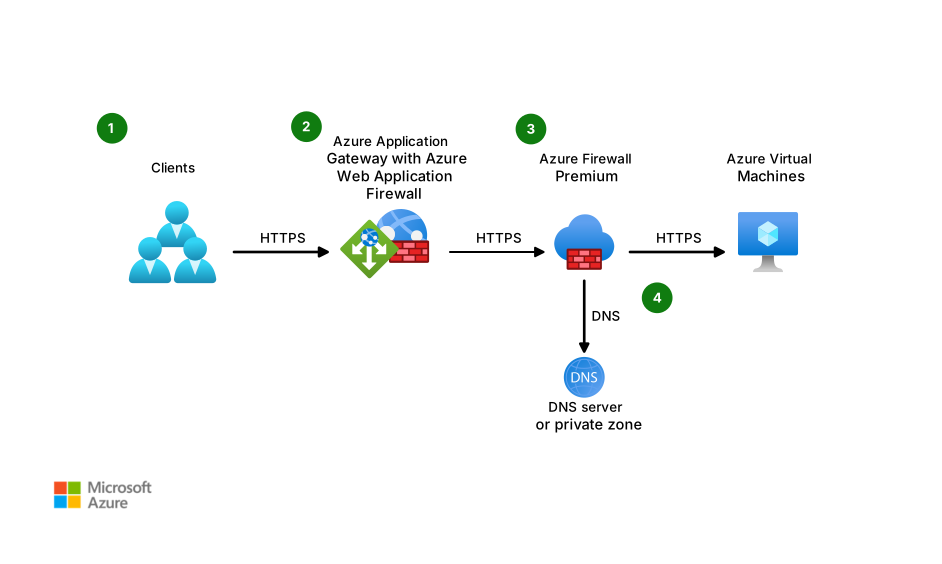
Download a Visio file of this architecture.
This architecture uses the Transport Layer Security (TLS) protocol to encrypt traffic at every step.
A client sends packets to Application Gateway. It runs with the optional addition of Azure Web Application Firewall.
Application Gateway terminates TLS. If Azure Web Application Firewall is enabled, it inspects the request for web application threats. Application Gateway then establishes a new TLS session and forwards allowed requests according to the configured routing rules.
Azure Firewall Premium runs the following security checks:
- TLS inspection decrypts and examines the packets.
- Intrusion detection and prevention system (IDPS) features check the packets for malicious intent.
If the packets pass these checks, Azure Firewall Premium takes these steps:
- It encrypts the packets.
- It uses a Domain Name System (DNS) service to determine the application virtual machine (VM).
- It forwards the packets to the application VM.
Various inspection engines in this architecture ensure traffic integrity:
Azure Web Application Firewall uses rules to prevent attacks at the web layer. Examples of attacks include SQL code injection and cross-site scripting. For more information about rules and the Open Worldwide Application Security Project (OWASP) Core Rule Set (CRS), see Web application firewall CRS rule groups and rules.
Azure Firewall Premium uses generic intrusion detection and prevention rules. These rules help identify malicious files and other threats that target web applications.
This architecture supports the following types of network design, which this article discusses:
- Traditional hub and spoke networks
- Networks that use Azure Virtual WAN as a platform
- Networks that use Azure Route Server to simplify dynamic routing
Azure Firewall Premium and name resolution
When Azure Firewall Premium checks for malicious traffic, it verifies that the HTTP Host header matches the packet IP address and Transmission Control Protocol (TCP) port. For example, suppose Application Gateway sends web packets to the IP address 172.16.1.4 and TCP port 443. The value of the HTTP Host header should resolve to that IP address.
HTTP Host headers usually don't contain IP addresses. Instead, the headers contain names that match the server's digital certificate. In this case, Azure Firewall Premium uses DNS to resolve the Host header name to an IP address. The network design determines which DNS solution works best.
Note
Application Gateway doesn't support port numbers in HTTP Host headers. As a result:
- Azure Firewall Premium assumes a default HTTPS TCP port of 443.
- The connection between Application Gateway and the web server only supports TCP port 443, not nonstandard ports.
Digital certificates
The following diagram shows the common names (CNs) and certificate authorities (CAs) that this architecture's TLS sessions and certificates use.
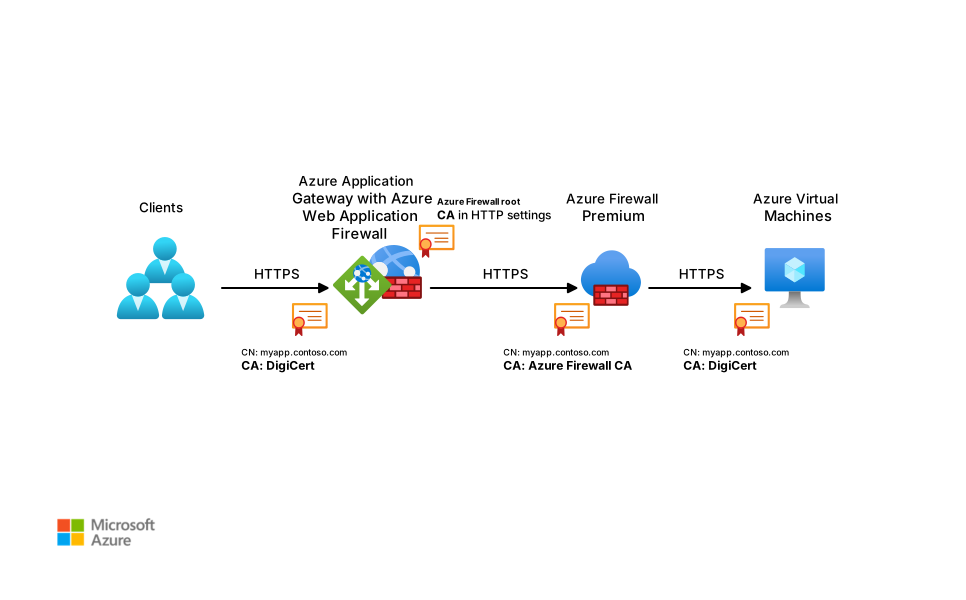
Azure Firewall dynamically generates its own certificates. This capability is one of the main reasons why it's placed behind Application Gateway. Otherwise, the application client is confronted with self-generated certificates that are flagged as a security risk.
TLS connections
This architecture contains three distinct TLS connections. Digital certificates validate each one.
From clients to Application Gateway
In Application Gateway, you deploy the digital certificate that clients see. A well-known CA such as DigiCert or Let's Encrypt typically issues such a certificate. This mechanism is fundamentally different from how Azure Firewall dynamically generates digital certificates from a self-signed or internal public key infrastructure CA.
From Application Gateway to Azure Firewall Premium
To decrypt and inspect TLS traffic, Azure Firewall Premium dynamically generates certificates. Azure Firewall Premium also presents itself to Application Gateway as the web server. The intermediate CA certificate configured for Azure Firewall Premium signs the certificates that Azure Firewall Premium generates. For more information, see Azure Firewall Premium certificates. Application Gateway needs to validate those certificates. In the Application Gateway backend settings (sometimes referred to as HTTP settings), upload the corresponding root CA certificate (.cer) as a trusted root certificate.
From Azure Firewall Premium to the web server
Azure Firewall Premium establishes a TLS session with the destination web server. Azure Firewall Premium verifies that a well-known CA signs the web server TLS packets.
Component roles
Application Gateway and Azure Firewall Premium handle certificates differently from one another because their roles differ:
Application Gateway is a reverse web proxy. It protects web servers from malicious clients by intercepting HTTP and HTTPS requests. You declare each protected server that's in the back-end pool of Application Gateway with its IP address or fully qualified domain name. Legitimate clients should be able to access each application. So you configure Application Gateway with a digital certificate that a public CA signs. Use a CA that any TLS client accepts.
Azure Firewall Premium is a forward web proxy. That is, it acts as a web proxy, protecting clients from malicious web servers by intercepting TLS calls from the protected clients. When a protected client makes an HTTP request, the forward web proxy impersonates the target web server by generating digital certificates and presenting them to the client. Azure Firewall Premium uses a private CA, which signs the dynamically generated certificates. You configure the protected clients to trust that private CA. In this architecture, Azure Firewall Premium protects requests from Application Gateway to the web server. Application Gateway trusts the private CA that Azure Firewall Premium uses.
Routing and traffic forwarding
Routing is slightly different depending on the topology of your network design. The following sections describe examples of hub and spoke, Virtual WAN, and Route Server topologies. All topologies have the following aspects in common:
Application Gateway always acts as a proxy. In this architecture, Azure Firewall Premium also serves as a proxy because TLS inspection is enabled on an application rule. Application Gateway terminates the TLS sessions from clients and builds new TLS sessions toward Azure Firewall. Azure Firewall terminates those sessions and builds new TLS sessions toward the workloads. If traffic instead matches a network rule, Azure Firewall forwards it without application-rule TLS inspection. Whether Azure Firewall applies IDPS policies depends on the IDPS configuration. For more information, see IDPS and private IP addresses.
For traffic processed by an application rule, the workload sees connections that come from the Azure Firewall subnet IP address because application rules force the firewall to act as proxy, with the effect that the final destination sees the packet as coming from the firewall's IP addresses. Even if proxying isn't the same as address translation, you can oversimplify this behavior with the mental model that application rules always use source network address translation (SNAT). The original client IP address is preserved in the
X-Forwarded-ForHTTP header that Application Gateway inserts. Azure Firewall also supports injecting the source client IP address in theX-Forwarded-Forheader. In this scenario, the source client IP address is the Application Gateway's IP address.Traffic from Application Gateway to the workload is typically sent to Azure Firewall by using Azure routing mechanisms. These mechanisms include user-defined routes (UDRs) configured in the Application Gateway subnet or routes that Virtual WAN or Route Server inject. Explicitly defining the Azure Firewall private IP address in the Application Gateway back-end pool is possible, but we don't recommend doing so because it removes some of the native functionality of Application Gateway, such as load balancing and session stickiness.
The following sections describe some of the most common topologies that you can use with Azure Firewall and Application Gateway.
Hub and spoke topology
A hub and spoke design typically deploys shared network components in the hub virtual network and application-specific components in the spokes. In most systems, Azure Firewall Premium is a shared resource. Azure Web Application Firewall can be a shared network device or an application-specific component. It's a best practice to treat Application Gateway as an application component and deploy it in a spoke virtual network for the following reasons:
It can be difficult to troubleshoot Azure Web Application Firewall alerts. You generally need in-depth knowledge of the application to decide whether the messages that trigger those alarms are legitimate.
If you treat Application Gateway as a shared resource, you might exceed Application Gateway limits.
You might face role-based access control problems if you deploy Application Gateway in the hub. This situation can occur when teams manage different applications but use the same instance of Application Gateway. Each team then has access to the entire Application Gateway configuration.
In traditional hub and spoke architectures, DNS private zones provide an easy way to use DNS:
- Configure a DNS private zone.
- Link the zone to the virtual network that contains Azure Firewall Premium.
- Make sure that an address record exists for the value that Application Gateway uses for traffic and for health checks.
The following diagram shows the packet flow when Application Gateway is in a spoke virtual network. In this case, a client connects from the public internet.

A client submits a request to a web server.
Application Gateway intercepts the client packets and examines them. If the packets pass inspection, Application Gateway sends the packets toward the back-end VM. A UDR in the Application Gateway subnet sets Azure Firewall Premium as the next hop, so the packets go to Azure Firewall Premium before they reach the application VM.
Azure Firewall Premium runs security checks on the packets. If they pass the tests, Azure Firewall Premium forwards the packets to the application VM in a new TLS connection.
The VM responds directly to the firewall, since Azure Firewall uses application rules and hence the VM only sees Azure Firewall's IP addresses as sources.
Azure Firewall Premium knows from its internal tables that this connection came from the Application Gateway, and forwards the traffic accordingly.
Application Gateway answers the client.
Traffic can also arrive from an on-premises network instead of the public internet. The traffic flows either through a site-to-site virtual private network (VPN) or through Azure ExpressRoute. In this scenario, the traffic first reaches a virtual network gateway in the hub. The rest of the network flow is the same as the previous diagram.

An on-premises client connects to the virtual network gateway.
The virtual network gateway forwards the client packets to Application Gateway.
Application Gateway examines the packets. If they pass inspection, a UDR in the Application Gateway subnet forwards the packets to Azure Firewall Premium.
Azure Firewall Premium runs security checks on the packets. If they pass the tests, Azure Firewall Premium forwards the packets to the application VM in a new TLS connection.
The VM responds directly to the firewall, since Azure Firewall uses application rules and hence the VM only sees Azure Firewall's IP addresses as sources.
Azure Firewall Premium knows from its internal tables that this connection came from the Application Gateway, and forwards the traffic accordingly.
Application Gateway sends the packets to the client, with the virtual network gateway as next hop.
The virtual network gateway forwards the packets to the client.
Virtual WAN topology
You can also use the networking service Virtual WAN in this architecture. This component provides many benefits. For instance, it eliminates the need for user-maintained UDRs in spoke virtual networks. You can define static routes in virtual hub route tables instead. The programming of every virtual network that you connect to the hub then contains these routes.
When you use Virtual WAN as a networking platform, consider two main differences:
You can't link DNS private zones to a virtual hub because Microsoft manages virtual hubs. As the subscription owner, you don't have permissions to link private DNS zones. As a result, you can't associate a DNS private zone with the secure hub that contains Azure Firewall Premium.
To implement DNS resolution for Azure Firewall Premium, use DNS servers instead:
Configure the Azure Firewall DNS settings to use custom DNS servers.
Deploy the servers in a shared services virtual network that you connect to the virtual WAN.
Link a DNS private zone to the shared services virtual network. The DNS servers can then resolve the names that Application Gateway uses in HTTP Host headers. For more information, see Azure Firewall DNS settings.
You can only use Virtual WAN to program routes in a spoke if the prefix is shorter (less specific) than the virtual network prefix. For example, in the preceding diagrams, the spoke virtual network has the prefix
172.16.0.0/16. In this case, Virtual WAN isn't able to inject a route that matches the virtual network prefix (172.16.0.0/16) or any of the subnets (172.16.0.0/24,172.16.1.0/24). In other words, Virtual WAN can't direct traffic between two subnets that are in the same virtual network.This limitation becomes apparent when Application Gateway and the destination web server are in the same virtual network. Virtual WAN can't force the traffic between Application Gateway and the web server to go through Azure Firewall Premium. One work-around is to manually configure UDRs in the Application Gateway and web server subnets.
The following diagram shows the packet flow in an architecture that uses Virtual WAN. In this scenario, access to Application Gateway comes from an on-premises network. A site-to-site VPN or ExpressRoute gateway connects that network to Virtual WAN. The following packet flow describes traffic through a VPN gateway, but the flow through an ExpressRoute gateway would be identical. Internet-based access follows a similar path.

An on-premises client connects to the virtual hub VPN gateway.
The VPN gateway forwards the client packets to Application Gateway.
Application Gateway examines the packets. If they pass inspection, the Application Gateway subnet forwards the packets to Azure Firewall Premium.
Azure Firewall Premium requests DNS resolution from a DNS server in the shared services virtual network.
The DNS server answers the resolution request.
Azure Firewall Premium runs security checks on the packets. If they pass the tests, Azure Firewall Premium forwards the packets to the application VM in a new TLS connection.
The VM responds directly to the firewall, since Azure Firewall uses application rules and hence the VM only sees Azure Firewall's IP addresses as sources.
Azure Firewall Premium knows from its internal tables that this connection came from the Application Gateway, and forwards the traffic accordingly.
Application Gateway sends the packets to the client, with the virtual hub VPN gateway as next hop.
The virtual hub VPN gateway forwards the packets to the client.
In the past, you needed to modify the routing that the hub advertised to the spoke virtual networks, since Application Gateway v2 only supported a 0.0.0.0/0 route with next hop type of Internet. However, this limitation was fixed with the feature Private Application Gateway deployment. At the time of this writing, you need to manually onboard your Azure subscription to this feature. If you provisioned your Application Gateway before enabling this functionality, you need to make sure that no default route is propagated to the Application Gateway's subnet through either of these methods:
Create a route table with a route for
0.0.0.0/0and a next hop type ofInternet. Associate that route with the subnet that you deploy Application Gateway in.If you deploy Application Gateway in a dedicated spoke, disable the propagation of the default route in the settings for the virtual network connection.
NVAs and Route Server
You can use Network Virtual Appliances (NVAs) that terminate and inspect TLS connections in this topology. Optionally, you can use Route Server to automatically inject routes in spokes. Use this functionality to avoid the administrative overhead of maintaining route tables. Route Server combines the Virtual WAN and hub and spoke variants:
You can use Route Server to manage hub virtual networks. As a result, you can link the hub virtual network to a DNS private zone.
Route Server has the same limitation that Virtual WAN has concerning IP address prefixes. You can only inject routes into a spoke if the prefix is shorter (less specific) than the virtual network prefix. Because of this limitation, Application Gateway and the destination web server need to be in different virtual networks.
The following diagram shows the packet flow when Route Server simplifies dynamic routing. Consider the following points:
Route Server currently requires the device that injects the routes to send them over Border Gateway Protocol (BGP). Azure Firewall Premium doesn't support BGP, so this topology is only applicable for third-party NVAs.
The functionality of the NVA in the hub determines whether your implementation needs DNS.
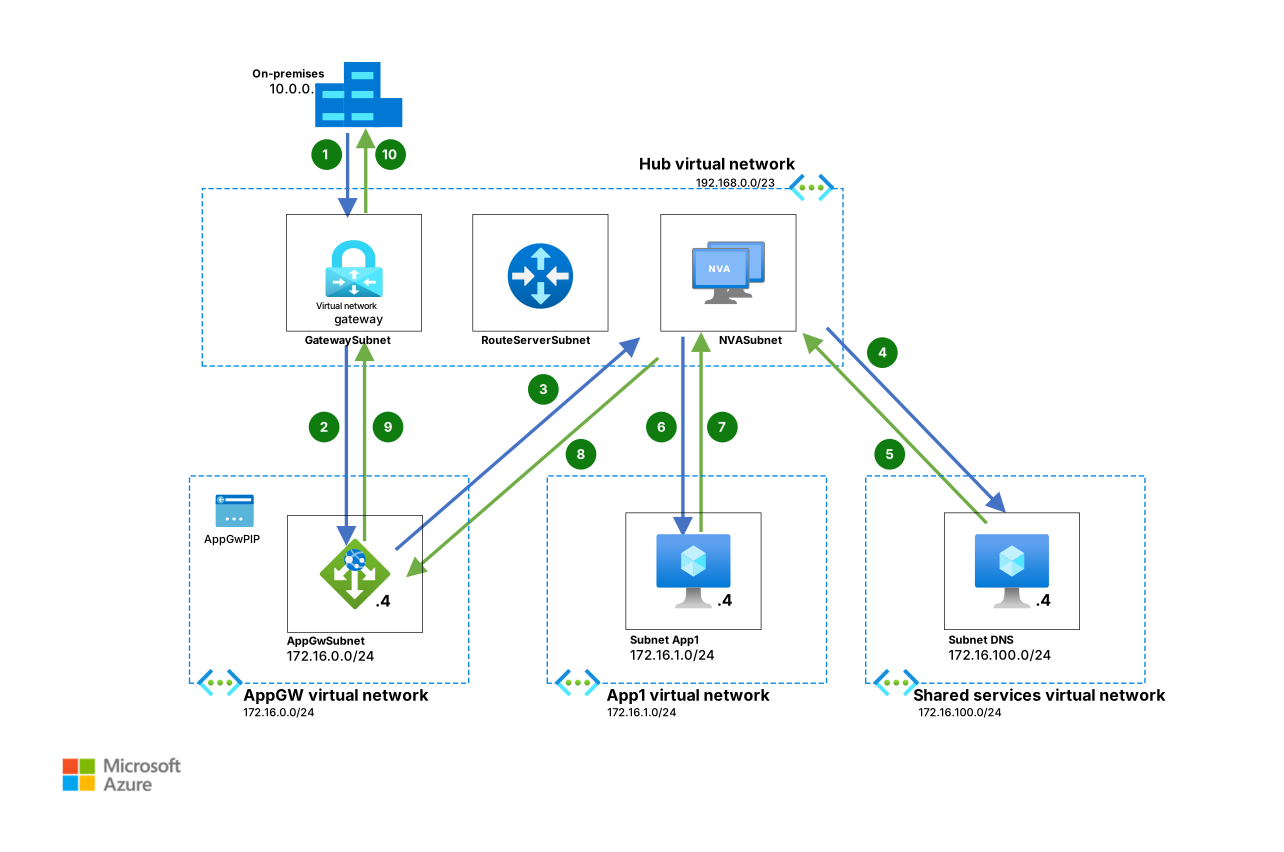
An on-premises client connects to the virtual network gateway.
The virtual network gateway forwards the client packets to Application Gateway.
Application Gateway examines the packets. If they pass inspection, the Application Gateway subnet forwards the packets to a back-end machine. Route Server injects a route in the Application Gateway subnet that forwards the traffic to an NVA.
The NVA subnet requests DNS resolution from a DNS server in the shared services virtual network.
The DNS server answers the resolution request.
The NVA runs security checks on the packets. If they pass the tests, the NVA forwards the packets to the application VM in a new TLS connection.
The VM responds directly to the NVA, since the NVA behaves as a proxy and started a new TLS connection. Consequently, the application VM only sees the NVA's IP addresses as sources.
The NVA knows from its internal tables that this connection came from the Application Gateway, and forwards the traffic accordingly.
Application Gateway sends the packets to the client, with the virtual network gateway as next hop.
The virtual network gateway forwards the packets to the client.
Like with Virtual WAN, you might need to modify the routing when you use Route Server, unless your Application Gateway has been provisioned after enabling the Private Application Gateway deployment feature. If you advertise the 0.0.0.0/0 route from the NVA to Azure Route Server, by default it propagates to the Application Gateway subnet. If your Application Gateway doesn't support private deployments it doesn't support that route. In that case, configure a route table for the Application Gateway subnet and include a route for 0.0.0.0/0 with a next hop type of Internet in that table.
IDPS and private IP addresses
Azure Firewall Premium decides which IDPS rules to apply based on the source and destination IP addresses of the packets. By default, Azure Firewall treats private IP addresses in the RFC 1918 ranges (10.0.0.0/8, 192.168.0.0/16, and 172.16.0.0/12) and RFC 6598 range (100.64.0.0/10) as internal. So, if you deploy Application Gateway in a subnet in one of these ranges, Azure Firewall Premium considers traffic between Application Gateway and the workload to be internal. Therefore, only IDPS signatures marked to be applied to internal traffic or to any traffic are used. IDPS signatures marked to be applied for inbound or outbound traffic aren't applied to traffic between Application Gateway and the workload. For more information, see Azure Firewall IDPS rules.
The easiest way to force IDPS inbound signature rules to be applied to the traffic between Application Gateway and the workload is by placing Application Gateway in a subnet that uses a prefix outside of the private ranges. You don't necessarily need to use public IP addresses for this subnet. Instead, you can customize the IP addresses that Azure Firewall Premium treats as internal for IDPS. For example, if your organization doesn't use the 100.64.0.0/10 range, you can eliminate this range from the list of internal prefixes for IDPS and deploy Application Gateway in a subnet configured with an IP address in 100.64.0.0/10. For more information, see Azure Firewall Premium private IPDS ranges.
Contributors
Microsoft maintains this article. The following contributors wrote this article.
Principal author:
- Jose Moreno | Solution Engineer
To see nonpublic LinkedIn profiles, sign in to LinkedIn.